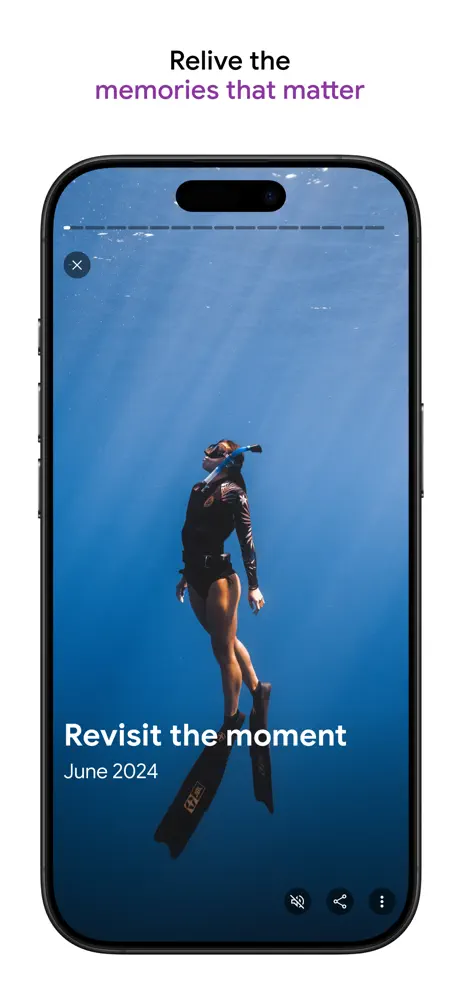
لقطات الشاشة
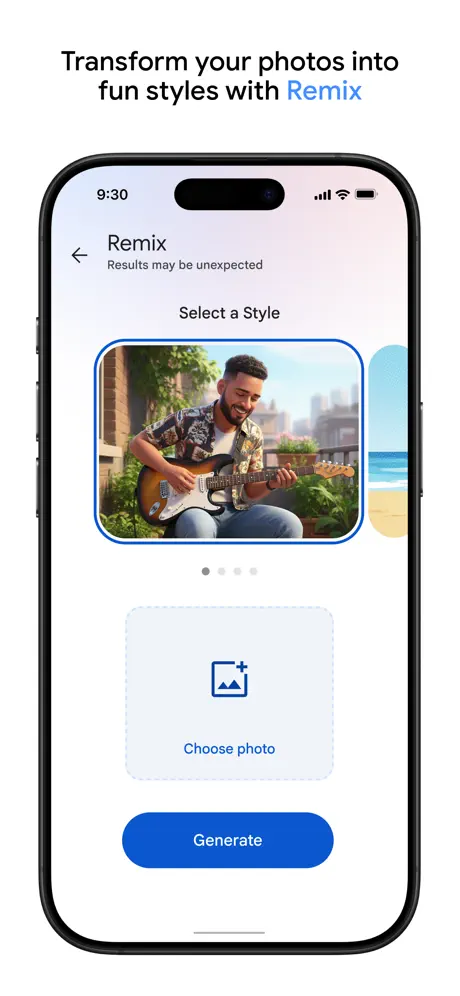
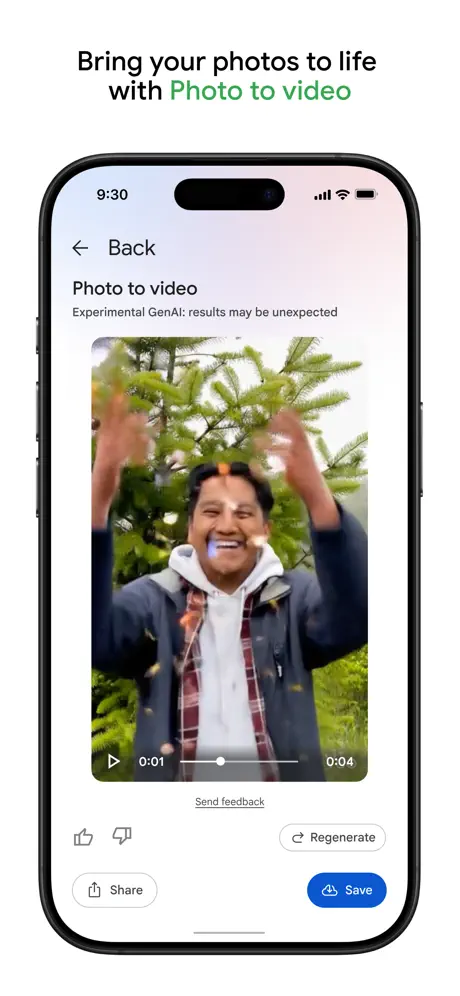
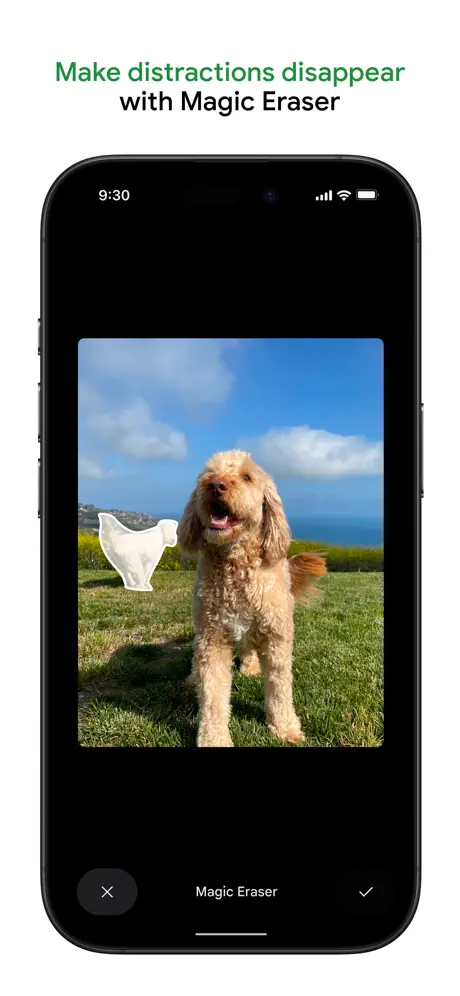
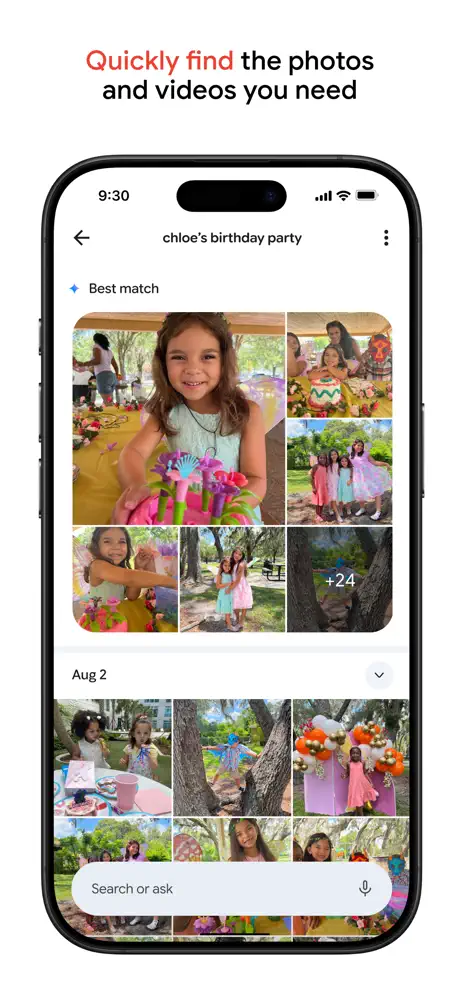
تطبيقات مشابهة
- CapCut: أنشئ مقاطع فيديو بالموسيقى والمؤثرات — ★ 4.6
- Instagram: تواصل عبر مقاطع الفيديو والمبدعين والأصدقاء — ★ 4.5
- Upscale media: تحسين الصور بالذكاء الاصطناعي لنتائج عالية الدقة — ★ 4.5
- Twitch: شاهد ودردش وتواصل مع المجتمعات مباشرة. — ★ 4.5
- AI Nero Photo: تحسين احترافي للصور في متصفحك — ★ 4.5
- XNXX Video Downloader: احفظ مقاطع الفيديو عالية الدقة بسرعة — ★ 4.4
- Behance: تواصل مع المجتمع الإبداعي العالمي — ★ 4.3
- YouTube: شاهد مقاطع الفيديو والموسيقى والبث المباشر — ★ 4.3
Supported Platforms and Operating Systems
تريد Google Photos مباشرة على سطح المكتب أو الهاتف؟ يحتوي هذا القسم على تعليمات لجميع المتصفحات الشائعة — من Chrome إلى Safari?
تريد Google Photos مباشرة على سطح المكتب أو الهاتف؟ يحتوي هذا القسم على تعليمات لجميع المتصفحات الشائعة — من Chrome إلى Safari.
Opera - iOS
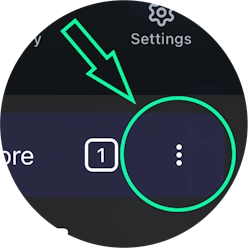
Open the browser menu (Opera icon in the bottom right corner) and find 'Add to Home Screen'
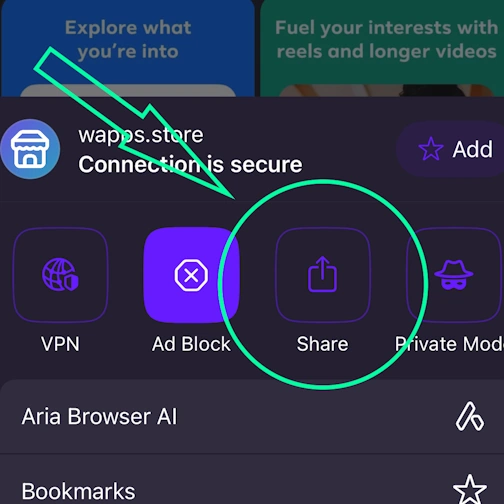
Here tap the Share button
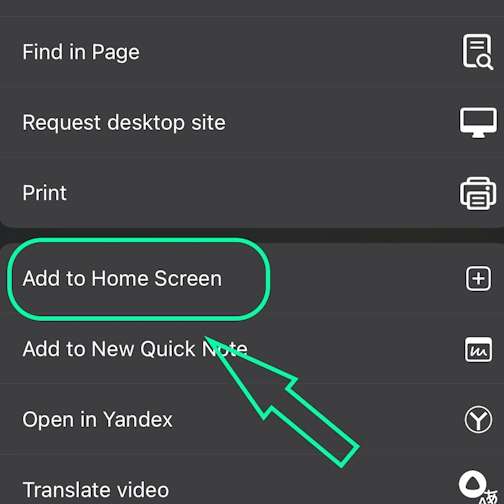
Select the option: Add to Home Screen
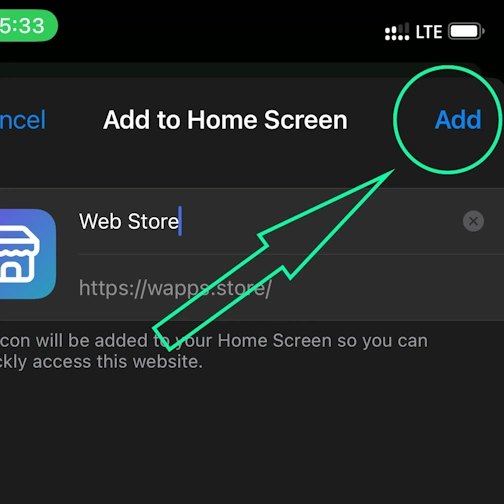
And here tap the 'Add' button. And the App will appear on your iPhone's home screen
Opera - Android
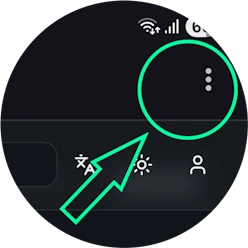
Open the browser menu - 'Three dots' in the top right corner
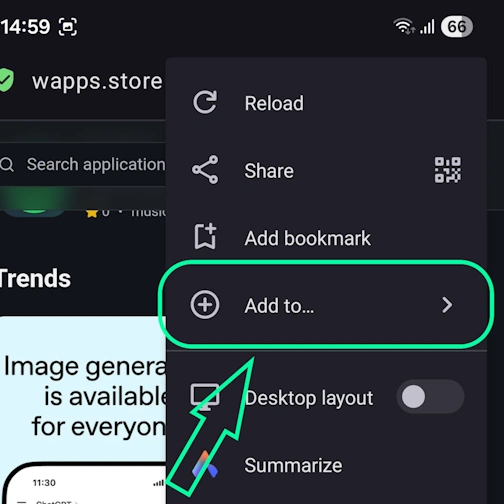
Select the option 'Add to...'
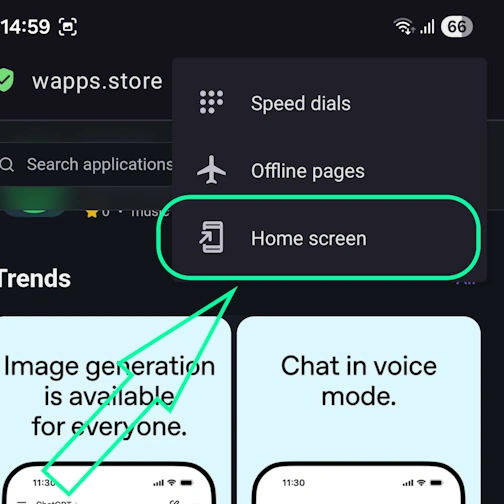
Here select the option 'Home Screen'
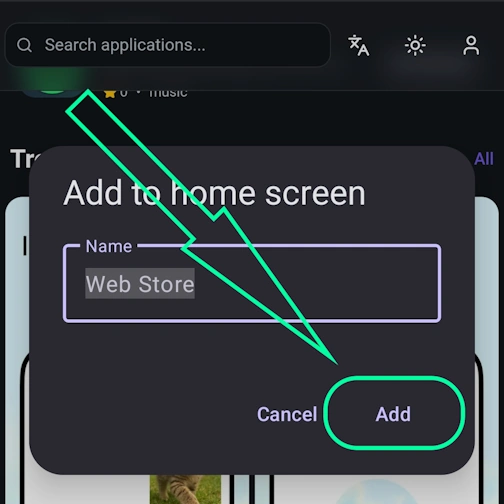
Tap the 'Add' button
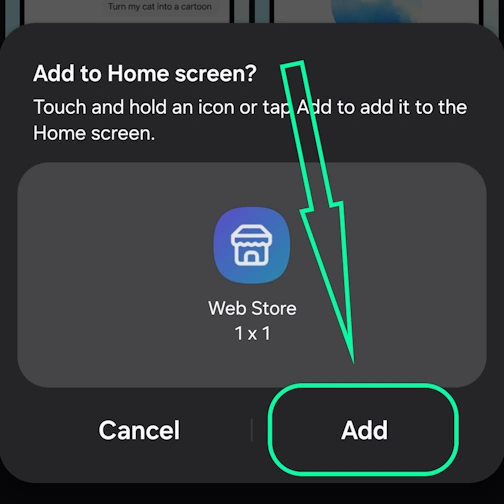
And here confirm - and tap 'Add' again - and the app will appear on your home screen
Safari - iOS
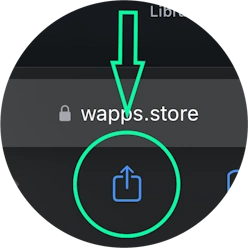
Tap the Share button (square with arrow pointing up) at the bottom of the screen
Select the option: Add to Home Screen
And here tap the 'Add' button. And the App will appear on your iPhone's home screen
Safari - Desktop
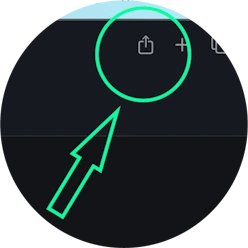
Step 1 for Safari on macOS
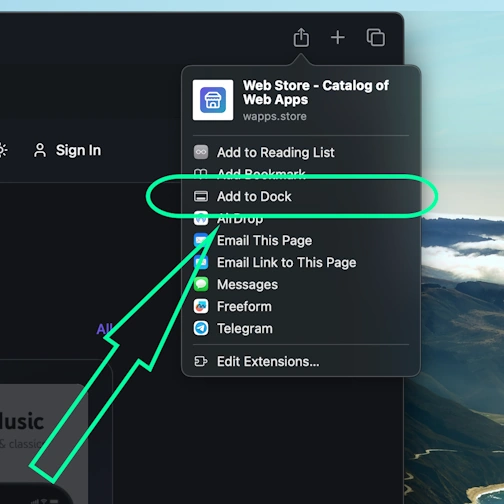
Step 2 for Safari on macOS
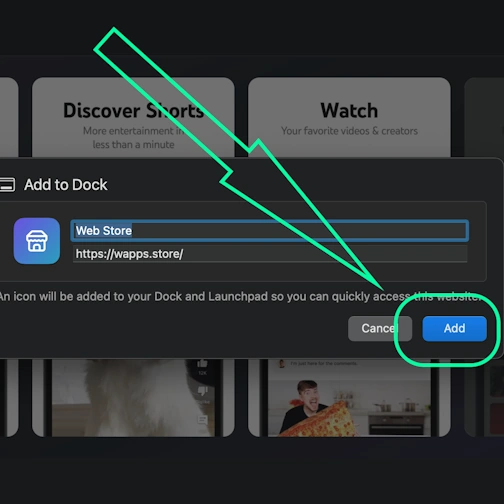
Step 3 for Safari on macOS
Chrome - iOS
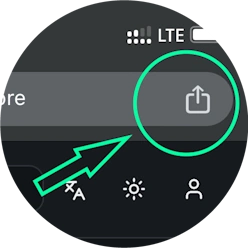
Tap the Share icon in the top right corner, next to the site address
Select the option: Add to Home Screen
And here tap the 'Add' button. And the App will appear on your iPhone's home screen
Chrome - Android
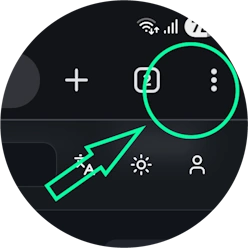
Open the browser menu - three dots in the top right corner
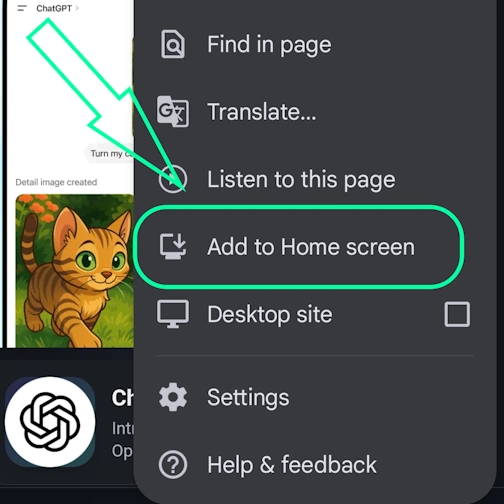
Select the option 'Install app' sometimes it's: 'Add to Home Screen'
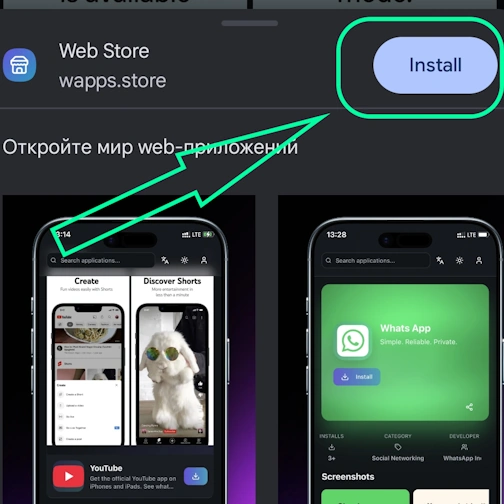
And here confirm the installation - tap 'Install'
Chrome - Desktop
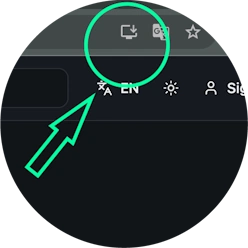
Click the 'Install app' button - icon: computer with arrow pointing down
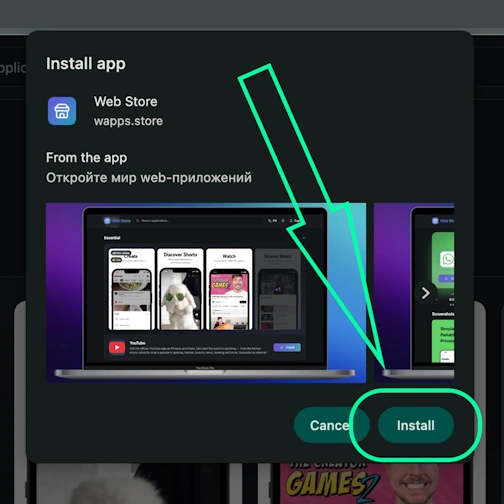
Confirm installation by clicking 'Install'
Edge - Desktop
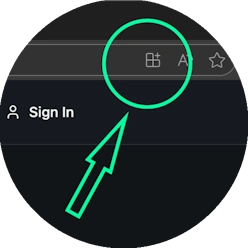
Click the 'Install app' button - icon: 3 blocks with plus sign
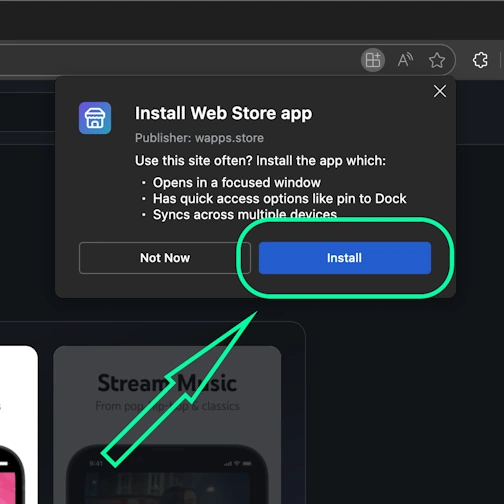
Confirm installation by clicking 'Install'
Edge - Android
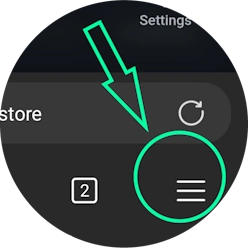
Open the browser menu - 'burger' icon in the bottom right corner, next to the site address
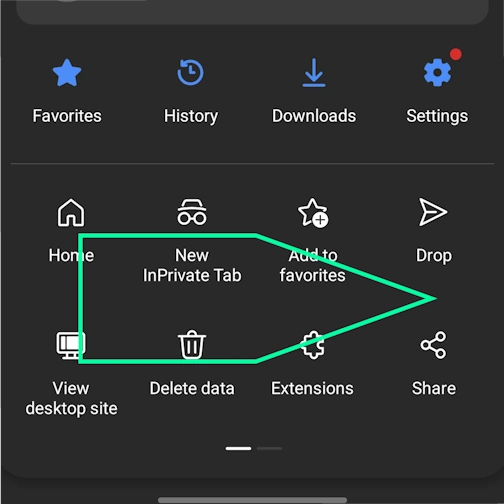
Swipe the menu icons to the right
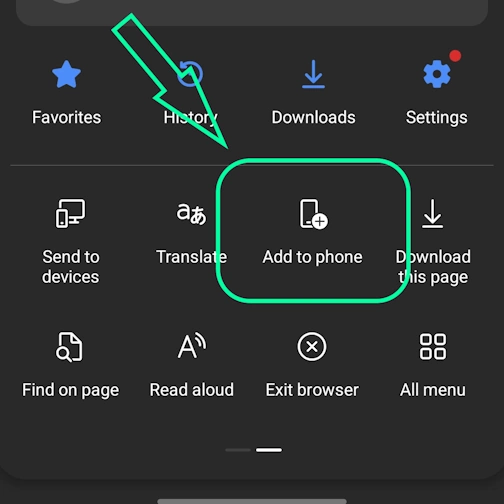
Select the option 'Add to phone'
And here confirm the installation - tap 'Install'
Yandex - iOS
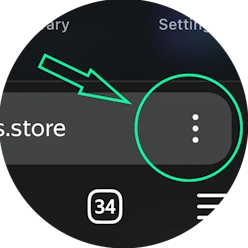
Open the browser menu - three dots in the bottom right corner, next to the site address
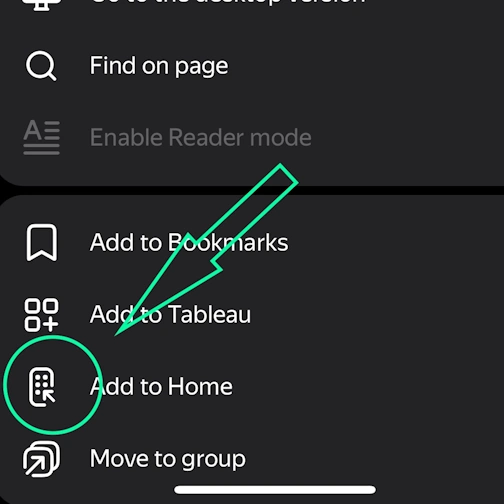
Tap the 'Add to Home' button
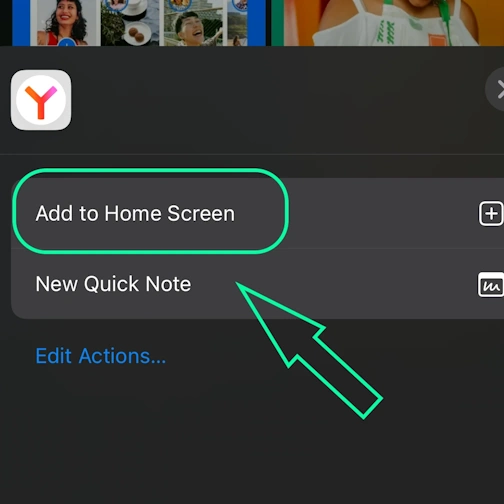
Here select the option: Add to Home Screen
And here tap the 'Add' button. And the App will appear on your iPhone's home screen
Yandex - Android
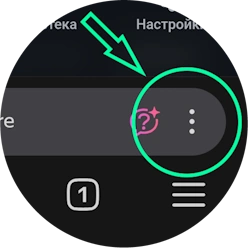
Open the browser menu - three dots in the bottom right corner, next to the site address
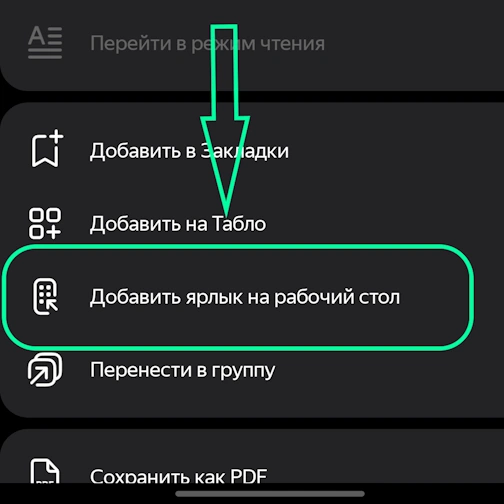
Select the option 'Add to Home Screen'
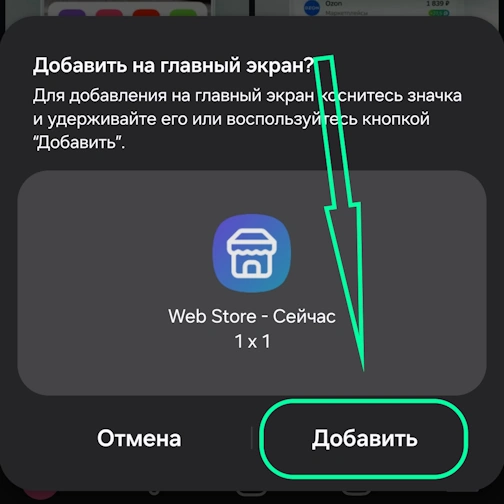
And here tap the 'Add' button - and the app will appear on your home screen
Yandex - Desktop
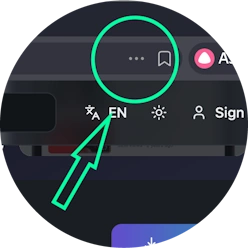
Open the 'Actions menu' - three dots in the top right corner - next to the site address
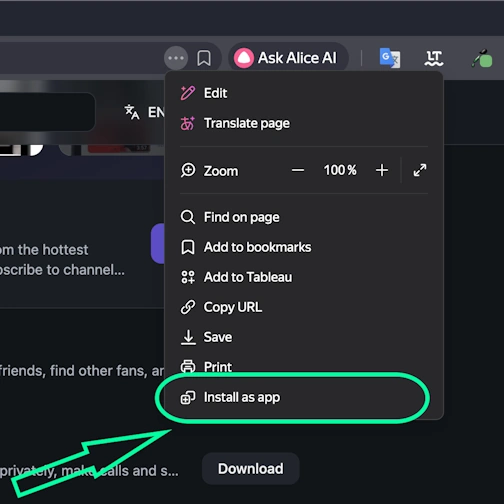
Select the option 'Install as app'
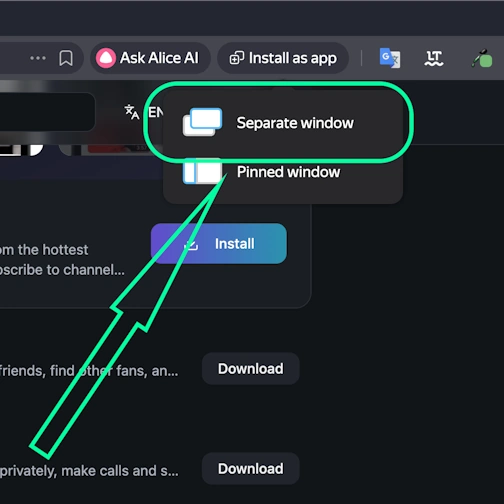
And here select 'Separate window'
Samsung internet - Android
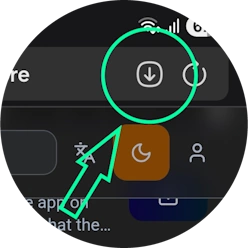
Tap the 'Install app' button - icon: square with arrow pointing down
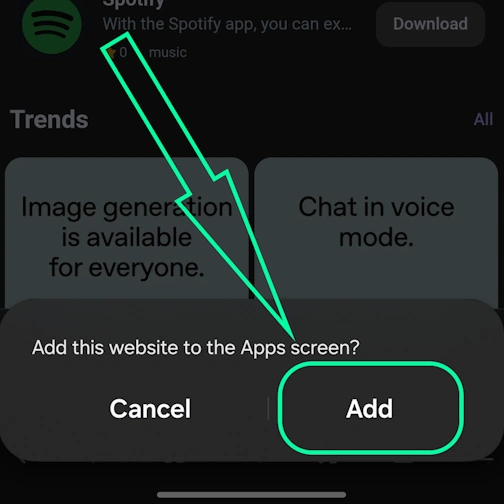
And tap the 'Add' button - and the app will appear on your home screen
Keywords: تطبيق PWA, Progressive Web App, تثبيت PWA, تثبيت تطبيق PWA, PWA تطبيق ويب, PWA تطبيق محمول, PWA تطبيق متصفح, تطبيق ويب قابل للتثبيت, PWA installable web app, PWA بدون App Store, PWA بدون Google Play, PWA تطبيق متعدد المنصات, PWA تطبيق بدون اتصال, PWA إشعارات الدفع, PWA لـ iOS و Android, Progressive Web App تثبيت, Progressive Web App بدون اتصال, Progressive Web App متصفح, Progressive Web App installable, Progressive Web App تطبيق ويب, Progressive Web App تطبيق محمول, Progressive Web App بدون متجر, تطبيق يعمل بدون إنترنت, تطبيق متصفح كتطبيق, تثبيت تطبيق من المتصفح, web-app تطبيق, تثبيت web app, تثبيت web-app على الهاتف, تثبيت تطبيق ويب, تثبيت PWA سريع, تثبيت PWA فوري, تثبيت PWA بسرعة, تثبيت PWA سهل, تثبيت PWA بسيط, تثبيت PWA خطوة بخطوة, تثبيت خطوة بخطوة PWA, تعليمات تثبيت PWA, كيفية تثبيت PWA بسرعة, دليل تثبيت PWA, Google Photos, حافظ على تنظيم صورك ومقاطع الفيديو الخاصة بك, photo-video