لقطات الشاشة

مراجعات المستخدمين
-
★★★★★
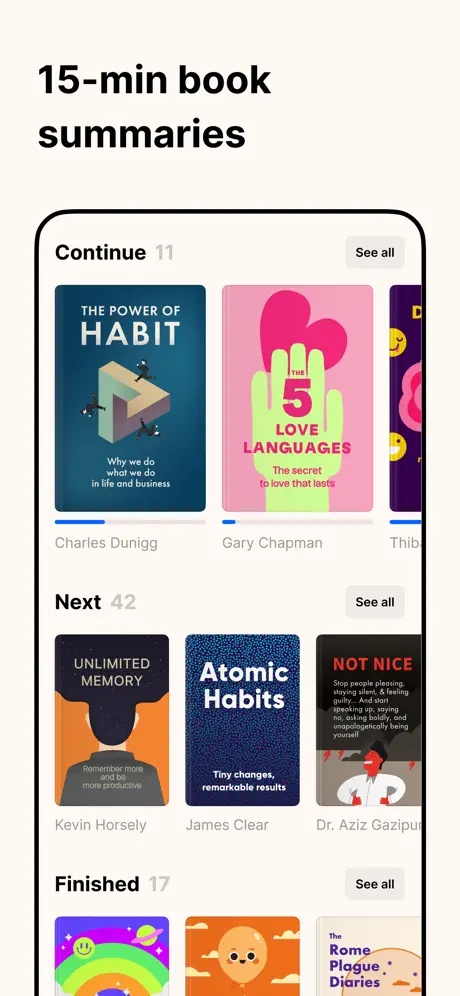
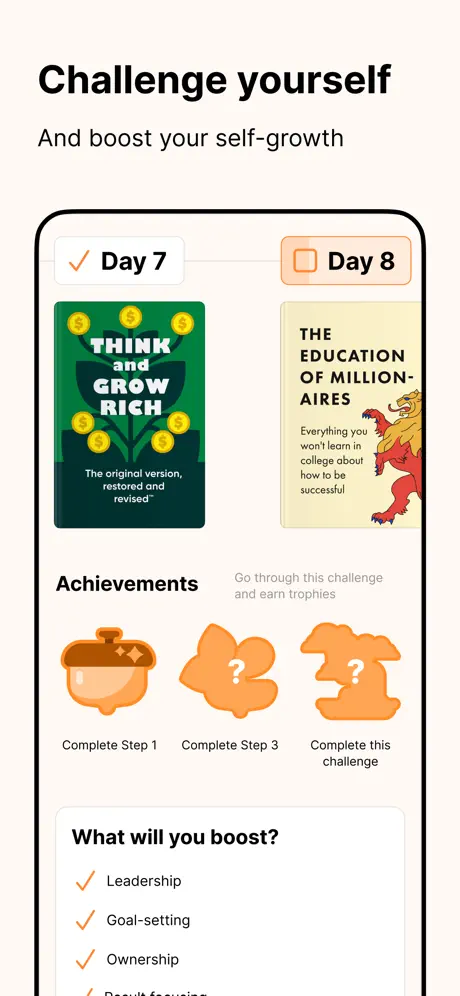
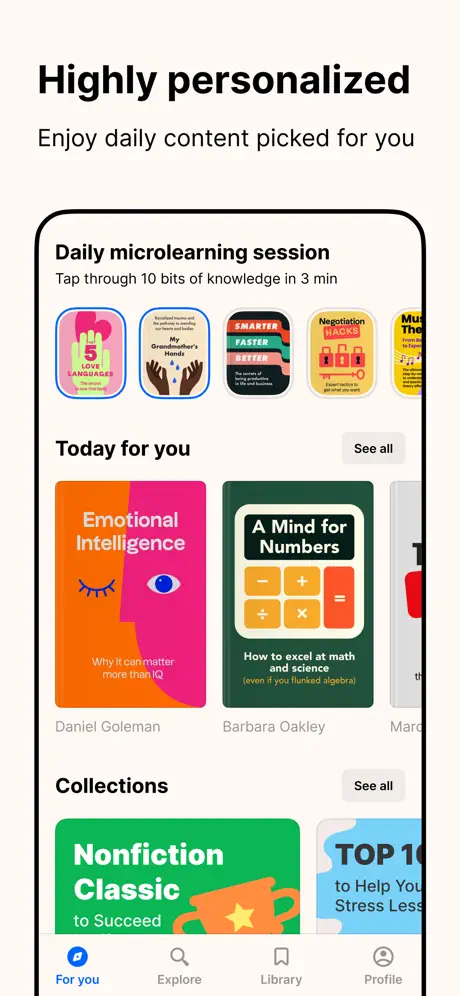
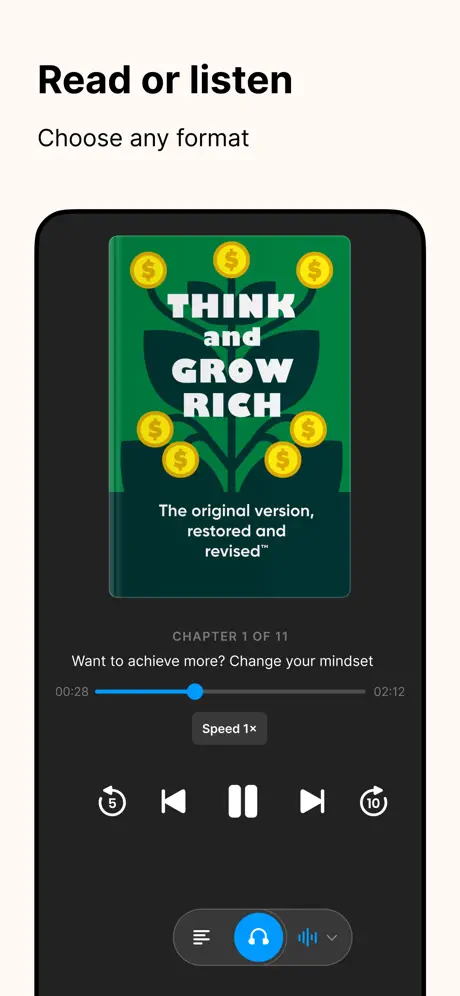
Headway to strzał w dziesiątkę! Kluczowe wnioski z non-fiction w 15 minut? Rewelacja! Idealne dla zabieganych. Super, bardzo polecam!
2026-08-04 -
★★★
Good concept, love the 15-min reads for busy days! Wish there was a way to bookmark favorites though.
2026-07-29
تطبيقات مشابهة
- RushENGL: أتقن اللغة الإنجليزية بمسار دراسي مخصص — ★ 4.7
- Course Hero: احصل على مساعدة فورية في واجباتك المدرسية وحلول الرياضيات — ★ 4.5
- Kimchi Reader: أتقن الكورية من خلال المحتوى الذي تستمتع به بالفعل — ★ 4.5
- Plaudli: تعلم اللغات من خلال حوارات طبيعية مع الذكاء الاصطناعي — ★ 4.5
- Tarjamli: ترجم الدارجة المغربية و 12 لغة أخرى — ★ 4.5
- Geogee World: اختبر معلوماتك في الجغرافيا العالمية — ★ 4.4
- Дневник Kiasuo: تابع التقدم الدراسي والملاحظات — ★ 4.4
- Ling: أتقن التايلاندية، الصربية، الخميرية، والتاغالوغية — ★ 4.3
Supported Operating Systems
كيفية تشغيل Headway في المتصفح وعلى الأجهزة المحمولة؟ لقد جمعنا تعليمات واضحة لجميع الأنظمة لتسهيل التثبيت?
كيفية تشغيل Headway في المتصفح وعلى الأجهزة المحمولة؟ لقد جمعنا تعليمات واضحة لجميع الأنظمة لتسهيل التثبيت.
Safari - iOS
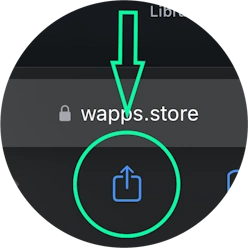
Tap the Share button (square with arrow pointing up) at the bottom of the screen
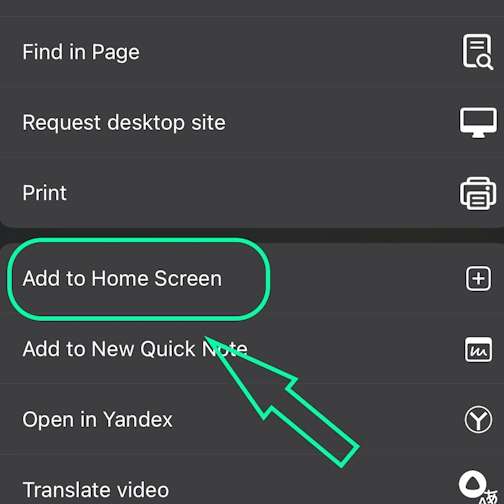
Select the option: Add to Home Screen
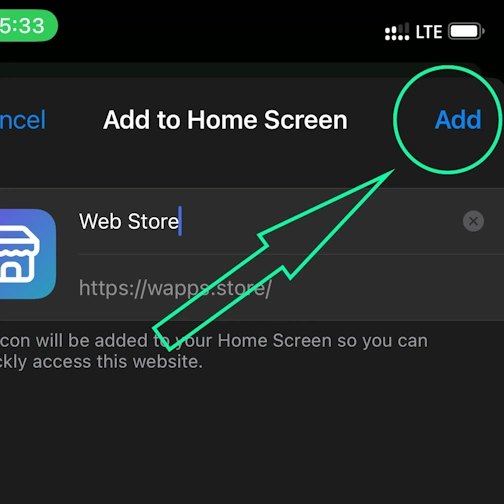
And here tap the 'Add' button. And the App will appear on your iPhone's home screen
Safari - Desktop
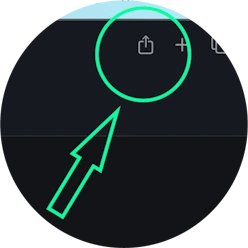
Step 1 for Safari on macOS
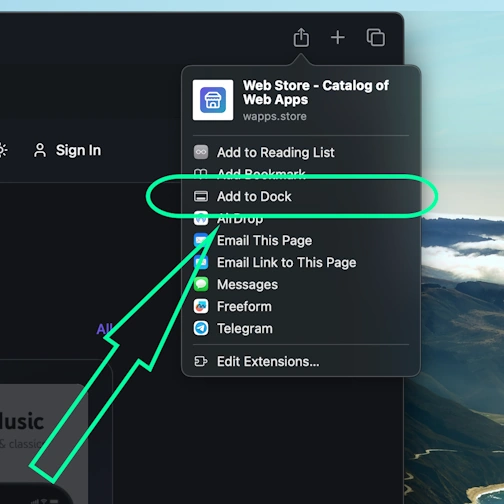
Step 2 for Safari on macOS
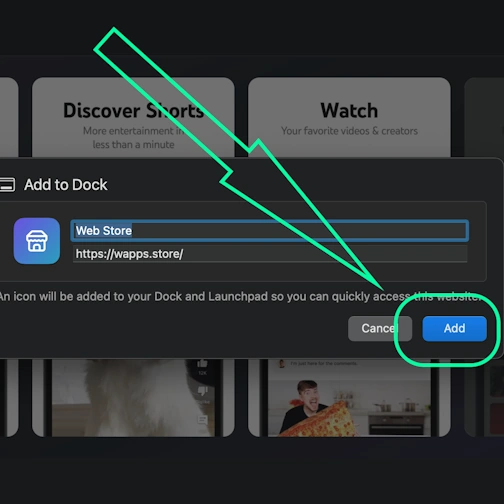
Step 3 for Safari on macOS
Chrome - iOS
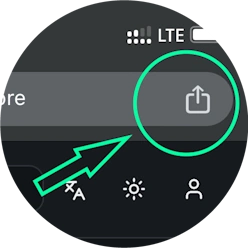
Tap the Share icon in the top right corner, next to the site address
Select the option: Add to Home Screen
And here tap the 'Add' button. And the App will appear on your iPhone's home screen
Chrome - Android
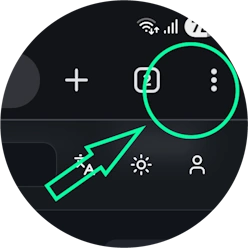
Open the browser menu - three dots in the top right corner
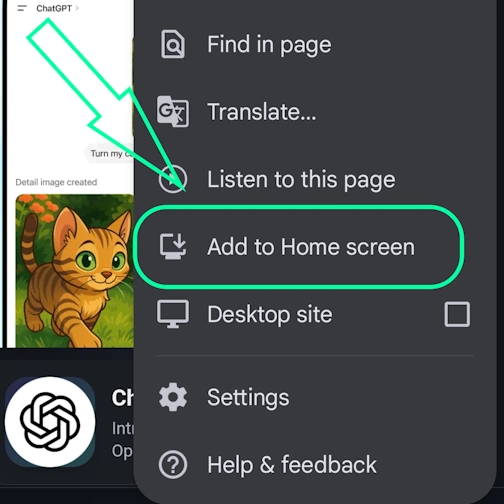
Select the option 'Install app' sometimes it's: 'Add to Home Screen'
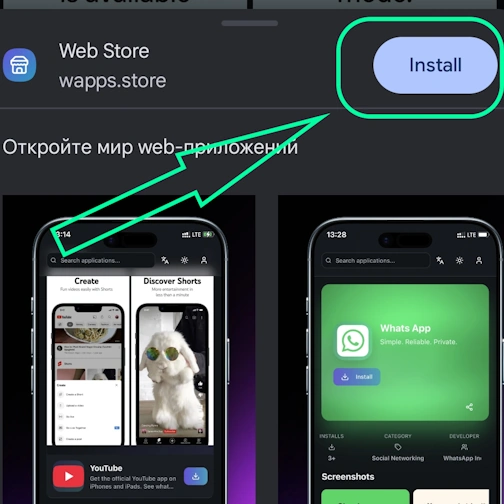
And here confirm the installation - tap 'Install'
Chrome - Desktop
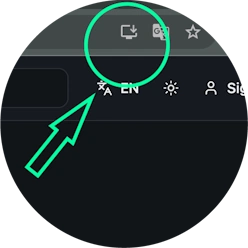
Click the 'Install app' button - icon: computer with arrow pointing down
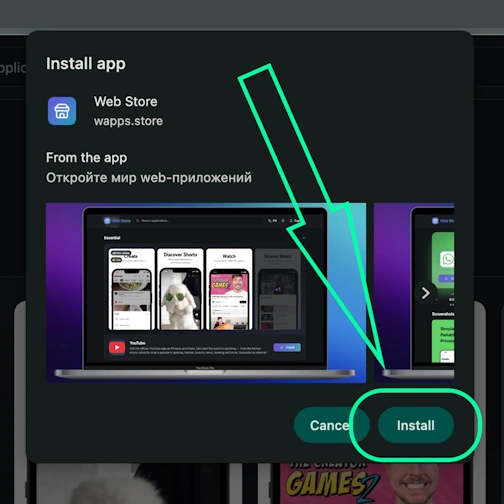
Confirm installation by clicking 'Install'
Edge - Desktop
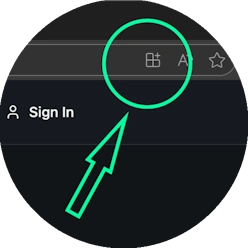
Click the 'Install app' button - icon: 3 blocks with plus sign
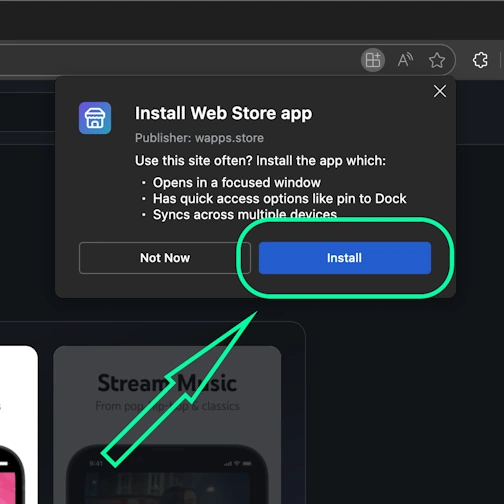
Confirm installation by clicking 'Install'
Edge - Android
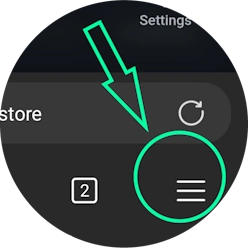
Open the browser menu - 'burger' icon in the bottom right corner, next to the site address
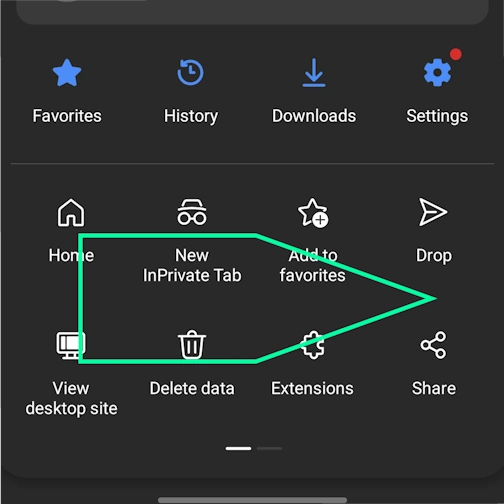
Swipe the menu icons to the right
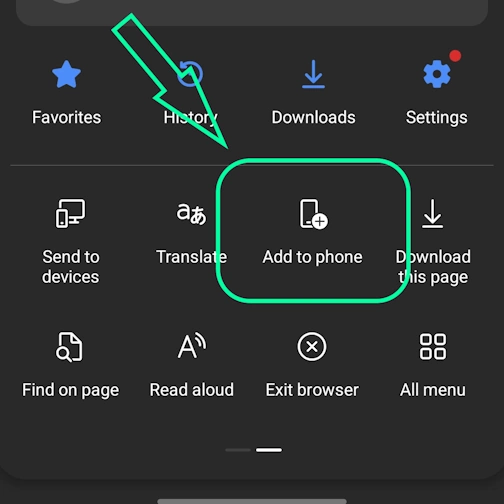
Select the option 'Add to phone'
And here confirm the installation - tap 'Install'
Yandex - iOS
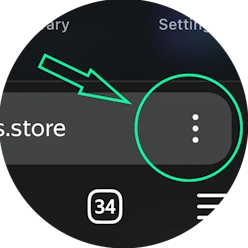
Open the browser menu - three dots in the bottom right corner, next to the site address
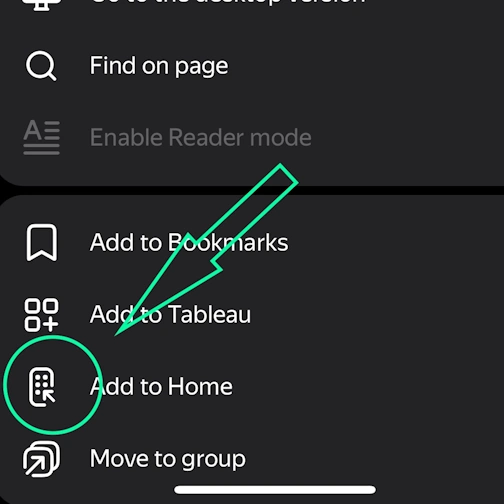
Tap the 'Add to Home' button
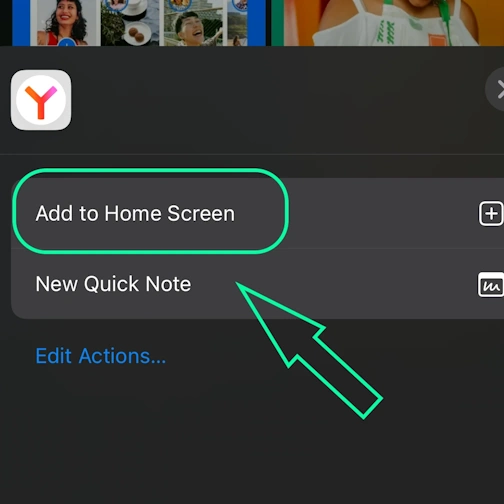
Here select the option: Add to Home Screen
And here tap the 'Add' button. And the App will appear on your iPhone's home screen
Yandex - Android
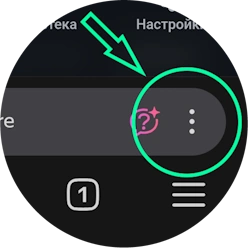
Open the browser menu - three dots in the bottom right corner, next to the site address
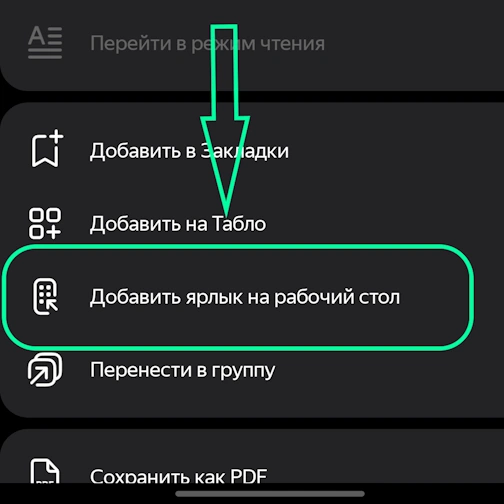
Select the option 'Add to Home Screen'
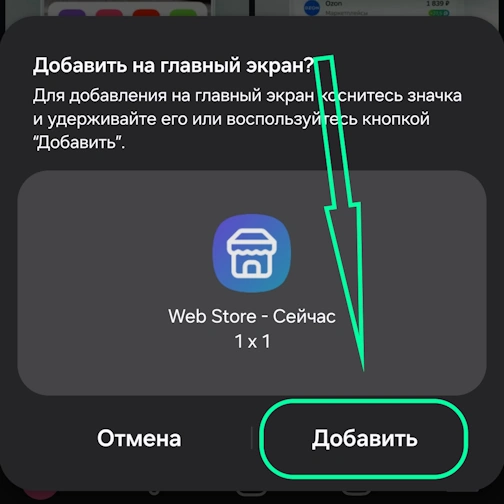
And here tap the 'Add' button - and the app will appear on your home screen
Yandex - Desktop
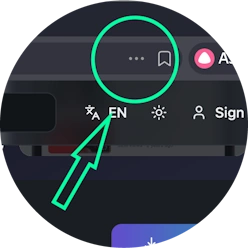
Open the 'Actions menu' - three dots in the top right corner - next to the site address
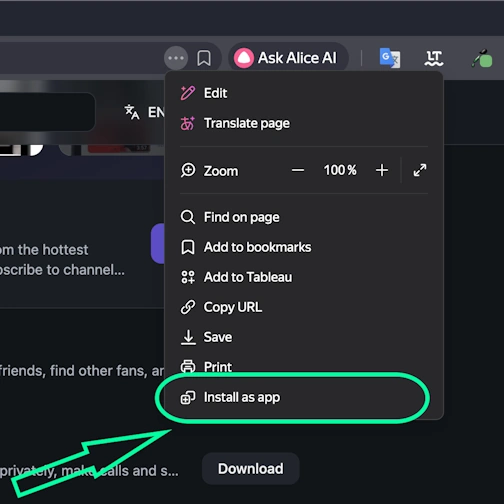
Select the option 'Install as app'
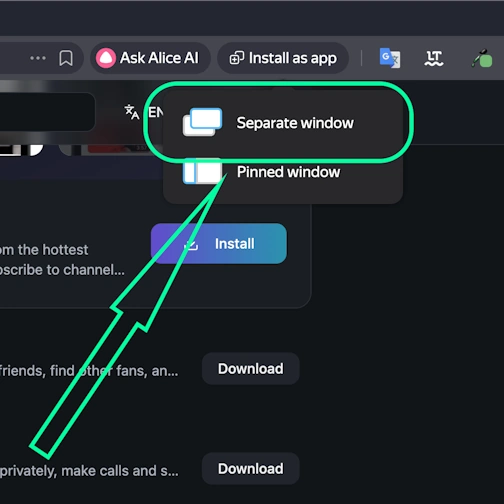
And here select 'Separate window'
Opera - iOS
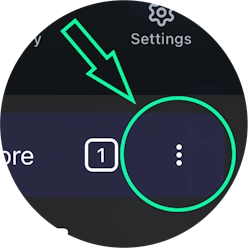
Open the browser menu (Opera icon in the bottom right corner) and find 'Add to Home Screen'
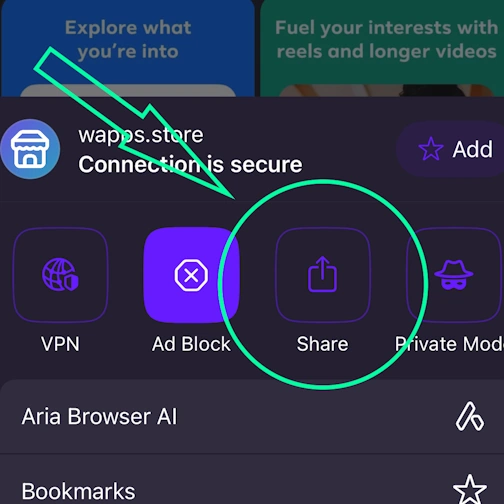
Here tap the Share button
Select the option: Add to Home Screen
And here tap the 'Add' button. And the App will appear on your iPhone's home screen
Opera - Android
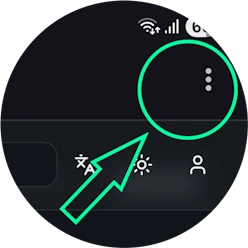
Open the browser menu - 'Three dots' in the top right corner
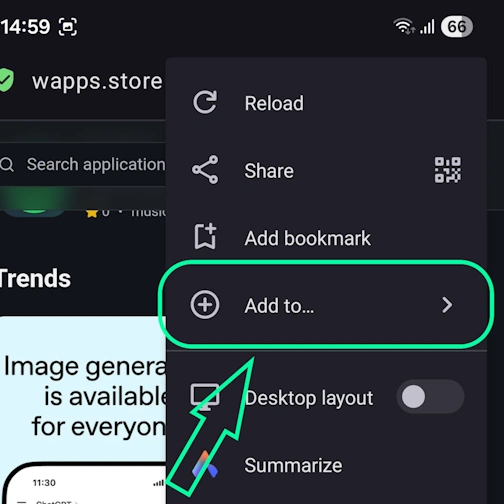
Select the option 'Add to...'
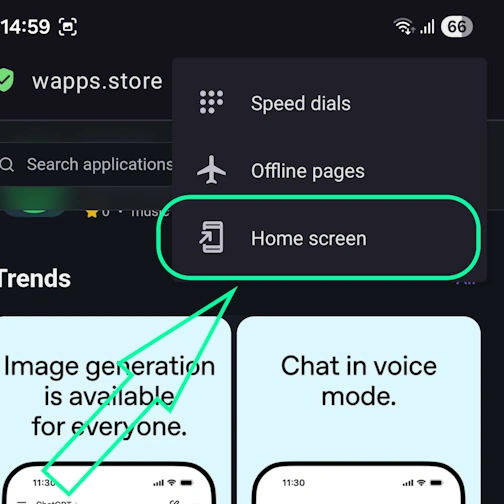
Here select the option 'Home Screen'
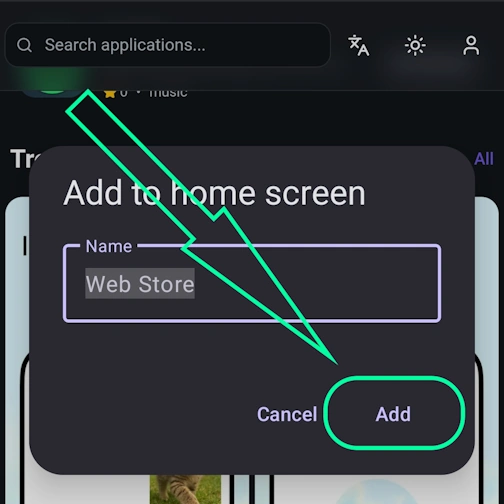
Tap the 'Add' button
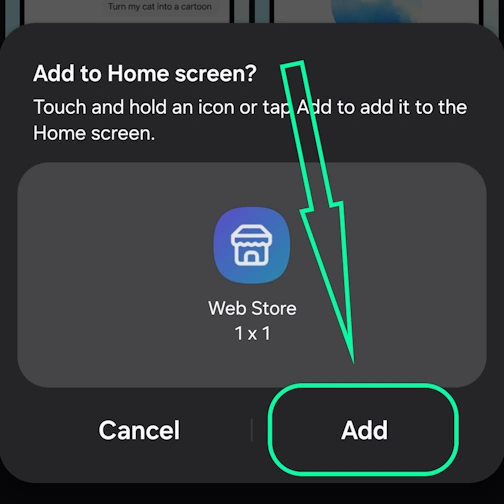
And here confirm - and tap 'Add' again - and the app will appear on your home screen
Samsung internet - Android
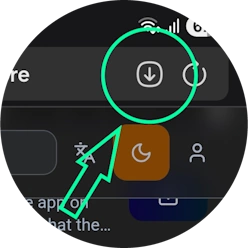
Tap the 'Install app' button - icon: square with arrow pointing down
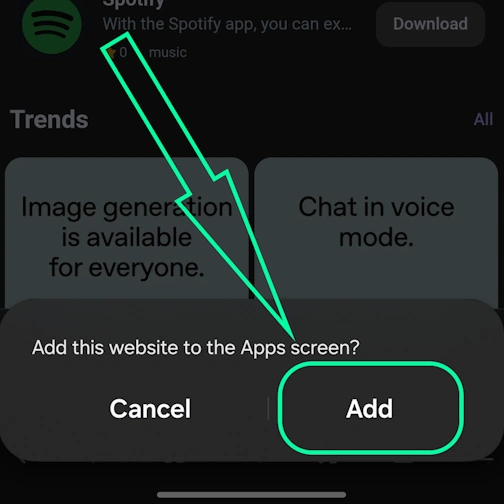
And tap the 'Add' button - and the app will appear on your home screen
Keywords: تطبيق PWA, Progressive Web App, تثبيت PWA, تثبيت تطبيق PWA, PWA تطبيق ويب, PWA تطبيق محمول, PWA تطبيق متصفح, تطبيق ويب قابل للتثبيت, PWA installable web app, PWA بدون App Store, PWA بدون Google Play, PWA تطبيق متعدد المنصات, PWA تطبيق بدون اتصال, PWA إشعارات الدفع, PWA لـ iOS و Android, Progressive Web App تثبيت, Progressive Web App بدون اتصال, Progressive Web App متصفح, Progressive Web App installable, Progressive Web App تطبيق ويب, Progressive Web App تطبيق محمول, Progressive Web App بدون متجر, تطبيق يعمل بدون إنترنت, تطبيق متصفح كتطبيق, تثبيت تطبيق من المتصفح, web-app تطبيق, تثبيت web app, تثبيت web-app على الهاتف, تثبيت تطبيق ويب, تثبيت PWA سريع, تثبيت PWA فوري, تثبيت PWA بسرعة, تثبيت PWA سهل, تثبيت PWA بسيط, تثبيت PWA خطوة بخطوة, تثبيت خطوة بخطوة PWA, تعليمات تثبيت PWA, كيفية تثبيت PWA بسرعة, دليل تثبيت PWA, Headway, النمو الشخصي من خلال كتب غير خيالية أساسية, education