لقطات الشاشة

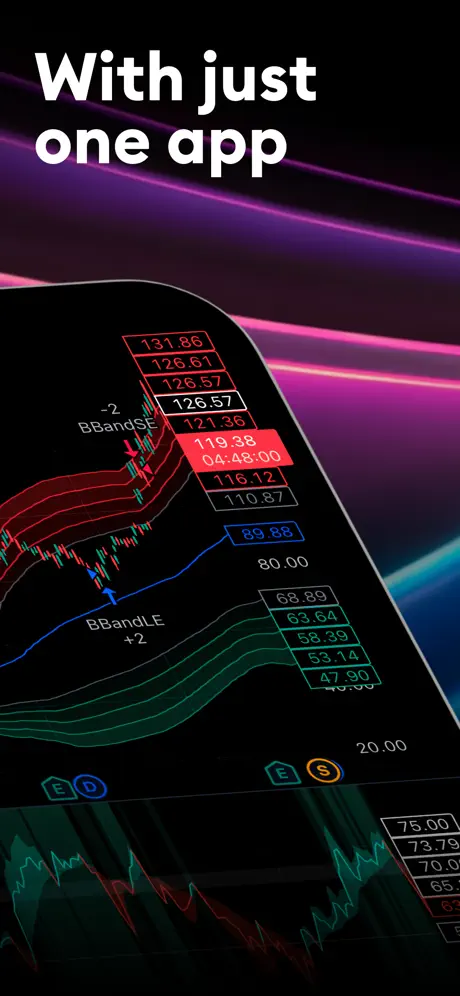
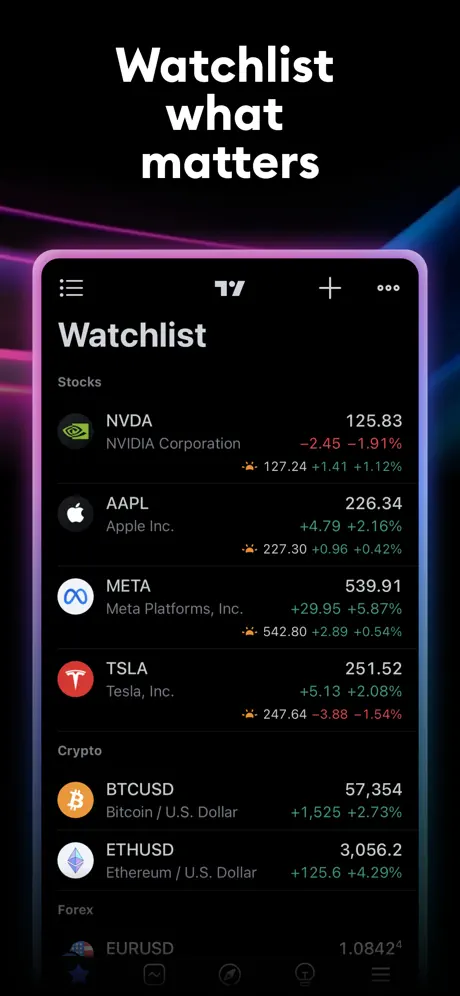
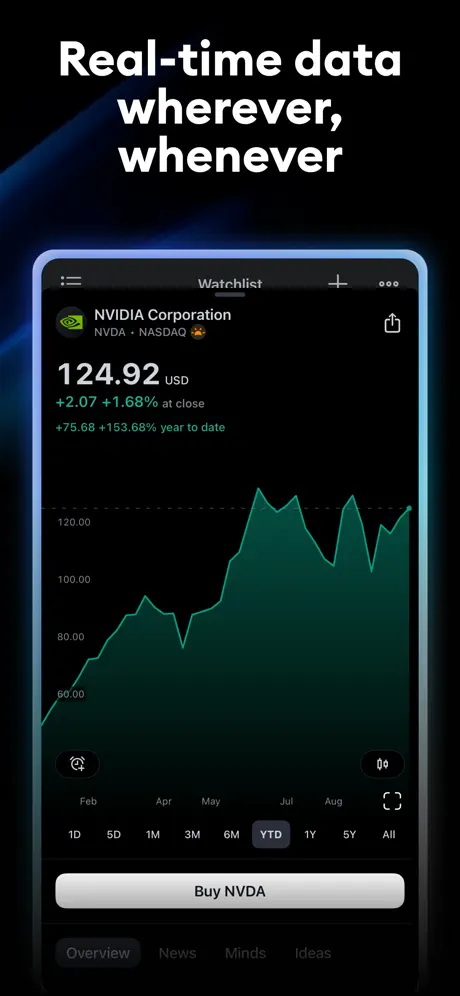
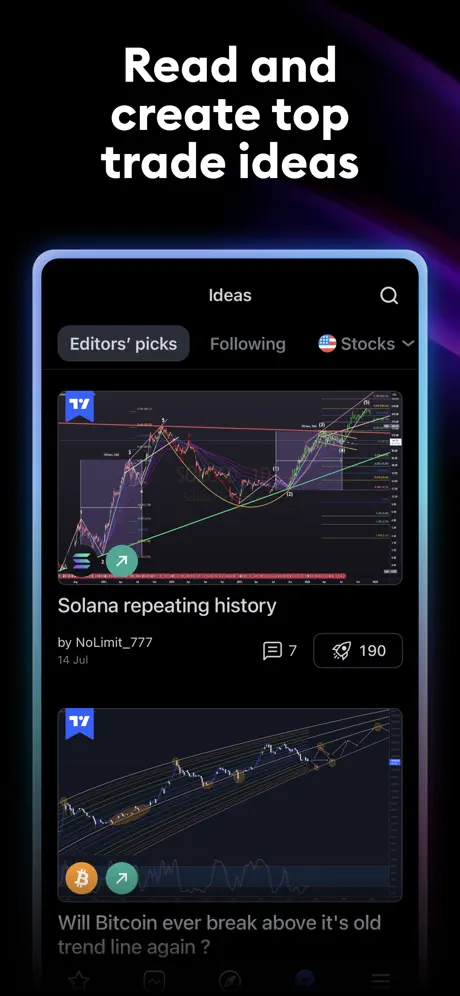
تطبيقات مشابهة
- Bitget Exchange: تداول العملات المشفرة والأسهم والمزيد. — ★ 4.7
- paysafecard: ادفع عبر الإنترنت بأمان باستخدام النقد — ★ 4.6
- OKX: بوابتك للبيتكوين وأصول العملات المشفرة العالمية — ★ 4.6
- Magic Eden: ملاذ آمن لأصولك الرقمية — ★ 4.6
- БСПБ: أموالك الشخصية في نقرة واحدة — ★ 4.6
- N26: صرف، ادخر، استثمر ببساطة — ★ 4.6
- Stabilis: حافظ على أصول عملك تحت المراقبة — ★ 4.6
- Газпромбанк: مصرفك، متاح في كل مكان، فوراً — ★ 4.5
Operating Systems and Devices
تثبيت TradingView سهل ومريح?
تثبيت TradingView سهل ومريح! لقد أعددنا تعليمات لجميع المتصفحات والأجهزة حتى تتمكن من البدء في استخدام التطبيق على الفور.
Safari - Desktop
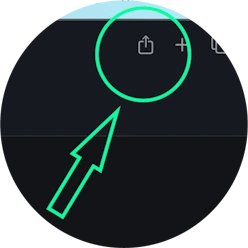
Step 1 for Safari on macOS
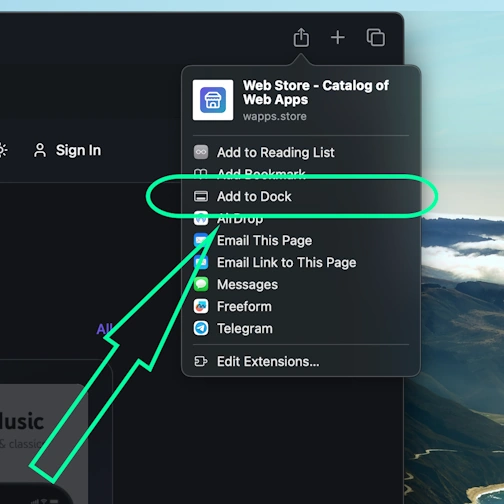
Step 2 for Safari on macOS
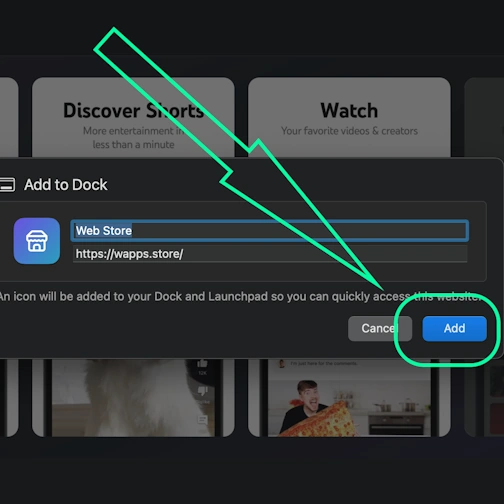
Step 3 for Safari on macOS
Safari - iOS
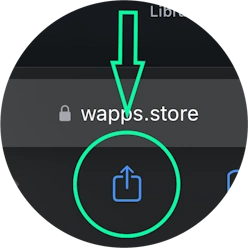
Tap the Share button (square with arrow pointing up) at the bottom of the screen
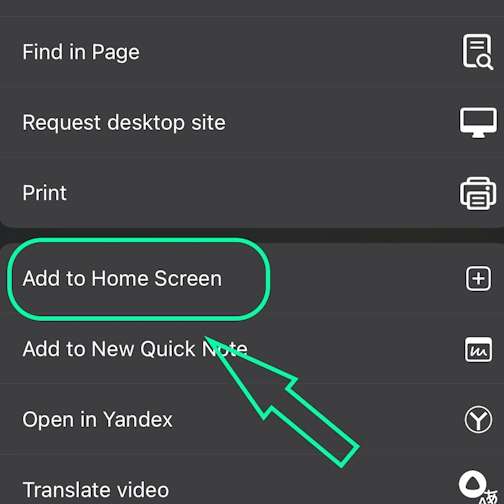
Select the option: Add to Home Screen
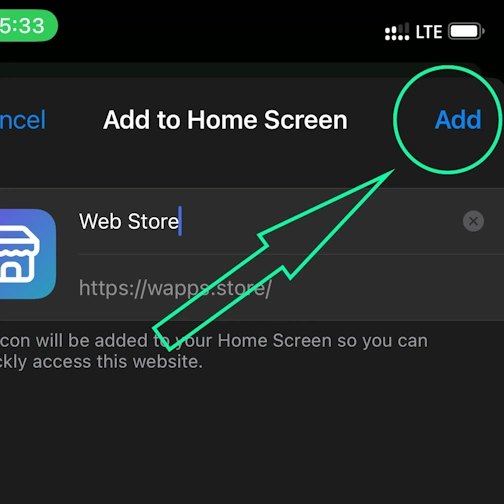
And here tap the 'Add' button. And the App will appear on your iPhone's home screen
Chrome - Desktop
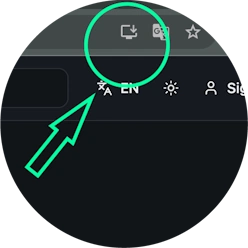
Click the 'Install app' button - icon: computer with arrow pointing down
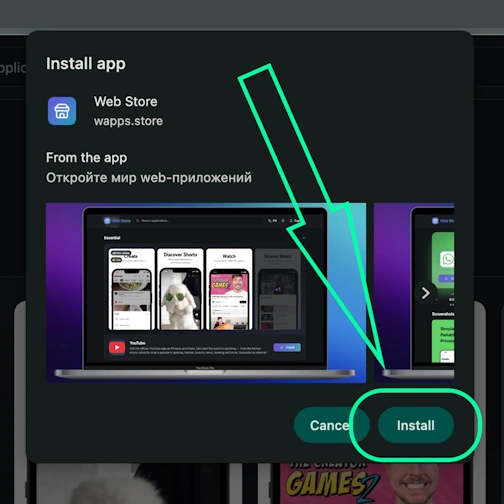
Confirm installation by clicking 'Install'
Chrome - Android
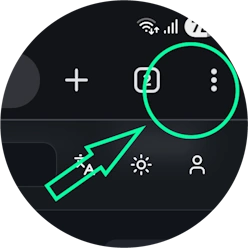
Open the browser menu - three dots in the top right corner
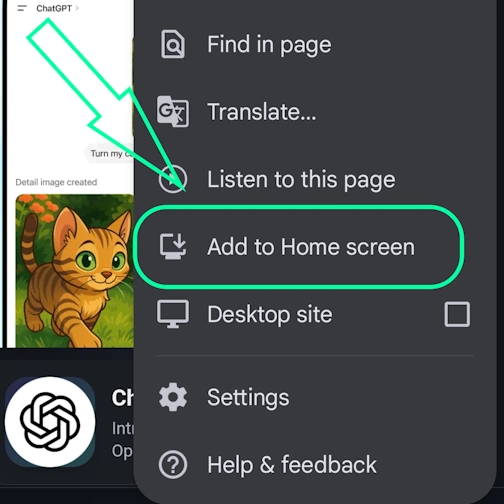
Select the option 'Install app' sometimes it's: 'Add to Home Screen'
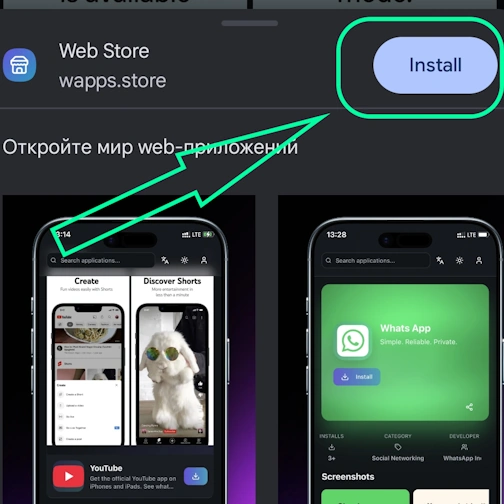
And here confirm the installation - tap 'Install'
Chrome - iOS
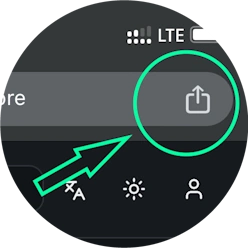
Tap the Share icon in the top right corner, next to the site address
Select the option: Add to Home Screen
And here tap the 'Add' button. And the App will appear on your iPhone's home screen
Edge - Desktop
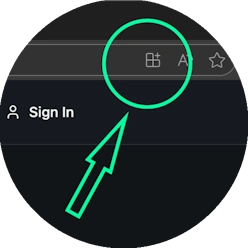
Click the 'Install app' button - icon: 3 blocks with plus sign
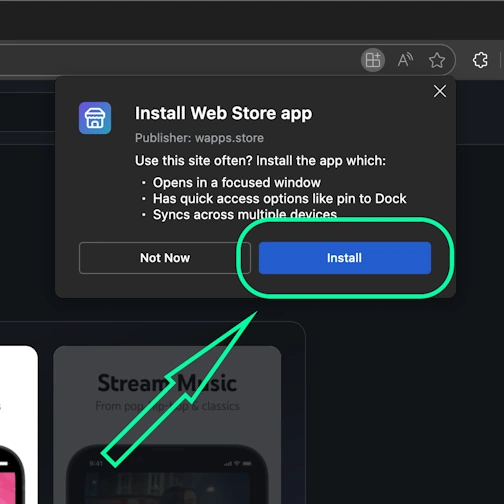
Confirm installation by clicking 'Install'
Edge - Android
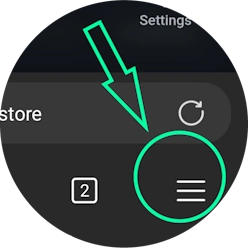
Open the browser menu - 'burger' icon in the bottom right corner, next to the site address
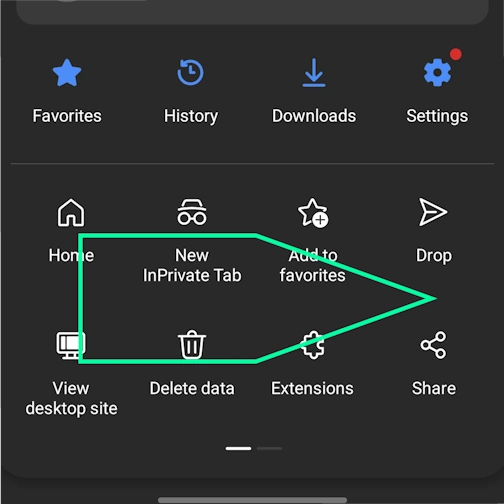
Swipe the menu icons to the right
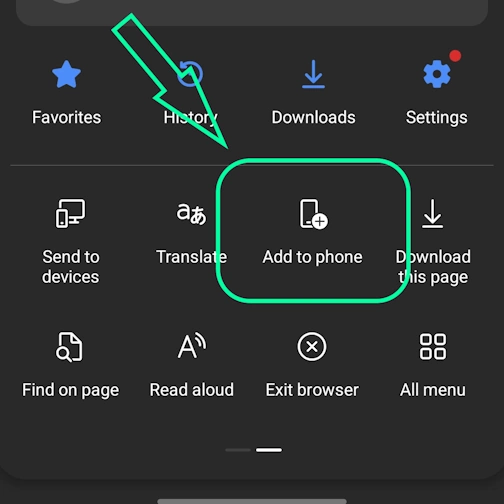
Select the option 'Add to phone'
And here confirm the installation - tap 'Install'
Yandex - Desktop
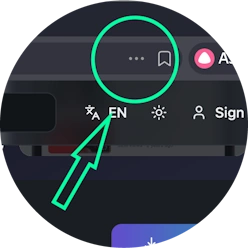
Open the 'Actions menu' - three dots in the top right corner - next to the site address
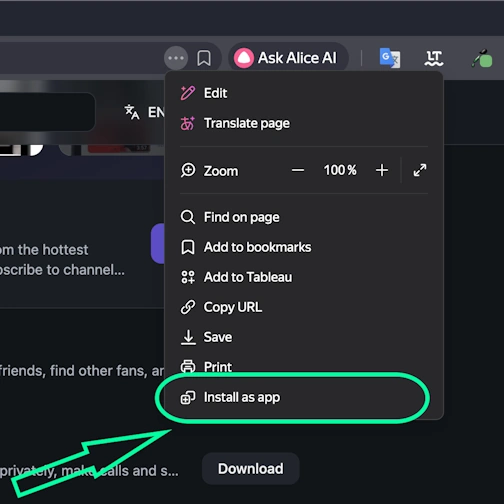
Select the option 'Install as app'
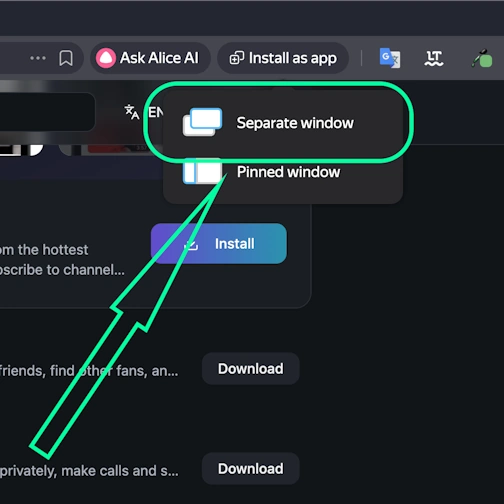
And here select 'Separate window'
Yandex - Android
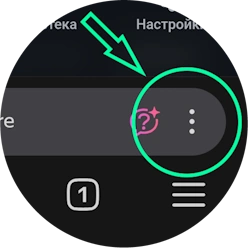
Open the browser menu - three dots in the bottom right corner, next to the site address
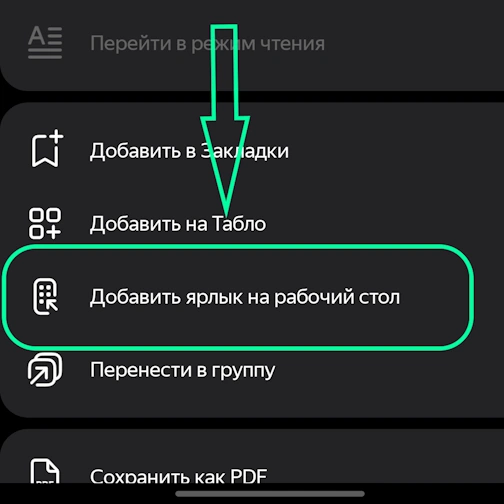
Select the option 'Add to Home Screen'
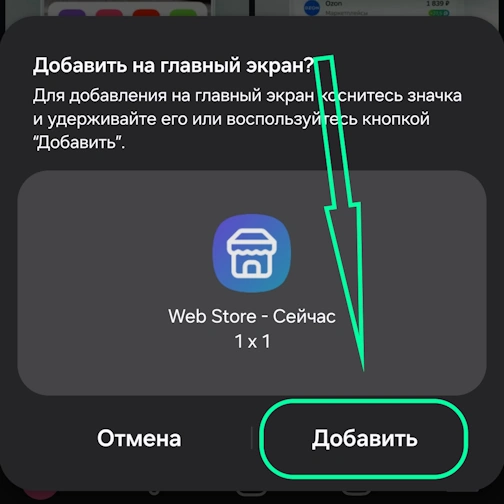
And here tap the 'Add' button - and the app will appear on your home screen
Yandex - iOS
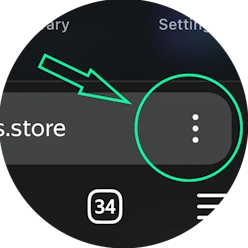
Open the browser menu - three dots in the bottom right corner, next to the site address
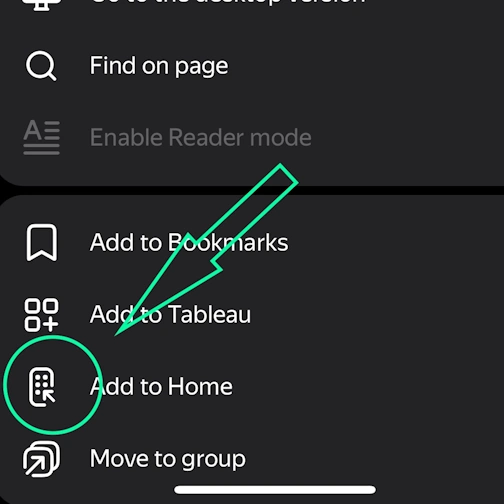
Tap the 'Add to Home' button
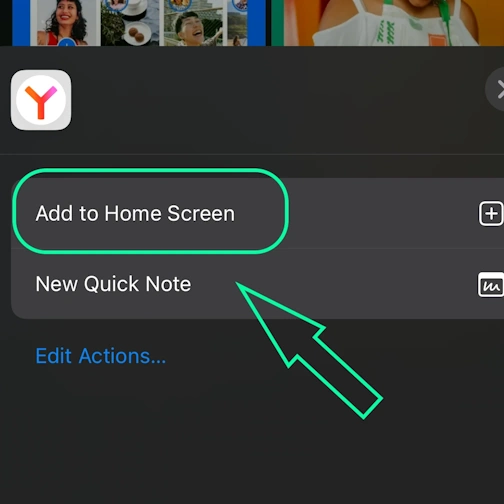
Here select the option: Add to Home Screen
And here tap the 'Add' button. And the App will appear on your iPhone's home screen
Opera - Android
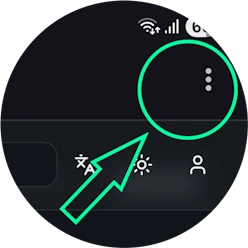
Open the browser menu - 'Three dots' in the top right corner
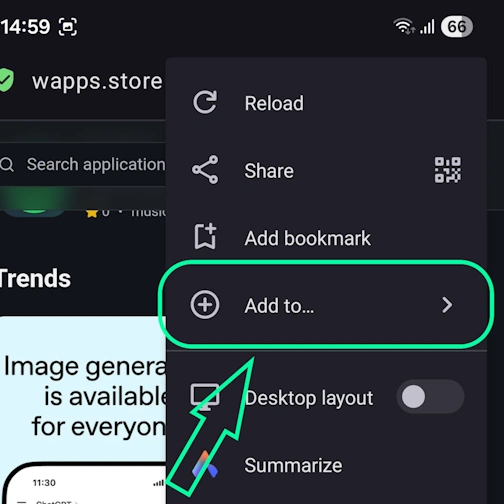
Select the option 'Add to...'
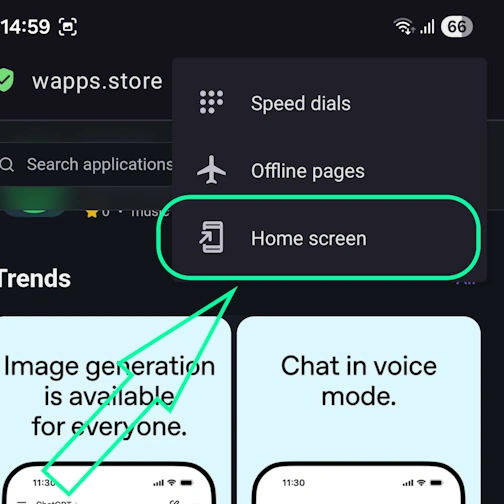
Here select the option 'Home Screen'
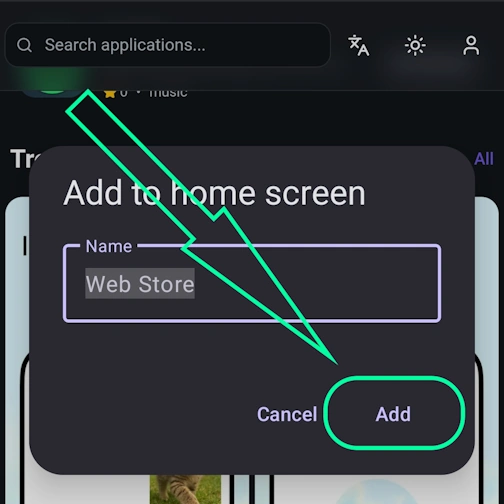
Tap the 'Add' button
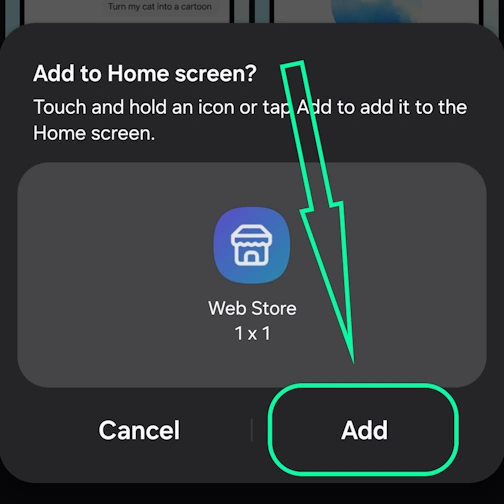
And here confirm - and tap 'Add' again - and the app will appear on your home screen
Opera - iOS
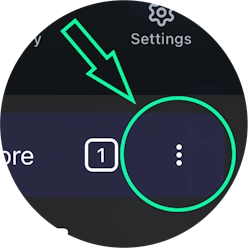
Open the browser menu (Opera icon in the bottom right corner) and find 'Add to Home Screen'
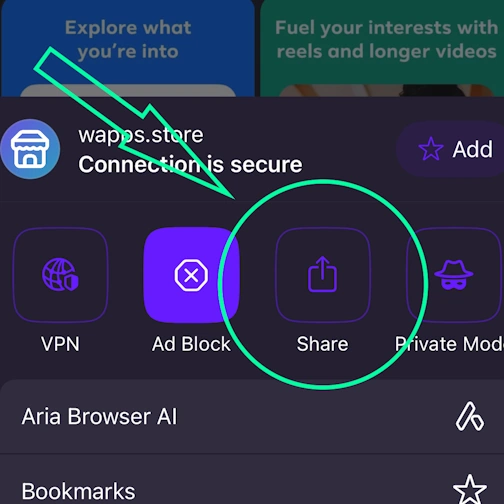
Here tap the Share button
Select the option: Add to Home Screen
And here tap the 'Add' button. And the App will appear on your iPhone's home screen
Samsung internet - Android
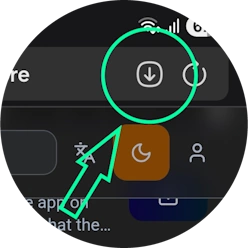
Tap the 'Install app' button - icon: square with arrow pointing down
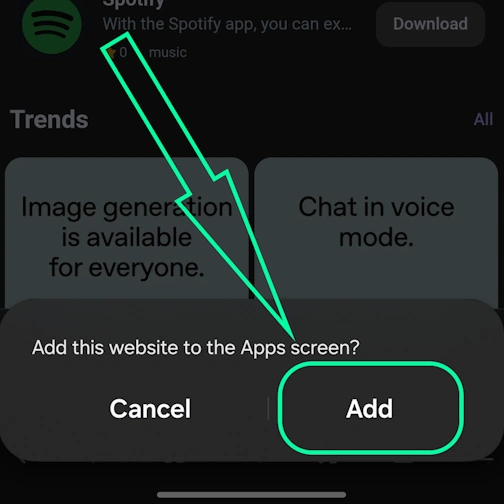
And tap the 'Add' button - and the app will appear on your home screen
Keywords: تطبيق PWA, Progressive Web App, تثبيت PWA, تثبيت تطبيق PWA, PWA تطبيق ويب, PWA تطبيق محمول, PWA تطبيق متصفح, تطبيق ويب قابل للتثبيت, PWA installable web app, PWA بدون App Store, PWA بدون Google Play, PWA تطبيق متعدد المنصات, PWA تطبيق بدون اتصال, PWA إشعارات الدفع, PWA لـ iOS و Android, Progressive Web App تثبيت, Progressive Web App بدون اتصال, Progressive Web App متصفح, Progressive Web App installable, Progressive Web App تطبيق ويب, Progressive Web App تطبيق محمول, Progressive Web App بدون متجر, تطبيق يعمل بدون إنترنت, تطبيق متصفح كتطبيق, تثبيت تطبيق من المتصفح, web-app تطبيق, تثبيت web app, تثبيت web-app على الهاتف, تثبيت تطبيق ويب, تثبيت PWA سريع, تثبيت PWA فوري, تثبيت PWA بسرعة, تثبيت PWA سهل, تثبيت PWA بسيط, تثبيت PWA خطوة بخطوة, تثبيت خطوة بخطوة PWA, تعليمات تثبيت PWA, كيفية تثبيت PWA بسرعة, دليل تثبيت PWA, TradingView, رسوم بيانية وتحليلات للسوق لكل متداول, finance