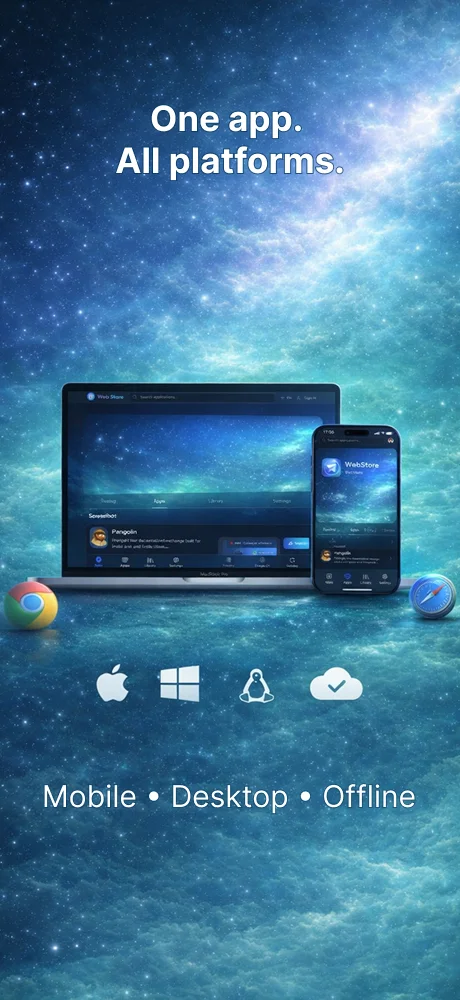
Screenshots
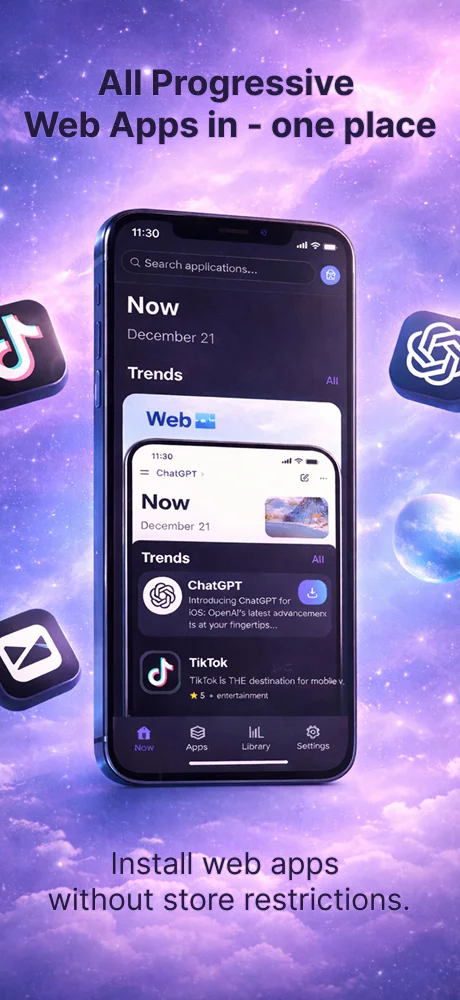
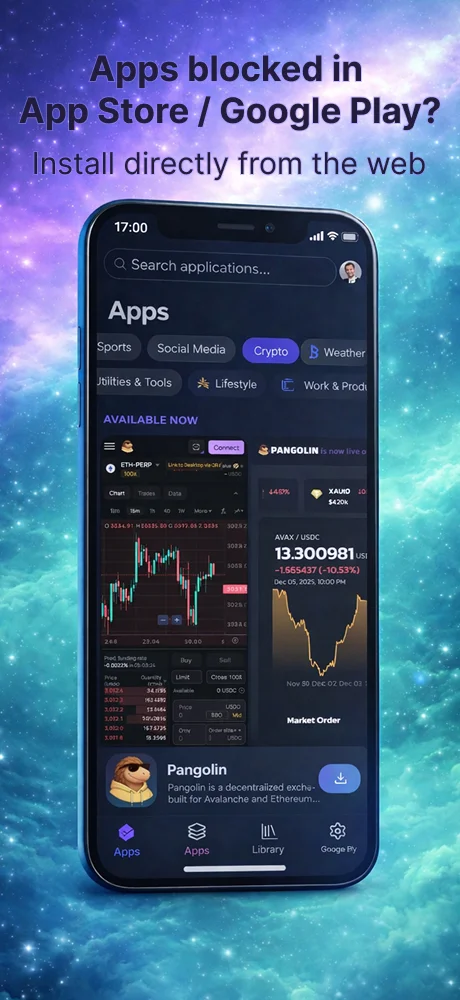
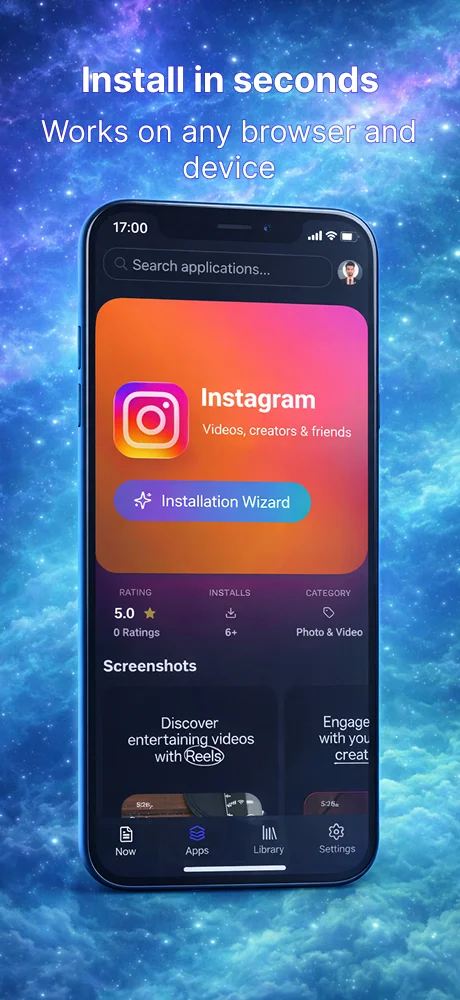
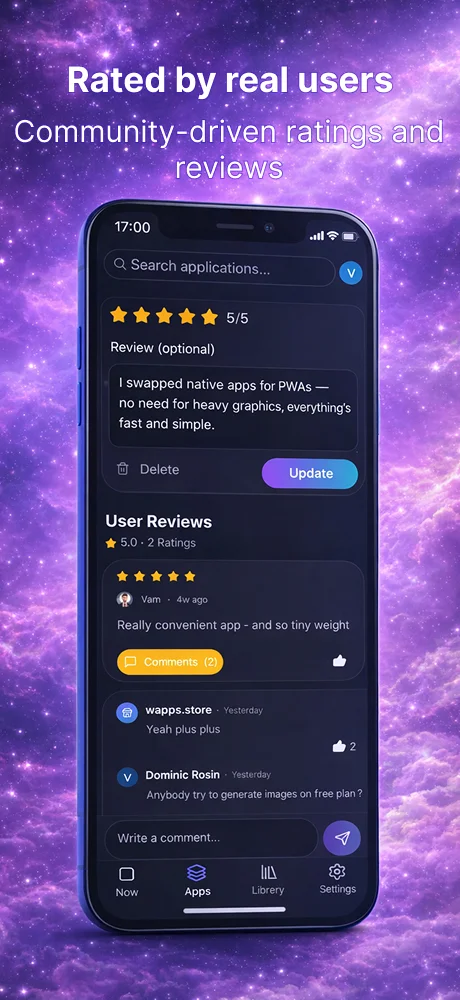
Nutzerbewertungen
-
★★★★★
वाह, यह ऐप लाजवाब है! "बिना किसी सीमा के, बिना सेंसरशिप के" एकदम सही है। अब कोई भी PWA आसानी से मिल जाती है। 5 स्टार!
2026-03-28 -
★★★★★
I’ve been using Web Store for a week now to install PWAs, and it’s fantastic. It’s the easiest way to find and manage apps across all my devices. Everything is seamless and fast. Highly recommended!
2025-12-24 -
★★★★
Finally, an app store that lives up to its promise! Love the idea of "one store, any app, on any device." Web Store is a breath of fresh air. So glad I found this!
2026-07-31
Ähnliche Apps
- Just Bitcoin: Bitcoin-Preis. Genau dann, wenn du ihn brauchst. — ★ 4.8
- Land Lines: Verbinde deine Linien mit der Welt — ★ 4.6
- Cirkl: Teile alltägliche Gegenstände mit Menschen, denen du vertraust — ★ 4.6
- Lingva Translate: Ihr privater Übersetzer, ohne Tracking. — ★ 4.6
- rustdesk: Privater und zuverlässiger Remote-Desktop-Zugriff — ★ 4.6
- Expo App Services: Mit Web-Technologie bauen, überall — ★ 4.6
- ExhibitDay: Optimieren Sie Ihre Messeplanung — ★ 4.6
- Renaultgroup connect: Ihr Renault, immer verbunden und verwaltet — ★ 4.5
Operating Systems and Devices
Beginnen Sie sofort mit der Verwendung von Web Store?
Beginnen Sie sofort mit der Verwendung von Web Store! In unserem Leitfaden finden Sie Anleitungen für alle beliebten Browser und Plattformen.
Safari - iOS
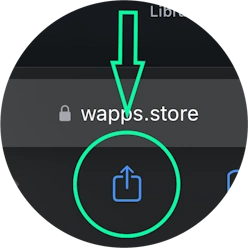
Auf die Teilen-Schaltfläche (Quadrat mit Pfeil nach oben) unten auf dem Bildschirm tippen
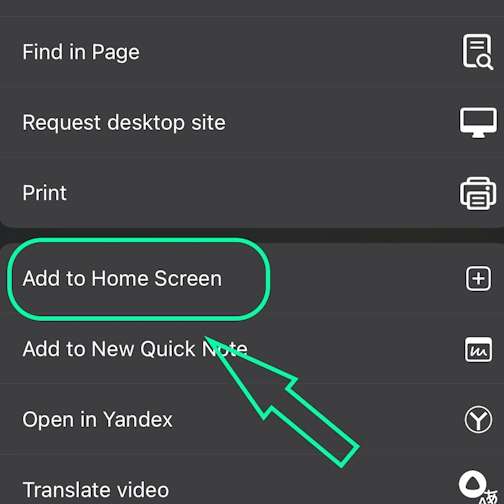
Option wählen: Zum Startbildschirm hinzufügen
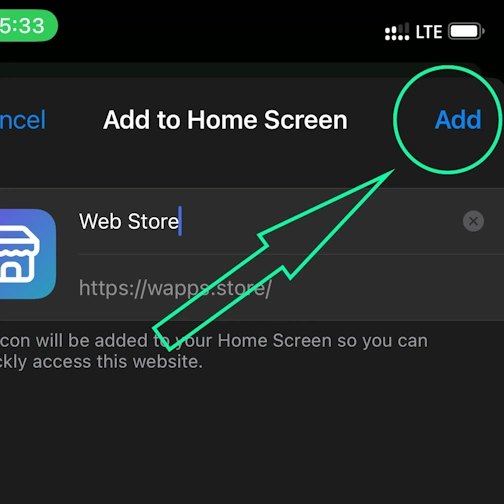
Tippen Sie hier auf "Hinzufügen". Die App erscheint auf dem Startbildschirm Ihres iPhones
Safari - Desktop
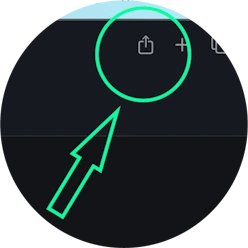
Schritt 1 für Safari unter macOS
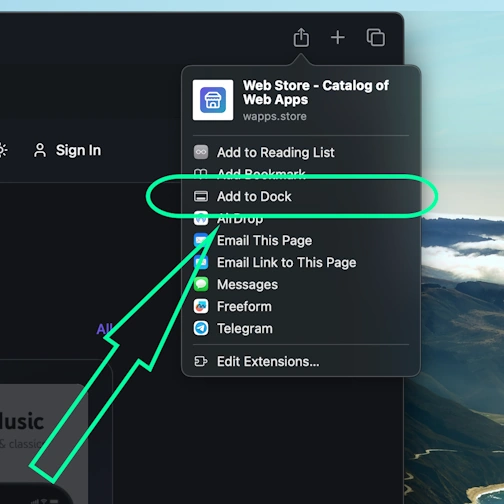
Schritt 2 für Safari unter macOS
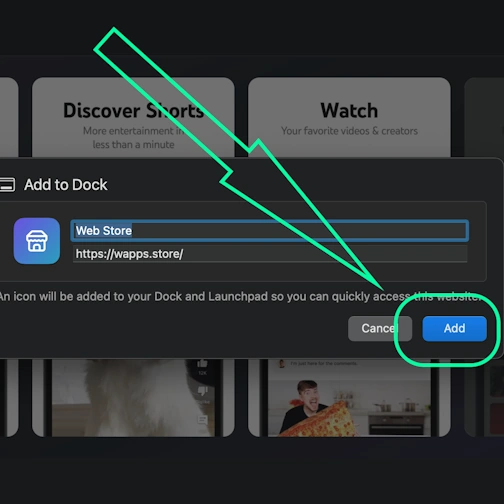
Schritt 3 für Safari unter macOS
Chrome - iOS
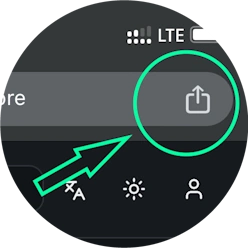
Tippen Sie auf das Teilen-Symbol oben rechts neben der Website-Adresse
Option wählen: Zum Startbildschirm hinzufügen
Tippen Sie hier auf "Hinzufügen". Die App erscheint auf dem Startbildschirm Ihres iPhones
Chrome - Android
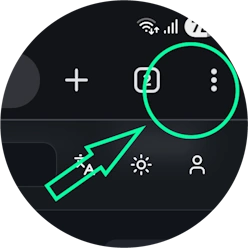
Browser-Menü öffnen - drei Punkte oben rechts
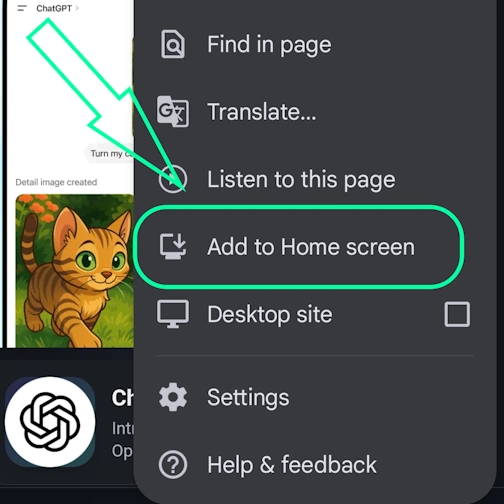
Option "App installieren" wählen (manchmal: "Zum Startbildschirm hinzufügen")
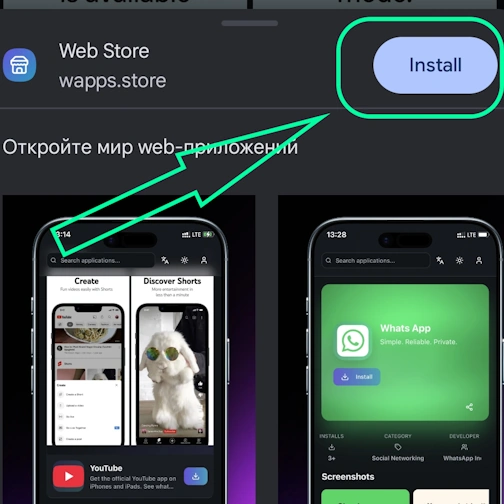
Bestätigen Sie hier die Installation - tippen Sie auf "Installieren"
Chrome - Desktop
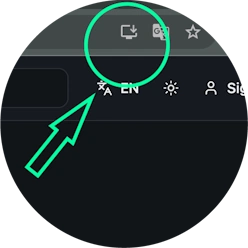
Auf "App installieren" klicken - Symbol: Computer mit Pfeil nach unten
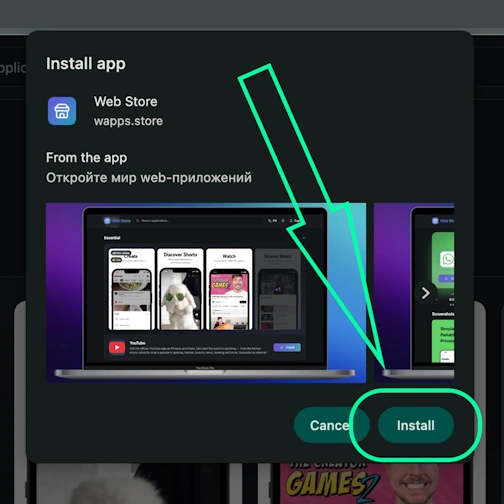
Installation durch Klick auf "Installieren" bestätigen
Edge - Desktop
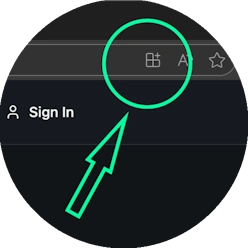
Auf "App installieren" klicken - Symbol: 3 Blöcke mit Pluszeichen
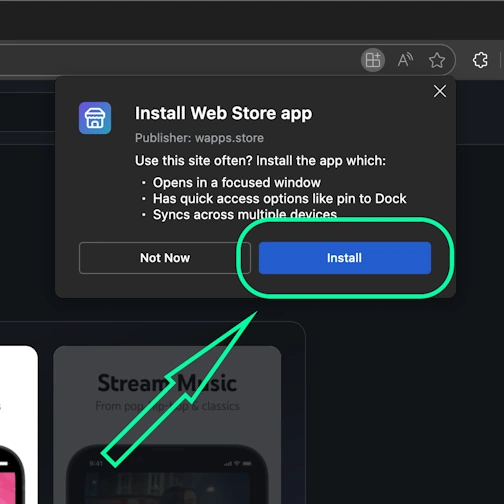
Installation durch Klick auf "Installieren" bestätigen
Edge - Android
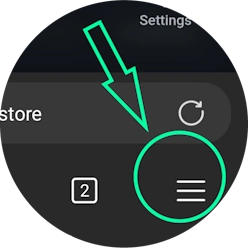
Browser-Menü öffnen - "Burger"-Symbol unten rechts neben der Website-Adresse
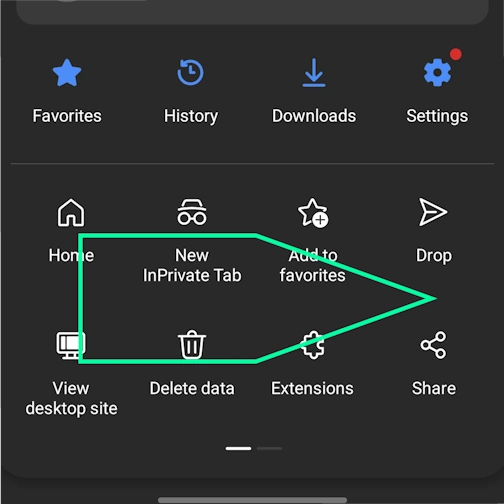
Menü-Symbole nach rechts wischen
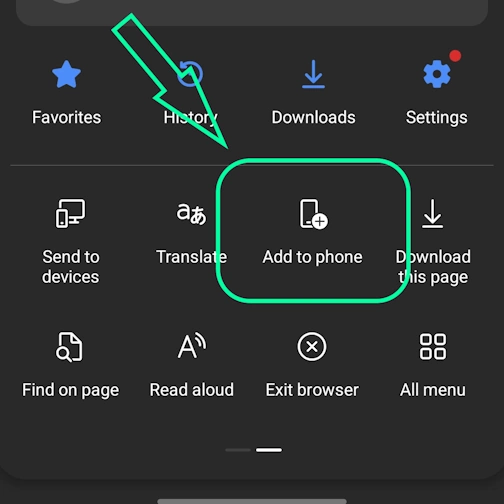
Option "Zum Telefon hinzufügen" wählen
Bestätigen Sie hier die Installation - tippen Sie auf "Installieren"
Yandex - iOS
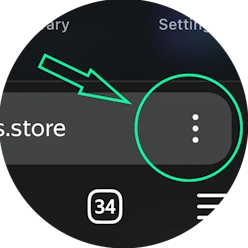
Browser-Menü öffnen - drei Punkte unten rechts neben der Website-Adresse
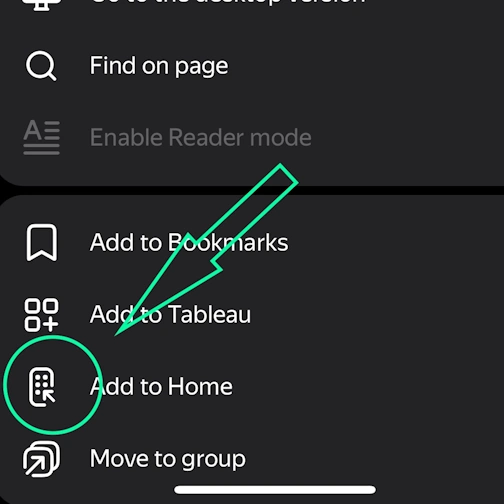
Auf "Zum Startbildschirm hinzufügen" tippen
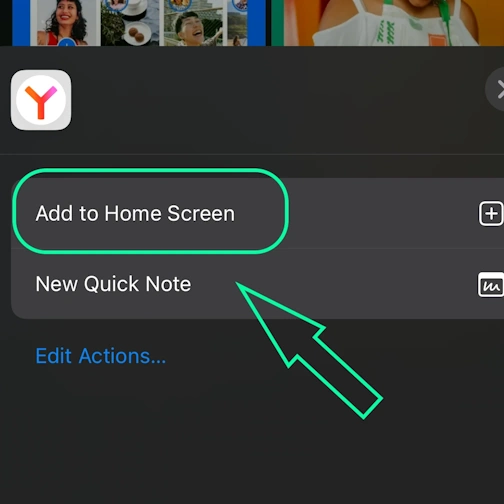
Hier die Option wählen: Zum Startbildschirm hinzufügen
Tippen Sie hier auf "Hinzufügen". Die App erscheint auf dem Startbildschirm Ihres iPhones
Yandex - Android
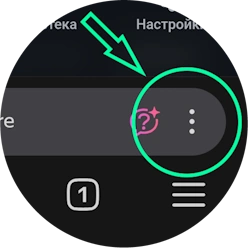
Browser-Menü öffnen - drei Punkte unten rechts neben der Website-Adresse
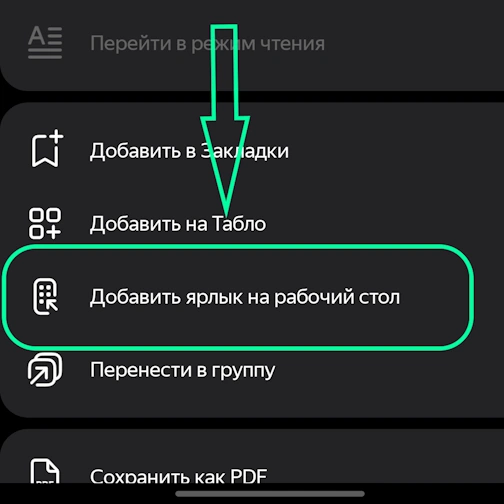
Option "Zum Startbildschirm hinzufügen" wählen
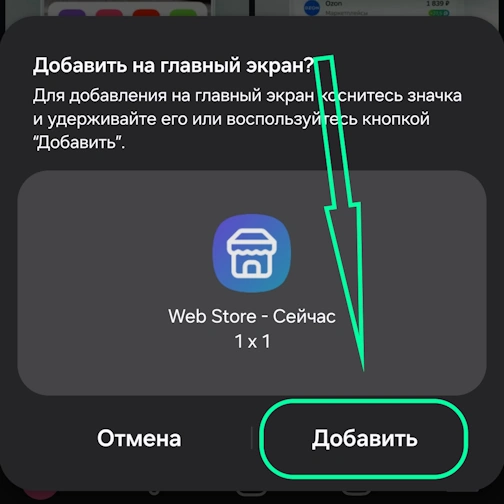
Hier auf "Hinzufügen" tippen - die App erscheint auf Ihrem Startbildschirm
Yandex - Desktop
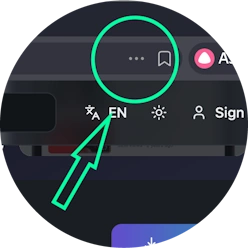
"Aktionsmenü" öffnen - drei Punkte oben rechts neben der Website-Adresse
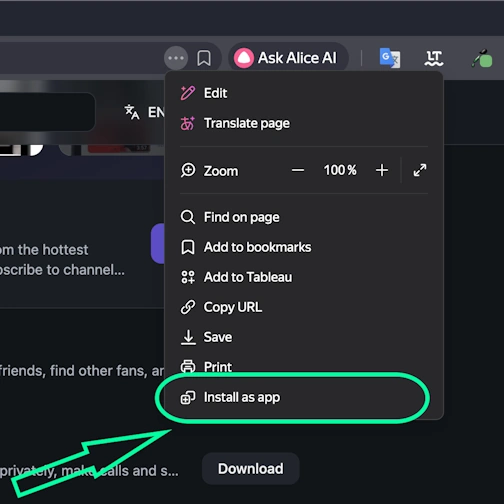
Option "Als App installieren" wählen
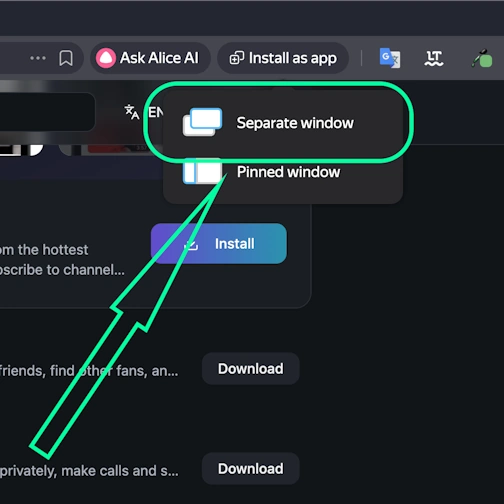
Hier "Separates Fenster" wählen
Opera - iOS
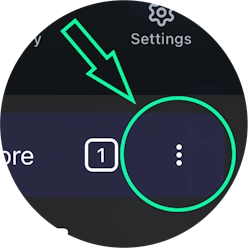
Browser-Menü öffnen (Opera-Symbol unten rechts) und "Zum Startbildschirm hinzufügen" finden
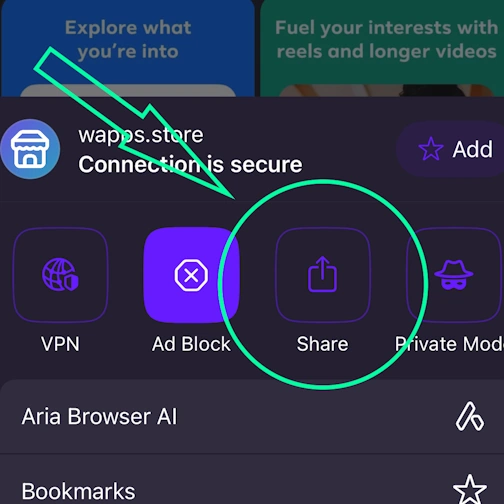
Hier auf die Teilen-Schaltfläche tippen
Option wählen: Zum Startbildschirm hinzufügen
Tippen Sie hier auf "Hinzufügen". Die App erscheint auf dem Startbildschirm Ihres iPhones
Opera - Android
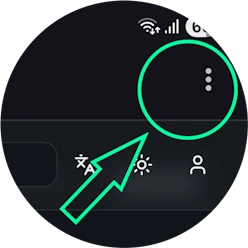
Browser-Menü öffnen - "Drei Punkte" oben rechts
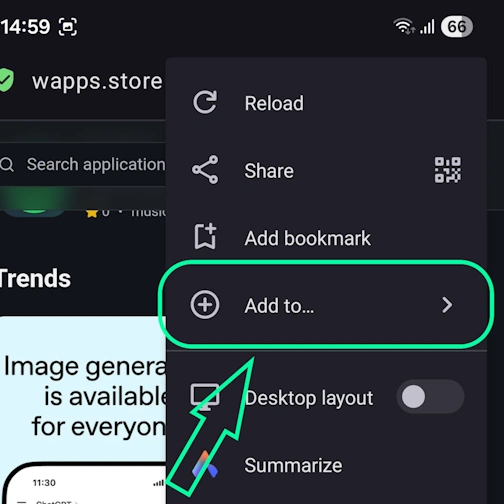
Option "Hinzufügen zu..." wählen
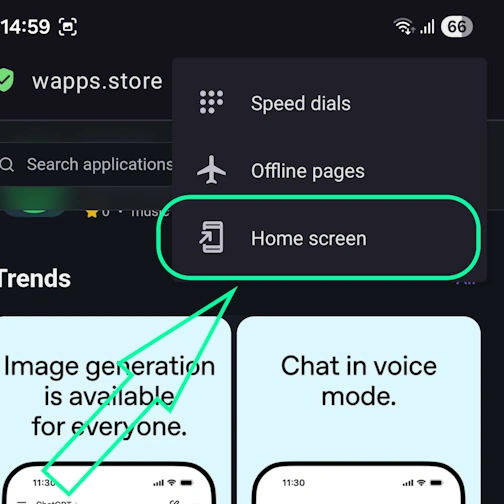
Hier die Option "Startbildschirm" wählen
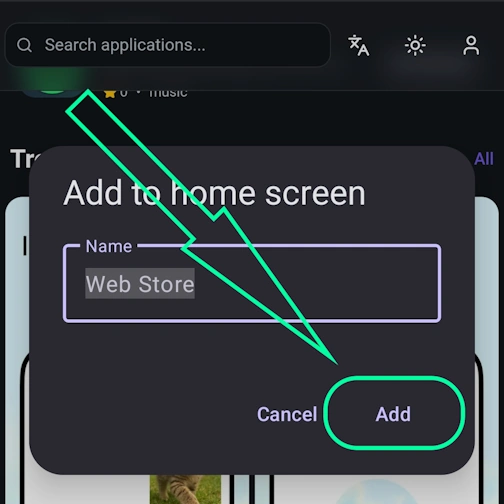
Auf "Hinzufügen" tippen
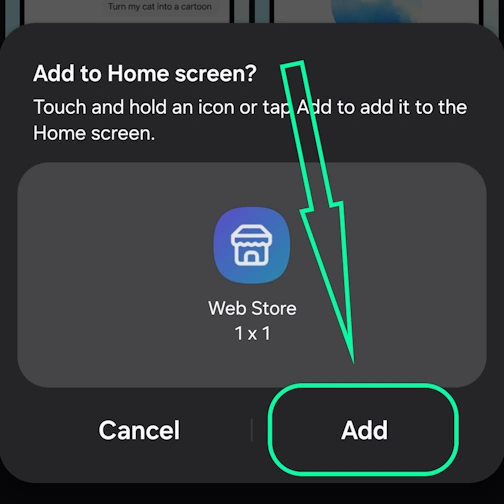
Hier bestätigen - und erneut "Hinzufügen" tippen - die App erscheint auf dem Startbildschirm
Samsung internet - Android
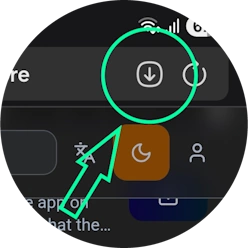
Auf "App installieren" tippen - Symbol: Quadrat mit Pfeil nach unten
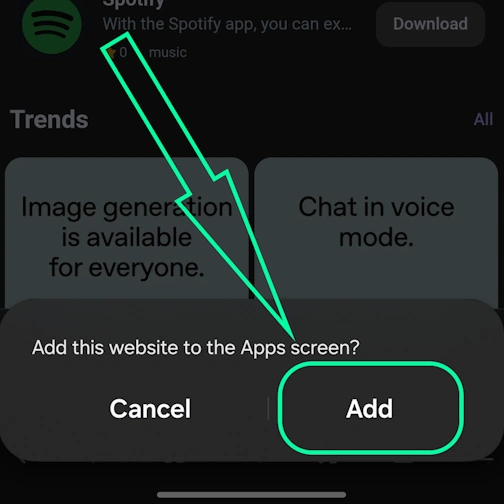
Auf "Hinzufügen" tippen - die App erscheint auf Ihrem Startbildschirm
Keywords: PWA App, Progressive Web App, PWA installieren, PWA App installieren, PWA Web-App, PWA mobile App, PWA Browser-App, installierbare Web-App, PWA installable web app, PWA ohne App Store, PWA ohne Google Play, PWA plattformübergreifende App, PWA Offline-App, PWA Push-Benachrichtigungen, PWA für iOS und Android, Progressive Web App installieren, Progressive Web App offline, Progressive Web App Browser, Progressive Web App installable, Progressive Web App Webanwendung, Progressive Web App mobile App, Progressive Web App ohne Store, App funktioniert ohne Internet, Browser-App als App, App aus Browser installieren, Web-App App, Web-App installieren, Web-App auf Telefon installieren, Webanwendung installieren, schnelle PWA Installation, sofortige PWA Installation, PWA schnell installieren, einfache PWA Installation, PWA Installation Schritt für Schritt, Schritt-für-Schritt PWA Installation, PWA Installationsanleitung, wie PWA schnell installieren, PWA Installationshandbuch, Web Store, Apps installieren. Ohne Grenzen. Ohne Zensur., reference, lifestyle, utilities-tools