Совкомбанк - Your Sovcombank office, ready when you are

Description

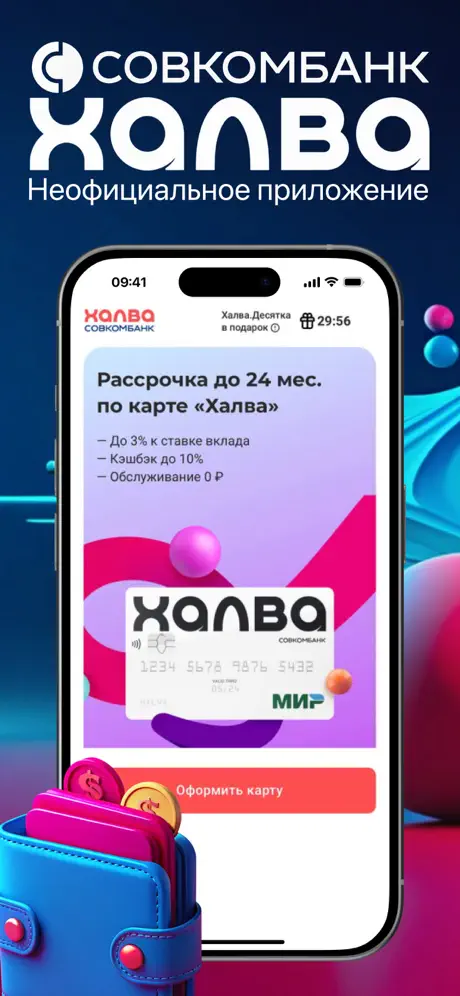
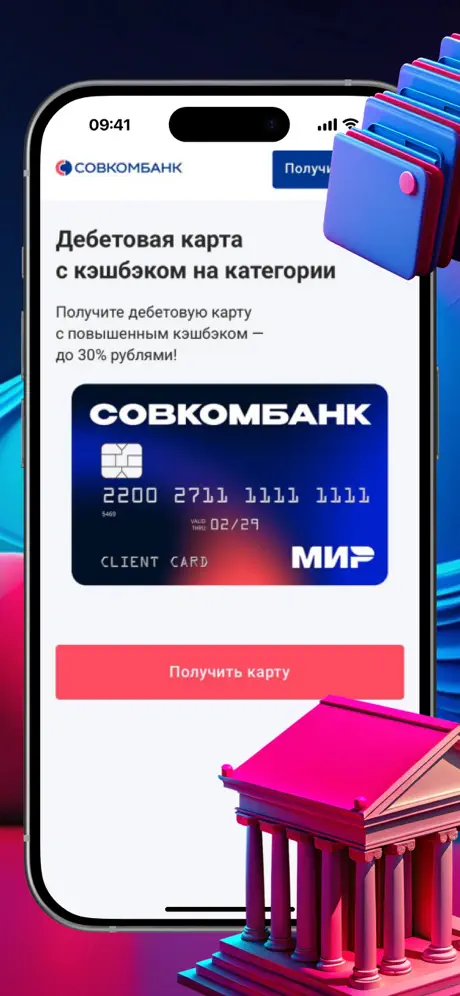
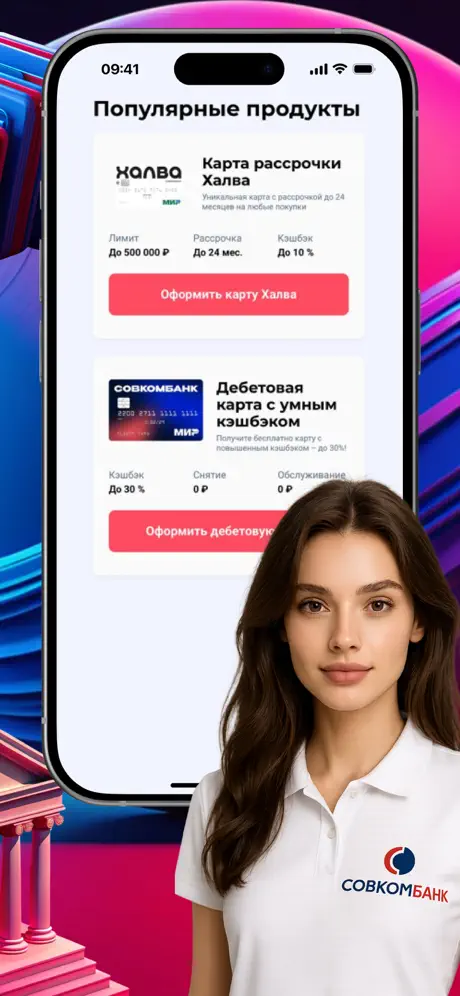
Manage your finances and "Halva" card right from your phone's home screen. Apply for the "Halva" installment card and enjoy purchases in installments for up to 24 months at hundreds of thousands of stores. Discover super benefits with the "Halva.Desyatka" subscription, take advantage of regular promotions and discounts from partners for even more profitable purchases, and benefit from high cashback on all goods. You can also get increased deposit rates when actively using "Halva" with the "Halva.Desyatka" subscription. Choose your payment amount – from a minimum of 1/20 of the debt or a regular installment payment – and easily switch between your own and borrowed funds. Access your convenient installment schedule, detailed transaction history, and even a personal shopping consultant. Inside, you'll find the most in-demand functions for everyday banking. Control all your cards, accounts, and deposits. Apply for loans and remotely sign documents for Sovcombank products. Make loan payments with the option for partial early repayment. Connect your "Halva.Desyatka" subscription and "All and Everywhere" super option. Open, close, and top up deposits online with competitive rates. Order certificates and statements, use the quick search function for application sections, and open a currency account with online currency exchange. Find nearby ATMs, set up automatic free top-ups from cards of any bank, and add widgets to your smartphone's home screen to see transaction receipts instantly. Perform instant transfers and payments with ease. Pay utilities, TV, internet, and mobile communications commission-free, including via QR code and with "Halva" installments. Set up quick payment templates and auto-payments. Transfer funds to any cards, accounts in other banks, and to organizations. For convenience and security, you can order cash from a deposit, change your card PIN code, and use the automatic caller ID function. Stay informed with a multi-functional notification feed, enjoy simplified access via fingerprint, and get 24/7 support through chat. Access video tutorials for using "Halva" correctly and safely, and block your card in an emergency. This is the web version of your bank. Open it in your browser, tap to install it on your home screen, and it will open and work just like a native app. You get your own icon, a standalone window without browser bars, offline access once cached, push notifications, and silent background updates. It's the same Sovcombank product, but it works directly from the web, no separate store account needed.

What's New

We've made managing your loans even smoother. • Simplified full and partial early loan repayments. • Connecting free automatic caller ID is now more convenient. • Discover more personalized offers just for you. • Application performance has been improved.

Screenshots

Совкомбанк screenshots 1 Совкомбанк screenshots 2 Совкомбанк screenshots 3 Совкомбанк screenshots 4 Совкомбанк screenshots 5

Similar apps

Supported Operating Systems

The web application Совкомбанк works on all popular operating systems and devices. The application runs through a browser, so it's available on iOS, Android, Windows, macOS, Chrome OS (Chromebook), and any Linux-based systems. Thanks to the PWA format, Совкомбанк works reliably on Russian operating systems, including Astra Linux and Red OS, as well as on common Linux distributions: Ubuntu, Debian, Fedora, Linux Mint, Arch Linux, Manjaro, and others. Enterprise solutions are supported: Red Hat Enterprise Linux, CentOS, Oracle Linux. This makes Совкомбанк a convenient solution for personal, work, and government devices — without App Store, Google Play, or region changes.

Add Совкомбанк as a PWA and use it as an app?

Add Совкомбанк as a PWA and use it as an app! Our guide has instructions for mobile and desktop browsers — step by step.

Opera - iOS
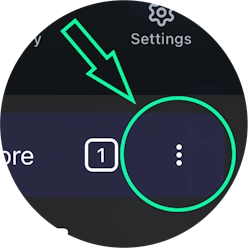
Step 1 - Opera iOS

Open the browser menu (Opera icon in the bottom right corner) and find 'Add to Home Screen'
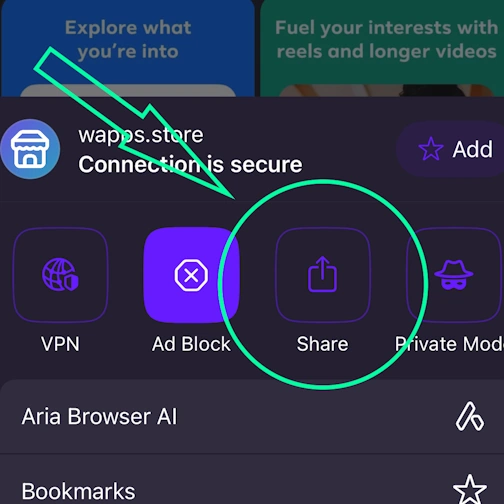
Step 2 - Opera iOS

Here tap the Share button

Step 3 - Opera iOS

Select the option: Add to Home Screen
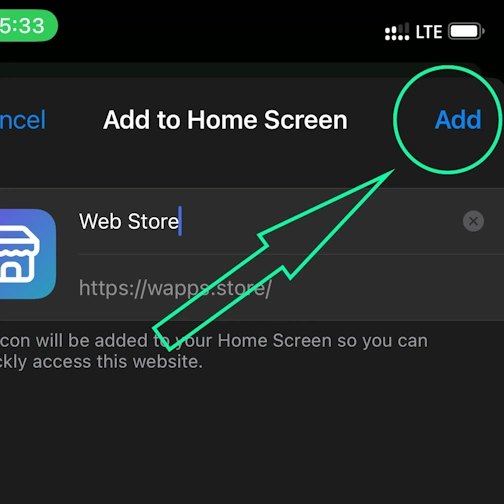
Step 4 - Opera iOS

And here tap the 'Add' button. And the App will appear on your iPhone's home screen

Opera - Android
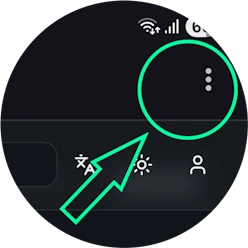
Step 1 - Opera Android

Open the browser menu - 'Three dots' in the top right corner
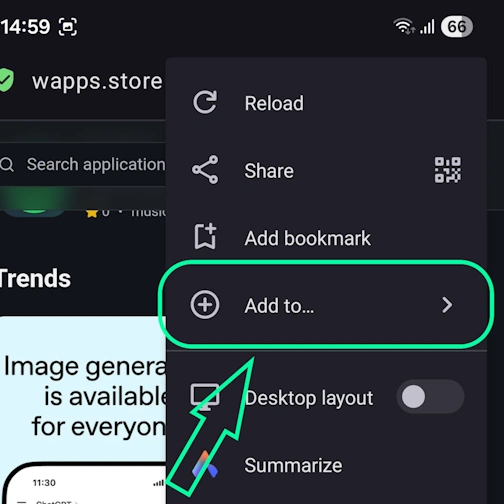
Step 2 - Opera Android

Select the option 'Add to...'

Step 3 - Opera Android

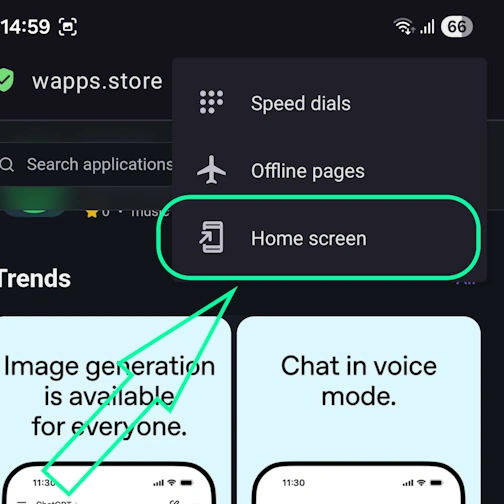
Here select the option 'Home Screen'

Step 4 - Opera Android

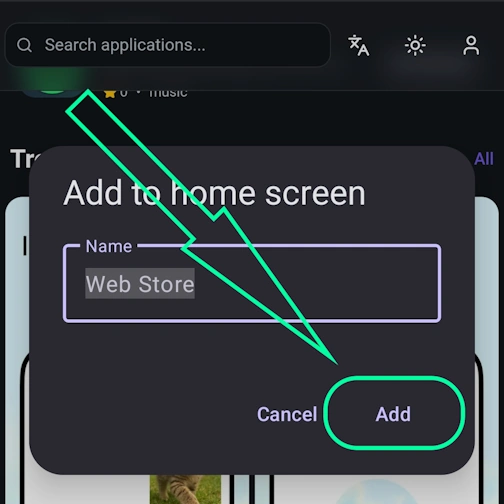
Tap the 'Add' button

Step 5 - Opera Android

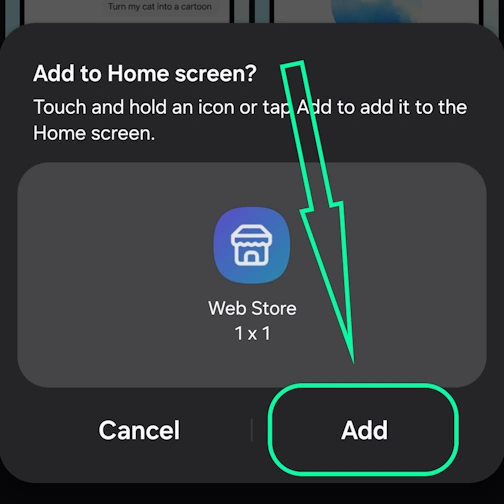
And here confirm - and tap 'Add' again - and the app will appear on your home screen

Safari - iOS
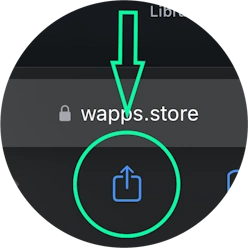
Step 1 - Safari iOS

Tap the Share button (square with arrow pointing up) at the bottom of the screen

Step 2 - Safari iOS

Select the option: Add to Home Screen

Step 3 - Safari iOS

And here tap the 'Add' button. And the App will appear on your iPhone's home screen

Safari - Desktop
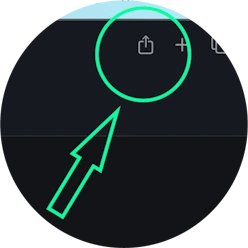
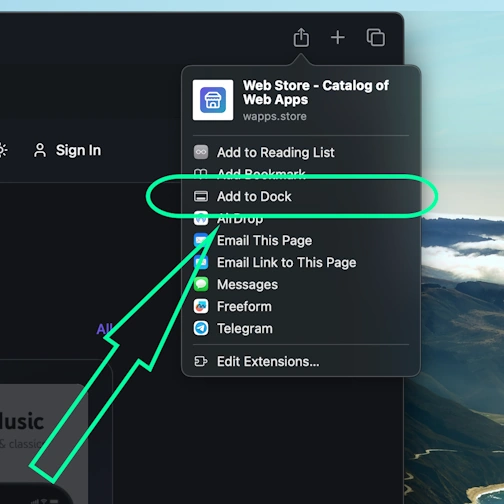
Step 1 - Safari Desktop

Step 1 for Safari on macOS

Step 2 - Safari Desktop

Step 2 for Safari on macOS

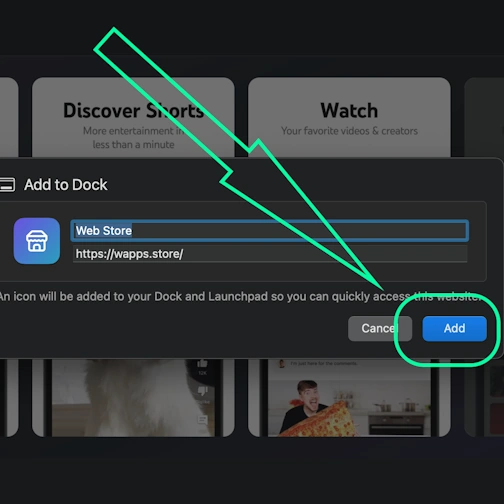
Step 3 - Safari Desktop

Step 3 for Safari on macOS

Chrome - iOS
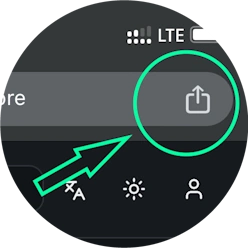
Step 1 - Chrome iOS

Tap the Share icon in the top right corner, next to the site address

Step 2 - Chrome iOS

Select the option: Add to Home Screen

Step 3 - Chrome iOS

And here tap the 'Add' button. And the App will appear on your iPhone's home screen

Chrome - Android
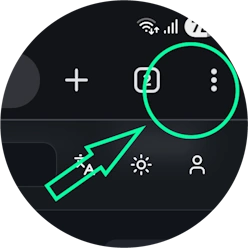
Step 1 - Chrome Android

Open the browser menu - three dots in the top right corner
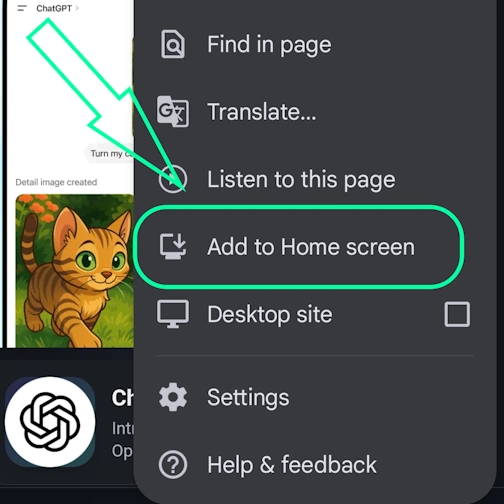
Step 2 - Chrome Android

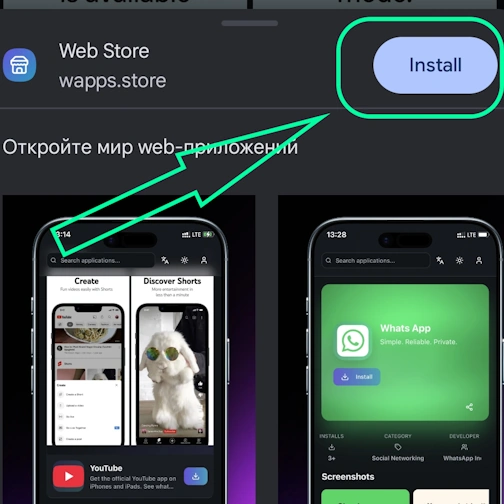
Select the option 'Install app' sometimes it's: 'Add to Home Screen'
Step 3 - Chrome Android

And here confirm the installation - tap 'Install'

Chrome - Desktop
Step 1 - Chrome Desktop

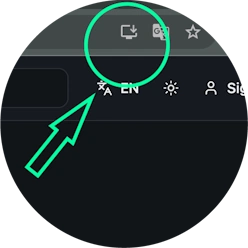
Click the 'Install app' button - icon: computer with arrow pointing down
Step 2 - Chrome Desktop

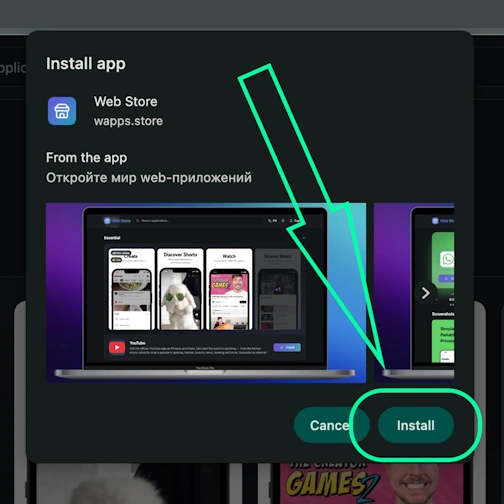
Confirm installation by clicking 'Install'

Edge - Desktop
Step 1 - Edge Desktop

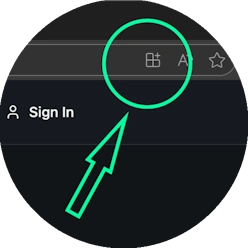
Click the 'Install app' button - icon: 3 blocks with plus sign
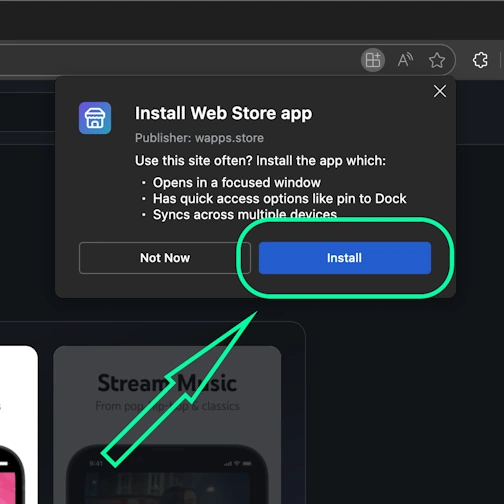
Step 2 - Edge Desktop

Confirm installation by clicking 'Install'

Edge - Android
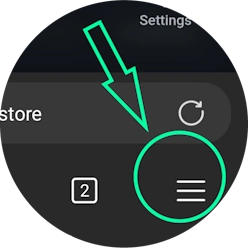
Step 1 - Edge Android

Open the browser menu - 'burger' icon in the bottom right corner, next to the site address
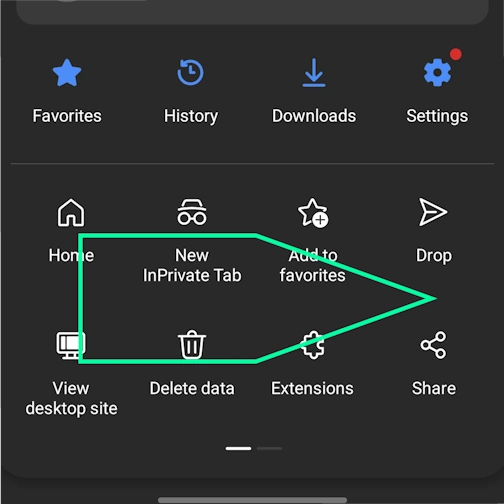
Step 2 - Edge Android

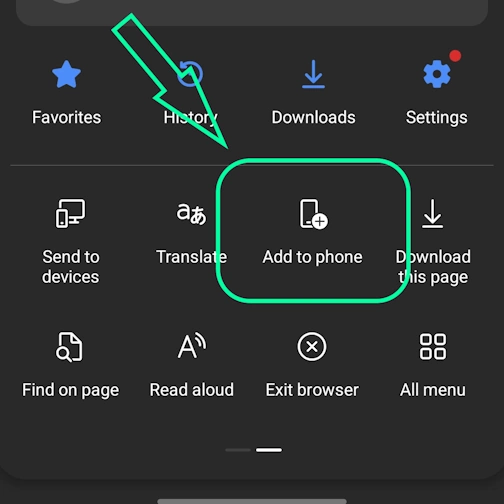
Swipe the menu icons to the right

Step 3 - Edge Android

Select the option 'Add to phone'

Step 4 - Edge Android

And here confirm the installation - tap 'Install'

Yandex - iOS
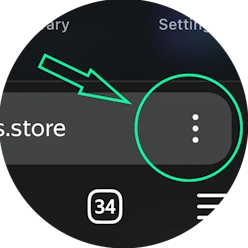
Step 1 - Yandex iOS

Open the browser menu - three dots in the bottom right corner, next to the site address
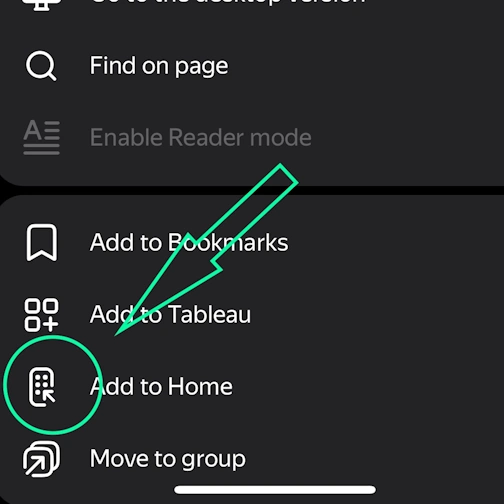
Step 2 - Yandex iOS

Tap the 'Add to Home' button

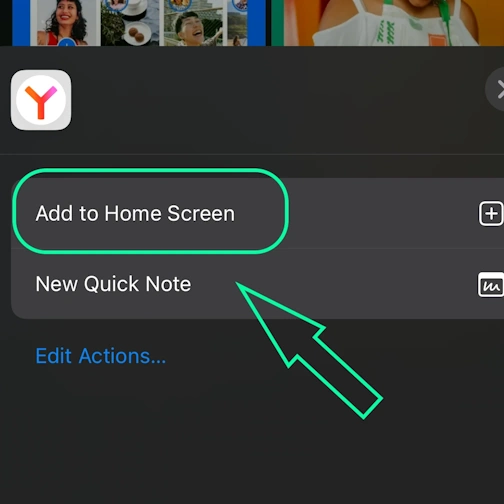
Step 3 - Yandex iOS

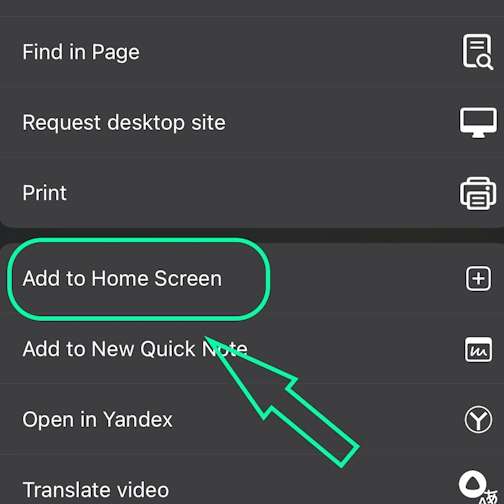
Here select the option: Add to Home Screen

Step 4 - Yandex iOS

And here tap the 'Add' button. And the App will appear on your iPhone's home screen

Yandex - Android
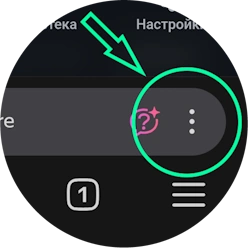
Step 1 - Yandex Android

Open the browser menu - three dots in the bottom right corner, next to the site address
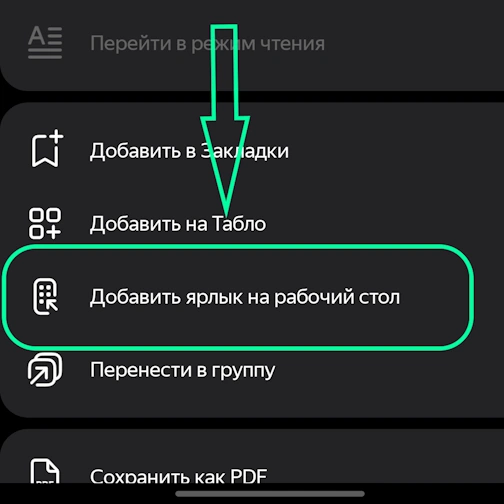
Step 2 - Yandex Android

Select the option 'Add to Home Screen'
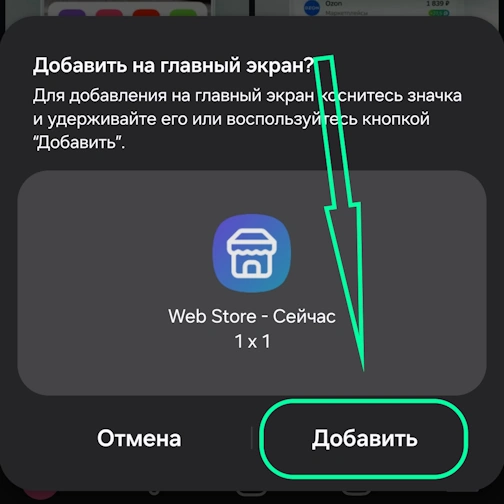
Step 3 - Yandex Android

And here tap the 'Add' button - and the app will appear on your home screen

Yandex - Desktop
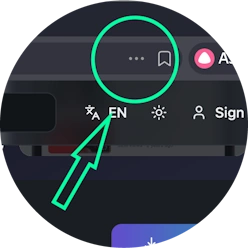
Step 1 - Yandex Desktop

Open the 'Actions menu' - three dots in the top right corner - next to the site address
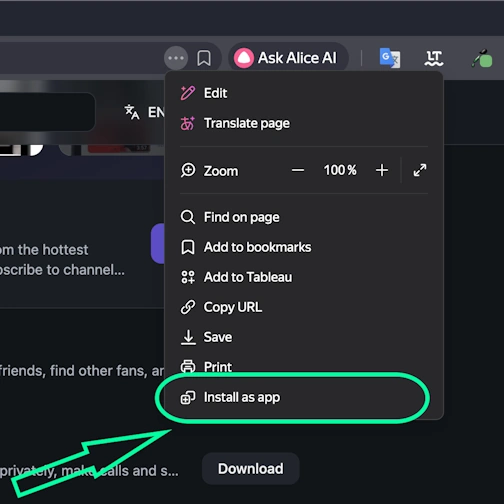
Step 2 - Yandex Desktop

Select the option 'Install as app'

Step 3 - Yandex Desktop

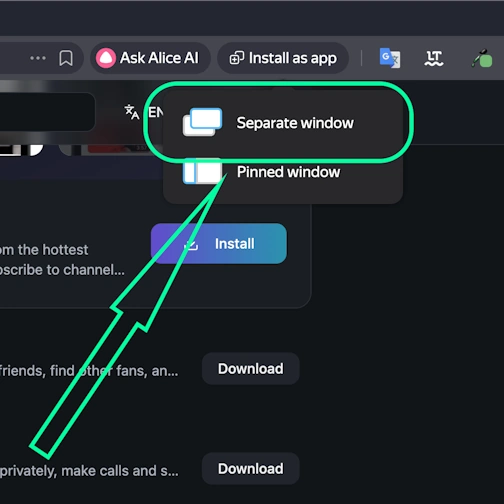
And here select 'Separate window'

Samsung internet - Android
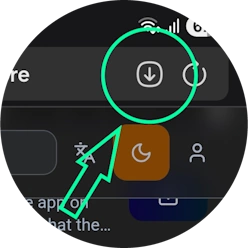
Step 1 - Samsung internet Android

Tap the 'Install app' button - icon: square with arrow pointing down
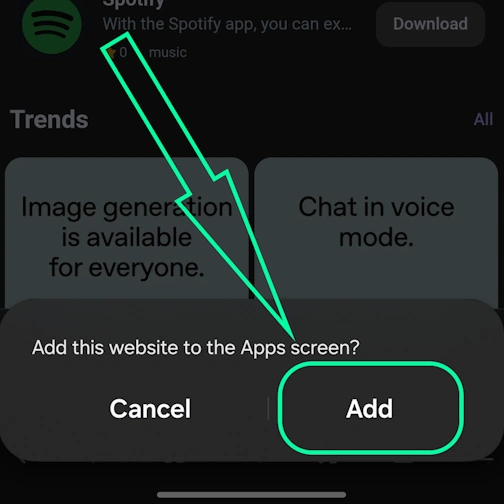
Step 2 - Samsung internet Android

And tap the 'Add' button - and the app will appear on your home screen

Keywords: PWA app, Progressive Web App, install PWA, install PWA app, PWA web app, PWA mobile app, PWA browser app, installable web app, PWA installable web app, PWA without App Store, PWA without Google Play, PWA cross-platform app, PWA offline app, PWA push notifications, PWA for iOS and Android, Progressive Web App install, Progressive Web App offline, Progressive Web App browser, Progressive Web App installable, Progressive Web App web application, Progressive Web App mobile app, Progressive Web App without store, app works without internet, browser app as app, install app from browser, web-app app, install web app, install web-app on phone, web application install, fast PWA installation, instant PWA installation, install PWA quickly, easy PWA installation, simple PWA installation, step by step PWA installation, step-by-step PWA installation, PWA installation instructions, how to install PWA quickly, PWA installation guide, PWA installation manual, Совкомбанк, Your Sovcombank office, ready when you are, finance

View app on Web Store →