Screenshots
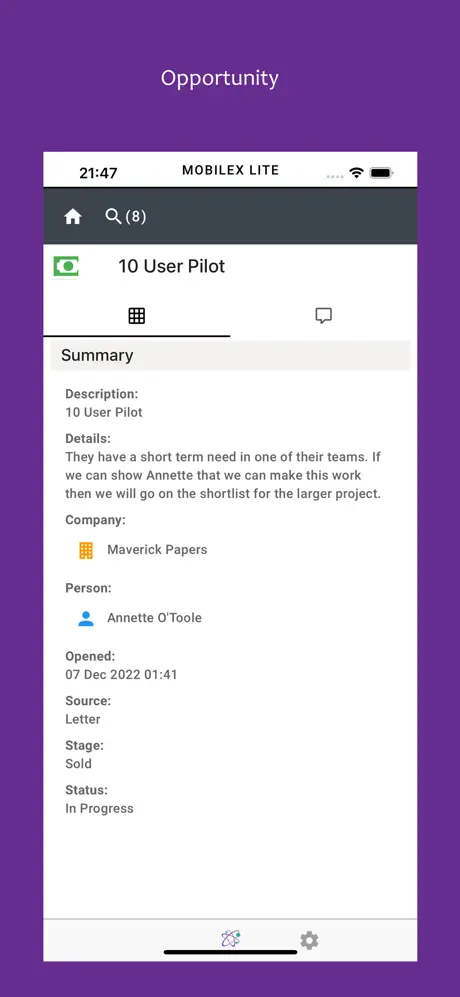
User reviews
-
★★★★
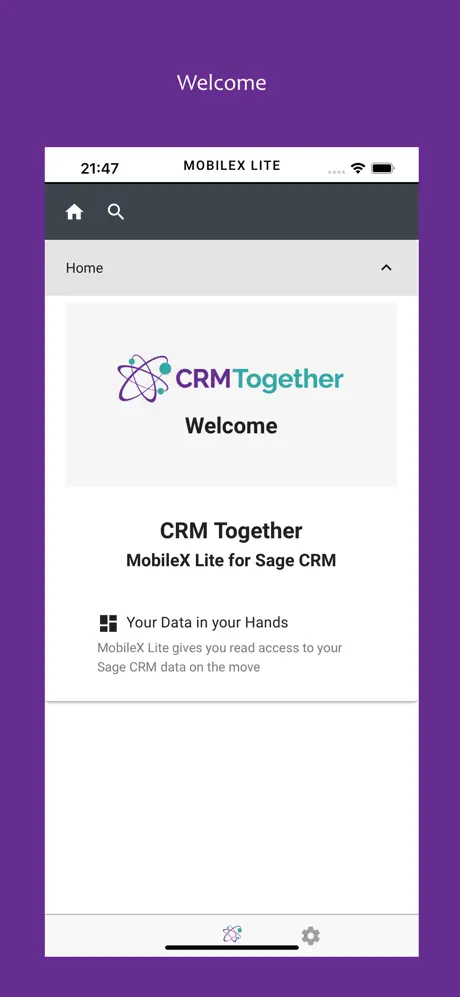
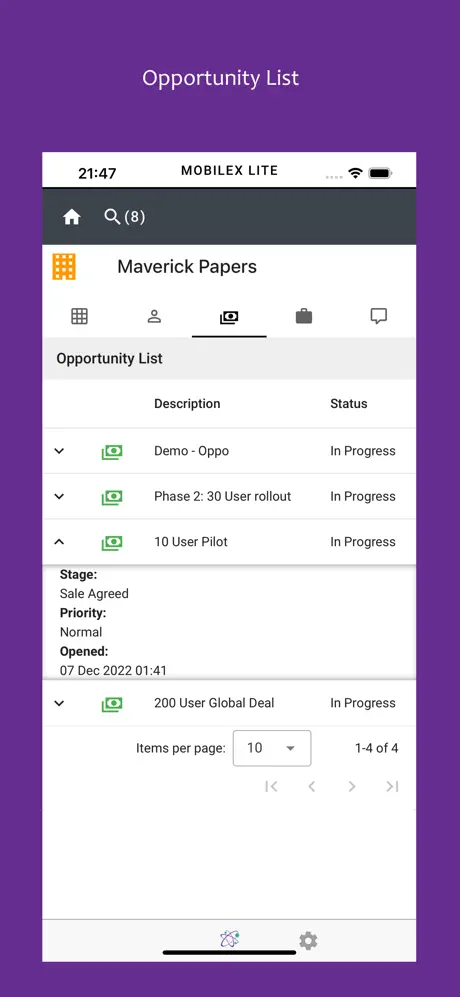
Great for quickly checking my Sage CRM leads and opportunities on the go. Exactly what I needed!
2026-04-08 -
★★★
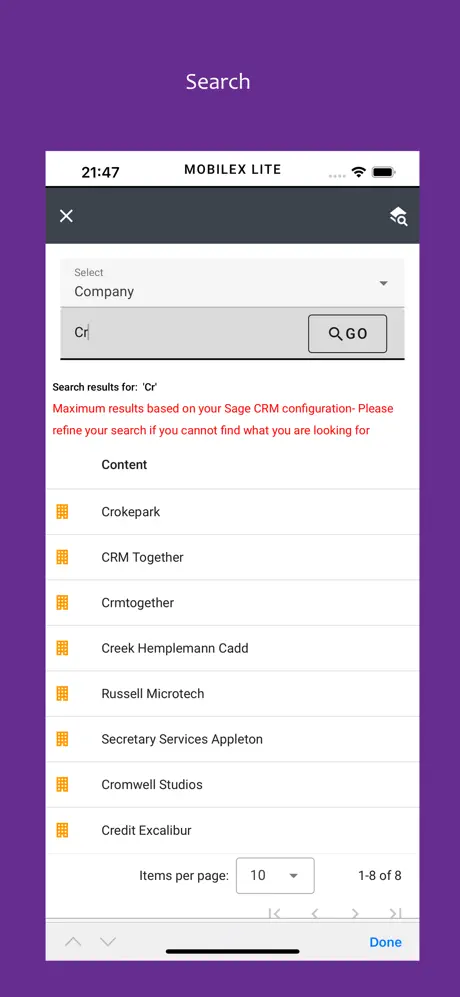
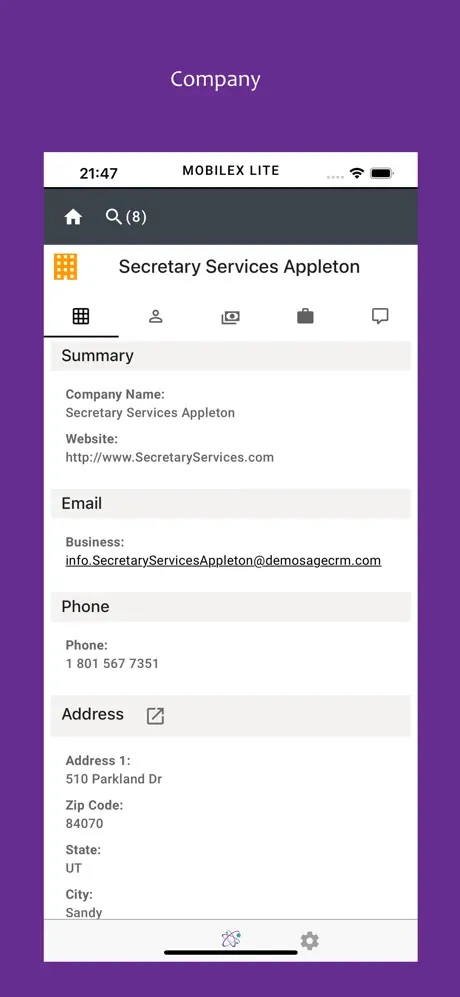
Prima app om Sage CRM mee te bekijken. Handig om snel mijn bedrijven en contacten te checken onderweg. Werkt soepel, maar mist nog wat diepgang voor echte bewerkingen.
2026-03-18
Similar apps
- Google Chat: Connect and collaborate efficiently with your team — ★ 4.9
- MintGarden: Create and collect Chia NFTs anywhere — ★ 4.6
- АвтоСпас.Рус: Your roadside assistance companion — ★ 4.6
- ExhibitDay: Streamline your trade show planning — ★ 4.6
- Taskbox: Keep your projects moving forward — ★ 4.5
- Linkedin: Connect, Find Jobs, and Grow Your Career — ★ 4.5
- Joppy: Find your next tech role with a simple swipe — ★ 4.5
- Adobe: Your creative toolkit in one browser-ready home — ★ 4.4
Platform Compatibility
How to add MobileX Lite to your screen and use it as an app?
How to add MobileX Lite to your screen and use it as an app? In 2026, it's easy — just follow our instructions for all browsers.
Opera - iOS
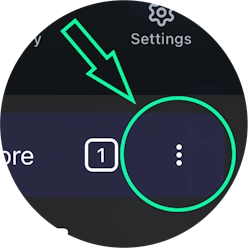
Open the browser menu (Opera icon in the bottom right corner) and find 'Add to Home Screen'
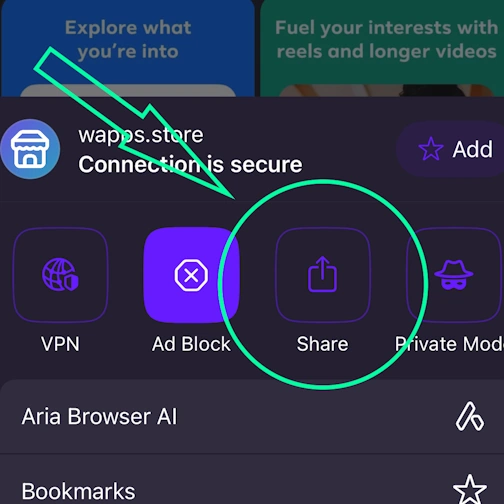
Here tap the Share button
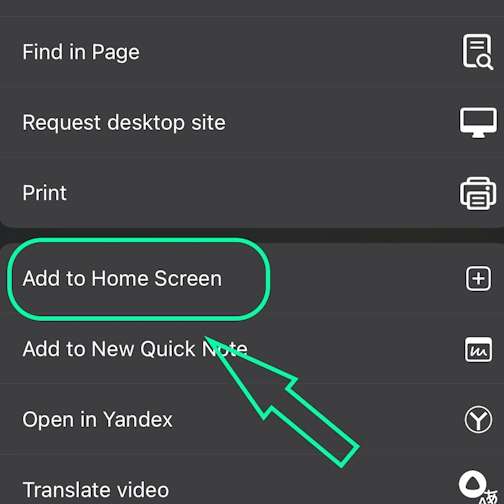
Select the option: Add to Home Screen
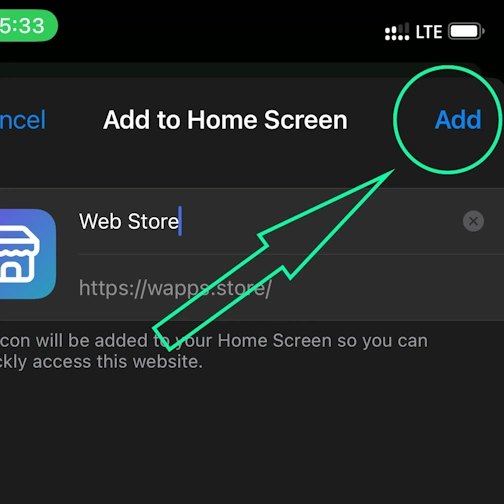
And here tap the 'Add' button. And the App will appear on your iPhone's home screen
Opera - Android
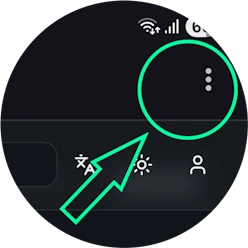
Open the browser menu - 'Three dots' in the top right corner
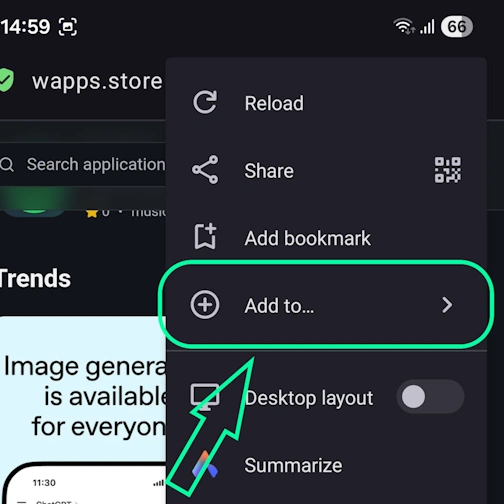
Select the option 'Add to...'
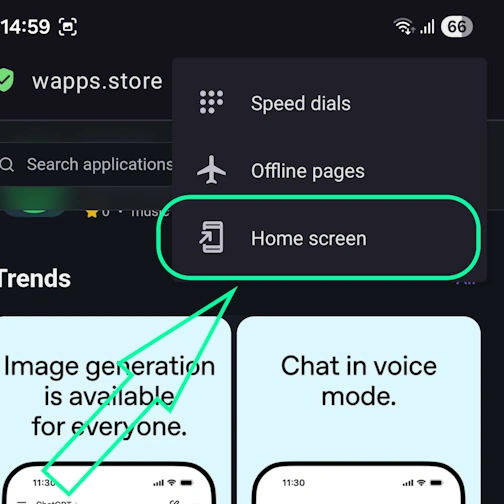
Here select the option 'Home Screen'
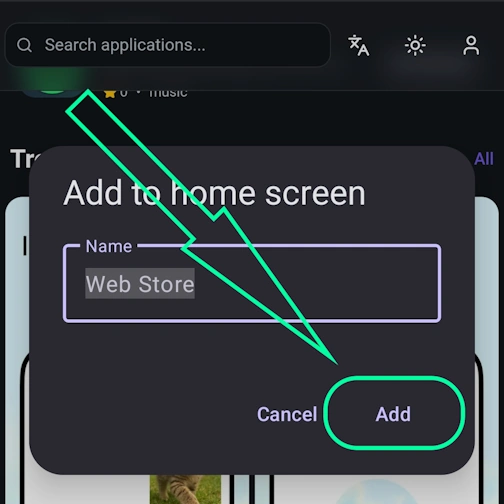
Tap the 'Add' button
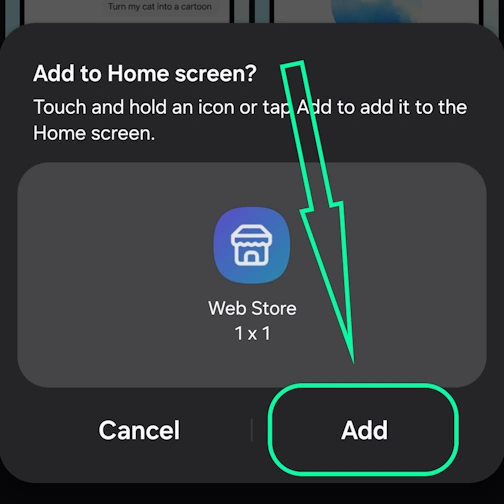
And here confirm - and tap 'Add' again - and the app will appear on your home screen
Safari - iOS
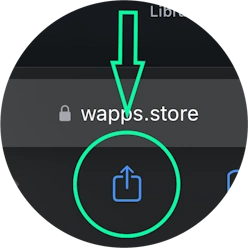
Tap the Share button (square with arrow pointing up) at the bottom of the screen
Select the option: Add to Home Screen
And here tap the 'Add' button. And the App will appear on your iPhone's home screen
Safari - Desktop
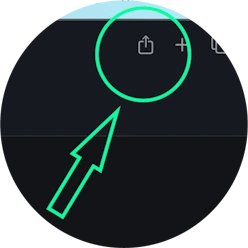
Step 1 for Safari on macOS
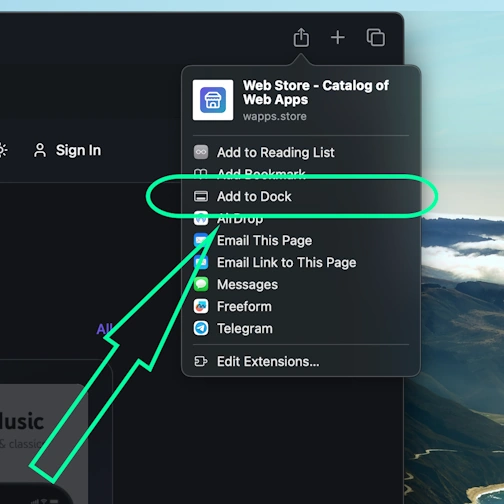
Step 2 for Safari on macOS
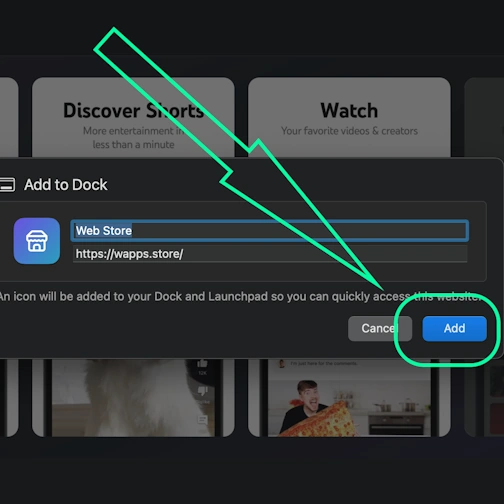
Step 3 for Safari on macOS
Chrome - iOS
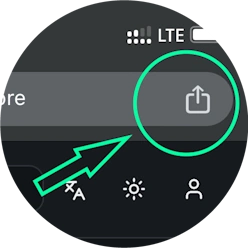
Tap the Share icon in the top right corner, next to the site address
Select the option: Add to Home Screen
And here tap the 'Add' button. And the App will appear on your iPhone's home screen
Chrome - Android
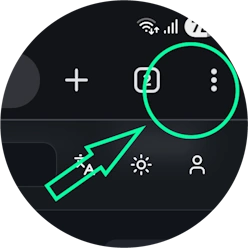
Open the browser menu - three dots in the top right corner
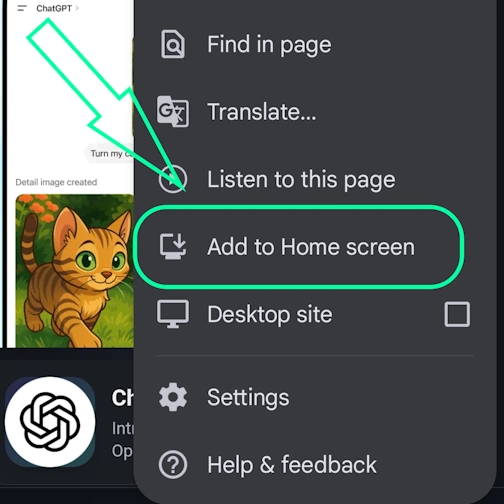
Select the option 'Install app' sometimes it's: 'Add to Home Screen'
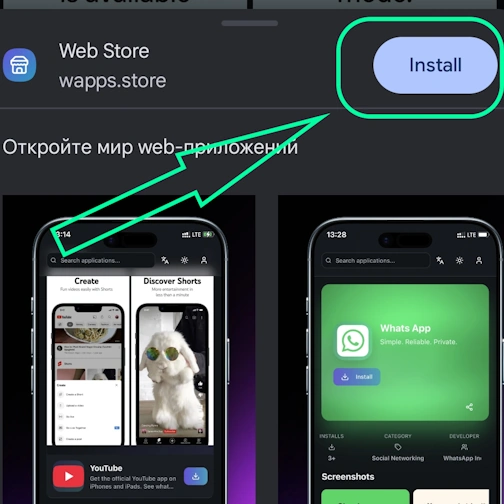
And here confirm the installation - tap 'Install'
Chrome - Desktop
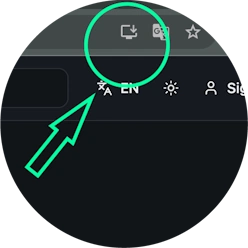
Click the 'Install app' button - icon: computer with arrow pointing down
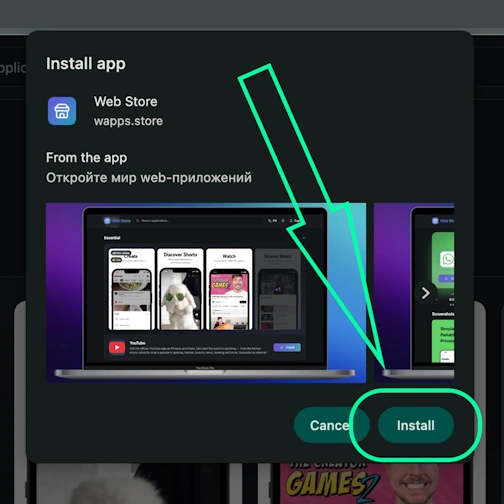
Confirm installation by clicking 'Install'
Edge - Desktop
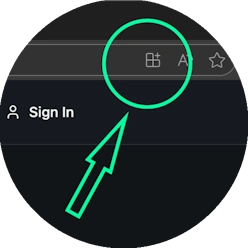
Click the 'Install app' button - icon: 3 blocks with plus sign
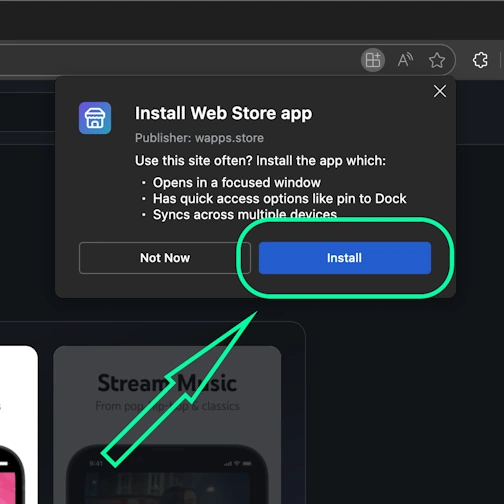
Confirm installation by clicking 'Install'
Edge - Android
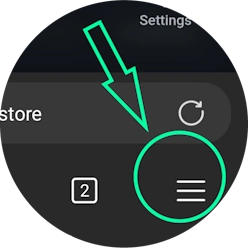
Open the browser menu - 'burger' icon in the bottom right corner, next to the site address
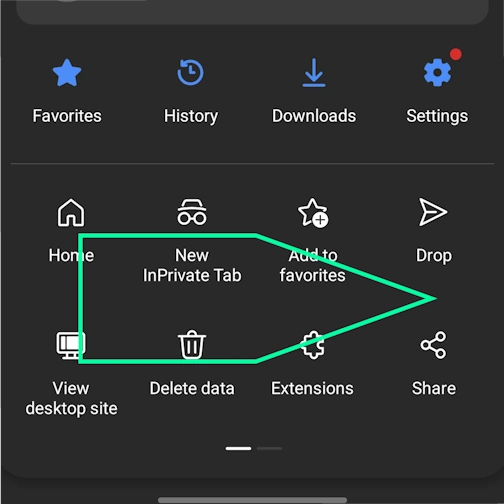
Swipe the menu icons to the right
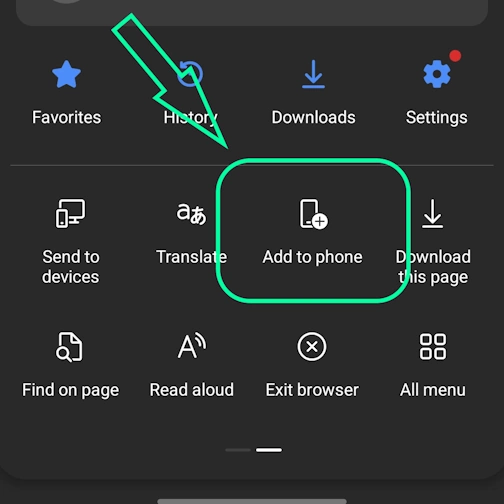
Select the option 'Add to phone'
And here confirm the installation - tap 'Install'
Yandex - iOS
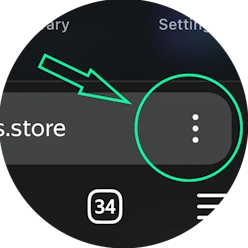
Open the browser menu - three dots in the bottom right corner, next to the site address
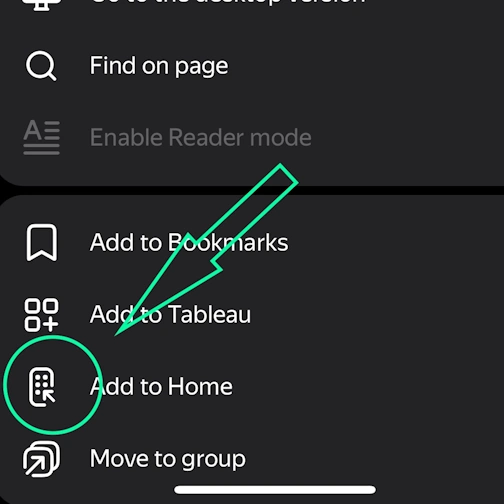
Tap the 'Add to Home' button
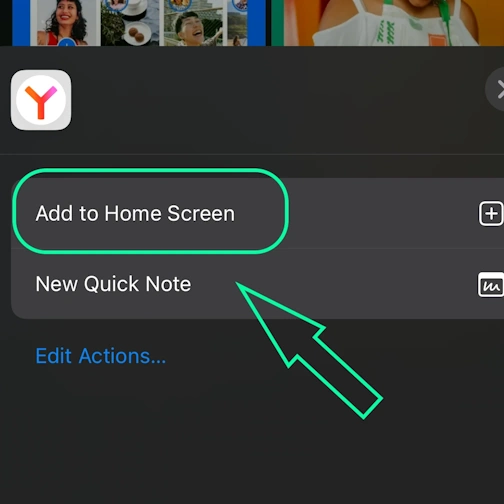
Here select the option: Add to Home Screen
And here tap the 'Add' button. And the App will appear on your iPhone's home screen
Yandex - Android
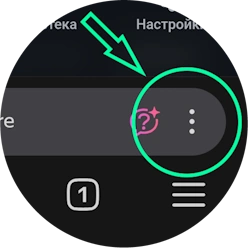
Open the browser menu - three dots in the bottom right corner, next to the site address
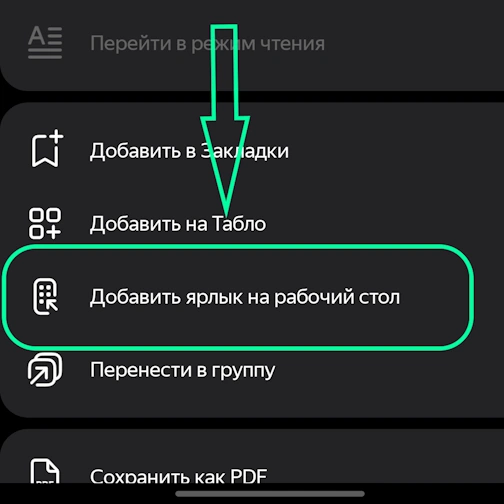
Select the option 'Add to Home Screen'
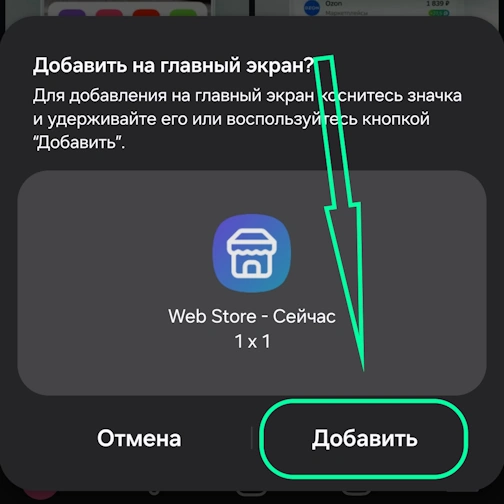
And here tap the 'Add' button - and the app will appear on your home screen
Yandex - Desktop
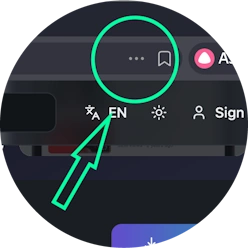
Open the 'Actions menu' - three dots in the top right corner - next to the site address
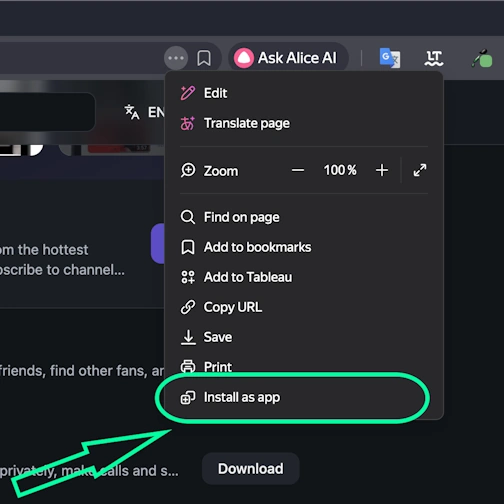
Select the option 'Install as app'
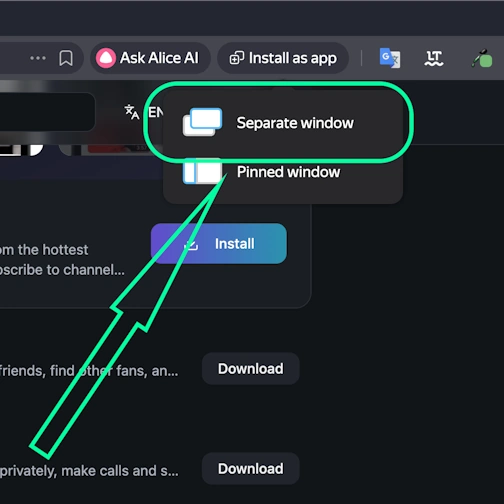
And here select 'Separate window'
Samsung internet - Android
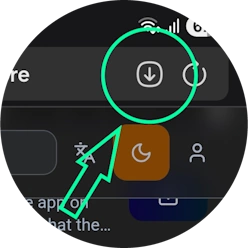
Tap the 'Install app' button - icon: square with arrow pointing down
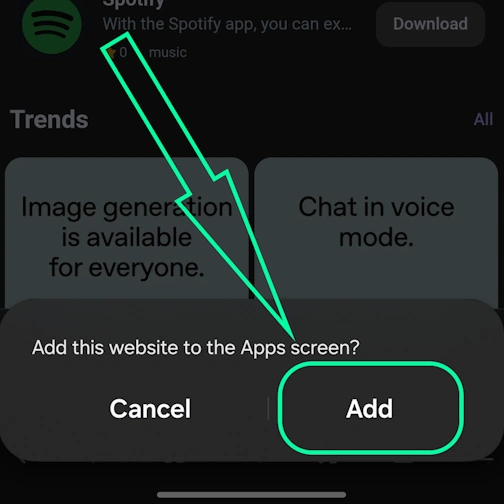
And tap the 'Add' button - and the app will appear on your home screen
Keywords: PWA app, Progressive Web App, install PWA, install PWA app, PWA web app, PWA mobile app, PWA browser app, installable web app, PWA installable web app, PWA without App Store, PWA without Google Play, PWA cross-platform app, PWA offline app, PWA push notifications, PWA for iOS and Android, Progressive Web App install, Progressive Web App offline, Progressive Web App browser, Progressive Web App installable, Progressive Web App web application, Progressive Web App mobile app, Progressive Web App without store, app works without internet, browser app as app, install app from browser, web-app app, install web app, install web-app on phone, web application install, fast PWA installation, instant PWA installation, install PWA quickly, easy PWA installation, simple PWA installation, step by step PWA installation, step-by-step PWA installation, PWA installation instructions, how to install PWA quickly, PWA installation guide, PWA installation manual, MobileX Lite, Access your Sage CRM information anywhere, business