Screenshots

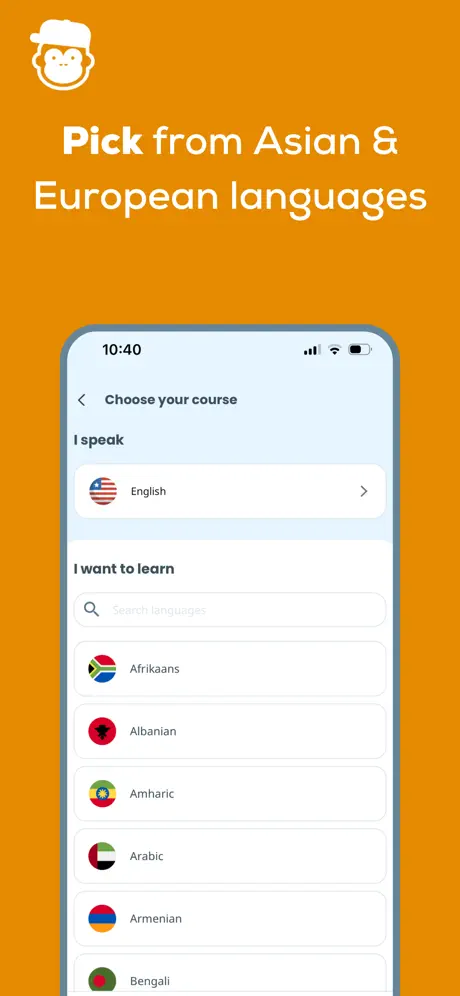
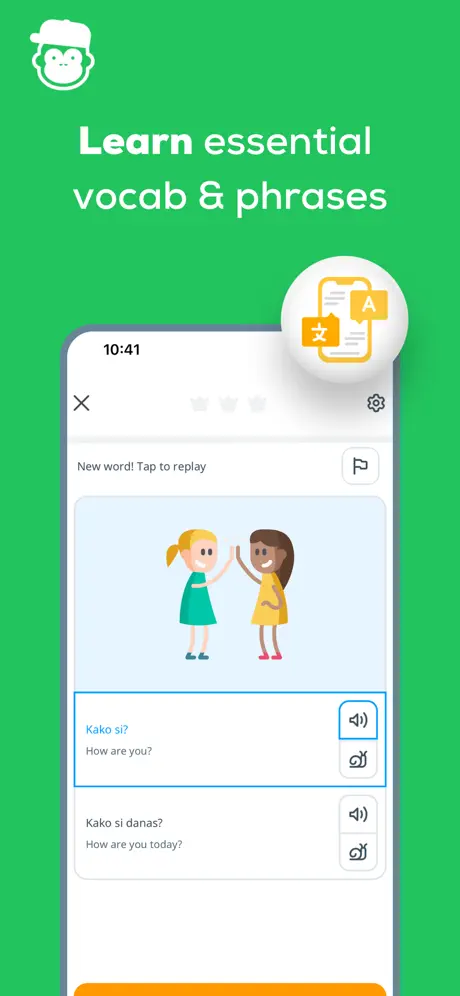
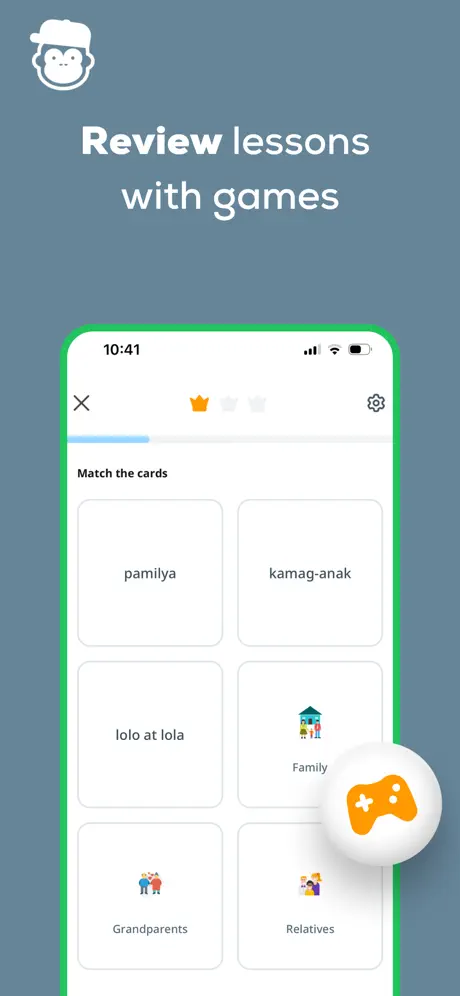
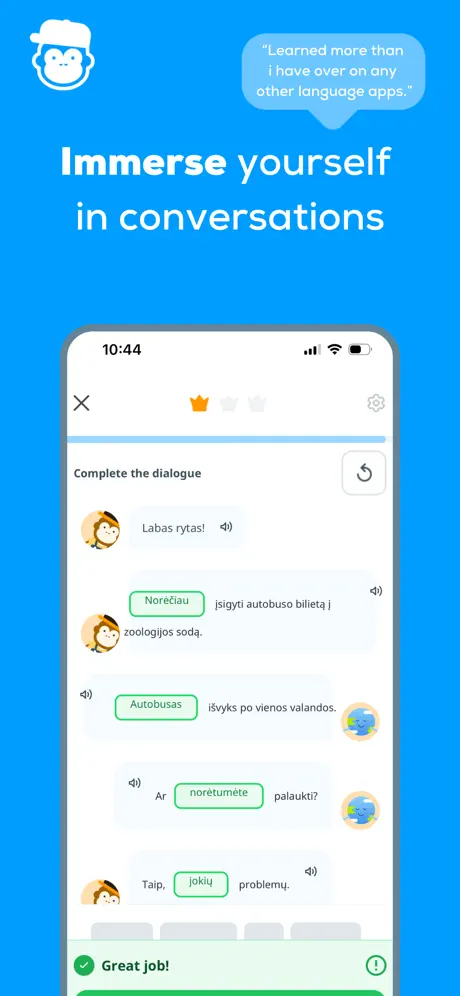
User reviews
-
★★★★
Super App! Ling macht Sprachenlernen echt spaßig, besonders wie sie komplexe Dinge einfach erklären. Klare Empfehlung für Thai & Co!
2026-09-14 -
★★★★
Finally learning Khmer feels *fun*! Ling breaks down the complex stuff easily, just like they said. Really enjoying it! ★★★★☆
2026-06-30
Similar apps
- RushENGL: Master English with a personalized study path — ★ 4.7
- Course Hero: Get instant homework help and math solutions — ★ 4.5
- Plaudli: Sprachen lernen durch natürliche Dialoge mit KI — ★ 4.5
- Kimchi Reader: Master Korean through content you actually enjoy — ★ 4.5
- Tarjamli: Translate Moroccan Darija and 12 languages — ★ 4.5
- Geogee World: Test your knowledge of world geography — ★ 4.4
- Дневник Kiasuo: Keep track of school progress and notes — ★ 4.4
- Showbie: Your classroom, paper-free and connected — ★ 4.3
Supported Operating Systems
Installing Ling in just a few minutes?
Installing Ling in just a few minutes! Our guide shows instructions for each browser and device. You'll see the process step by step right away.
Chrome - iOS
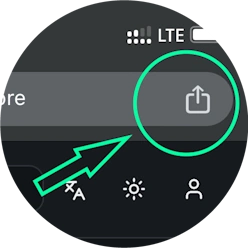
Tap the Share icon in the top right corner, next to the site address
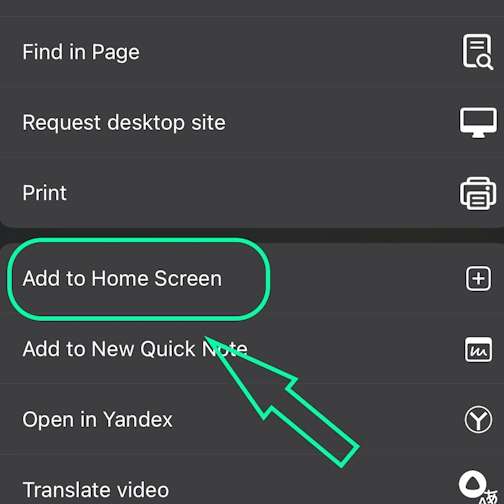
Select the option: Add to Home Screen
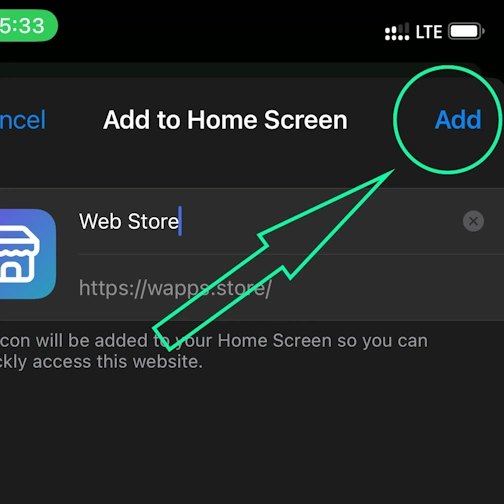
And here tap the 'Add' button. And the App will appear on your iPhone's home screen
Chrome - Android
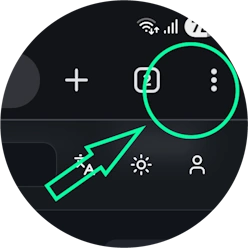
Open the browser menu - three dots in the top right corner
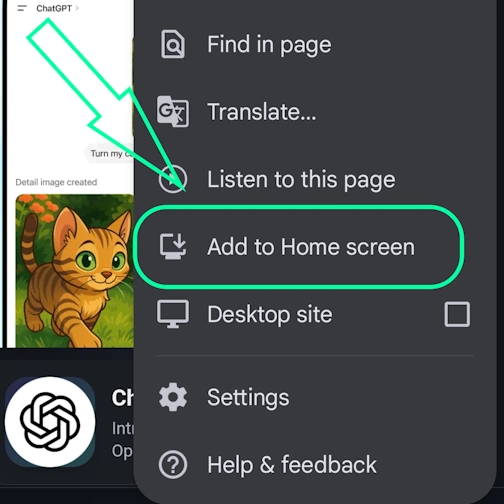
Select the option 'Install app' sometimes it's: 'Add to Home Screen'
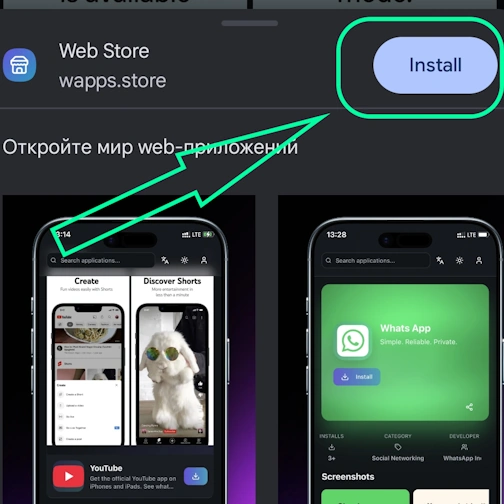
And here confirm the installation - tap 'Install'
Chrome - Desktop
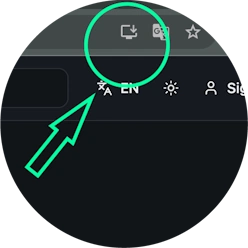
Click the 'Install app' button - icon: computer with arrow pointing down
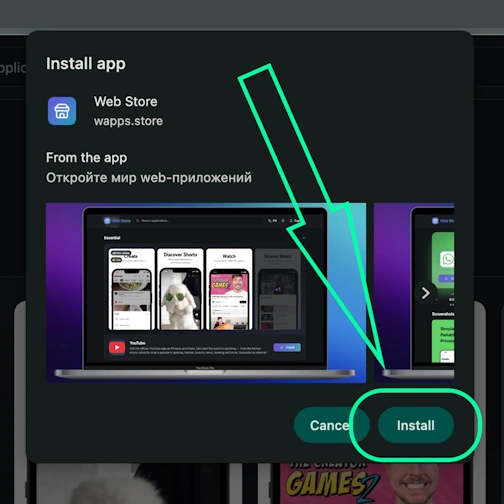
Confirm installation by clicking 'Install'
Safari - iOS
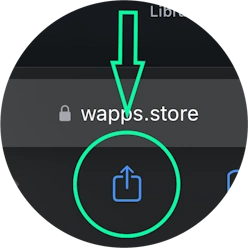
Tap the Share button (square with arrow pointing up) at the bottom of the screen
Select the option: Add to Home Screen
And here tap the 'Add' button. And the App will appear on your iPhone's home screen
Safari - Desktop
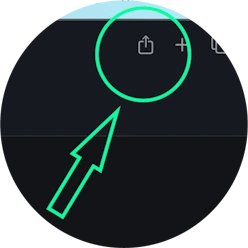
Step 1 for Safari on macOS
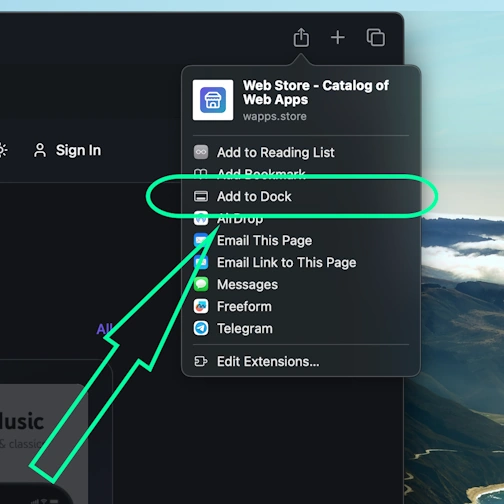
Step 2 for Safari on macOS
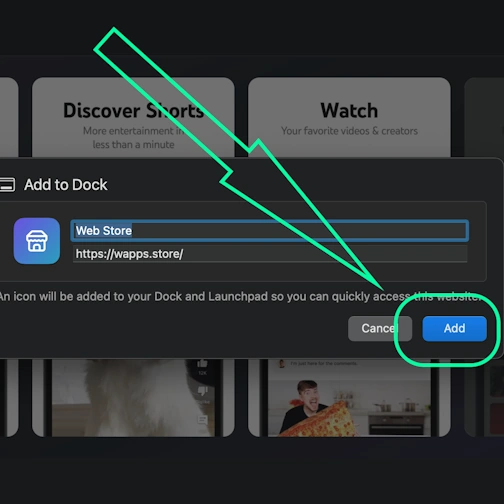
Step 3 for Safari on macOS
Yandex - iOS
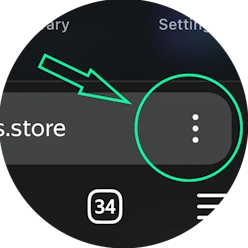
Open the browser menu - three dots in the bottom right corner, next to the site address
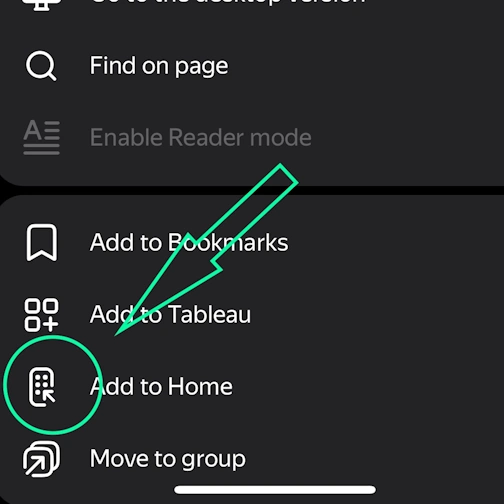
Tap the 'Add to Home' button
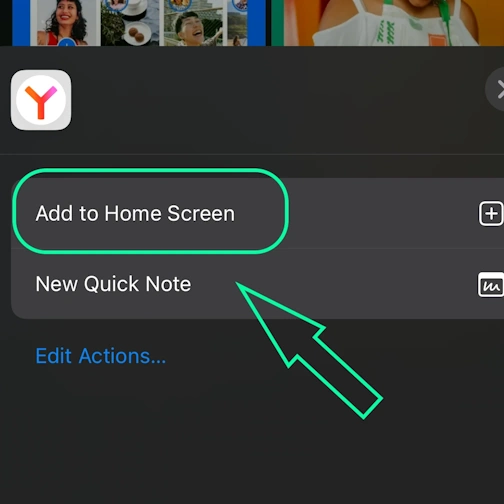
Here select the option: Add to Home Screen
And here tap the 'Add' button. And the App will appear on your iPhone's home screen
Yandex - Android
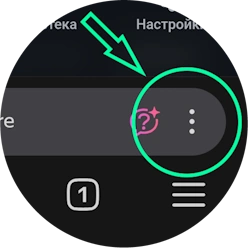
Open the browser menu - three dots in the bottom right corner, next to the site address
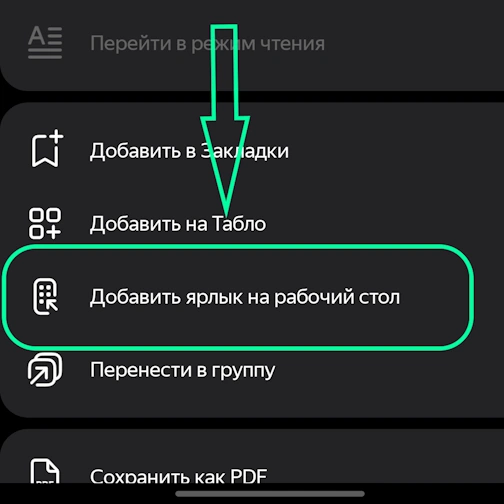
Select the option 'Add to Home Screen'
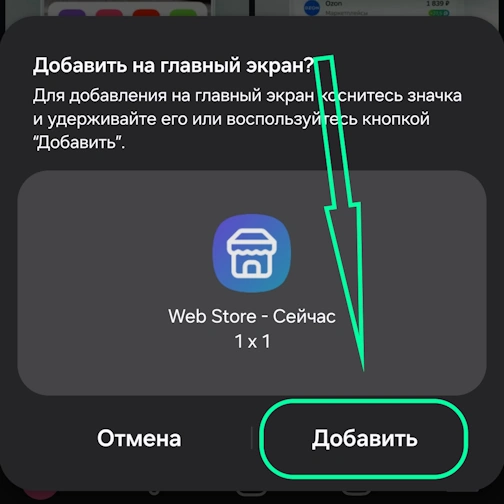
And here tap the 'Add' button - and the app will appear on your home screen
Yandex - Desktop
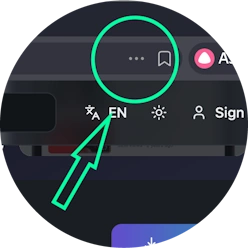
Open the 'Actions menu' - three dots in the top right corner - next to the site address
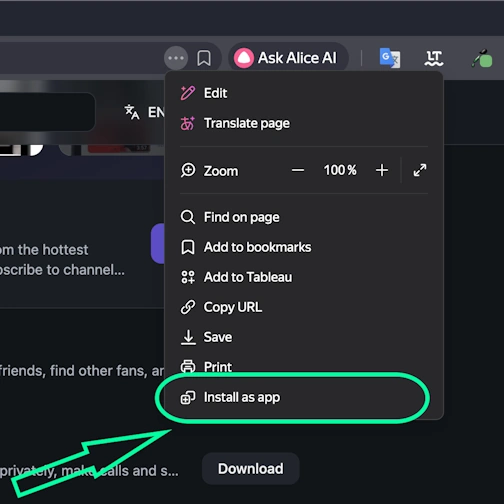
Select the option 'Install as app'
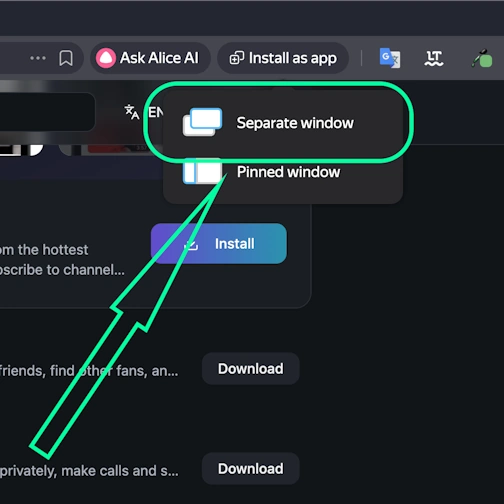
And here select 'Separate window'
Edge - Desktop
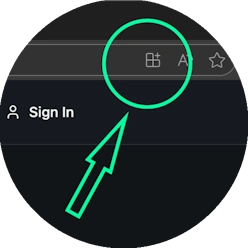
Click the 'Install app' button - icon: 3 blocks with plus sign
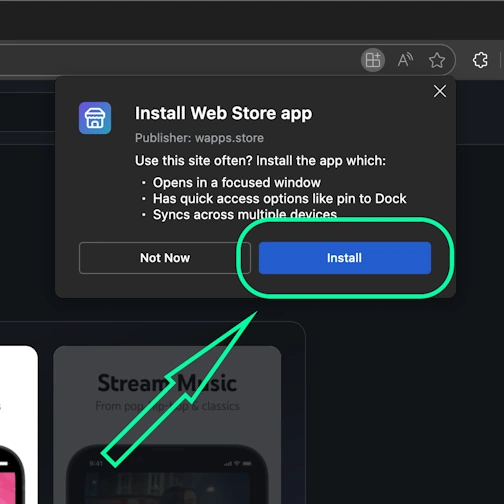
Confirm installation by clicking 'Install'
Edge - Android
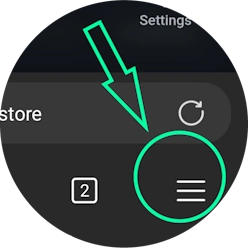
Open the browser menu - 'burger' icon in the bottom right corner, next to the site address
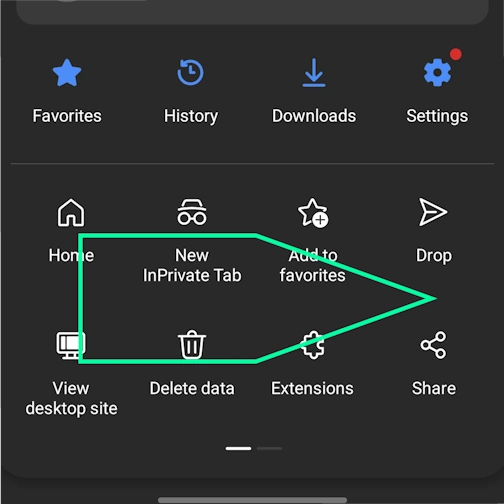
Swipe the menu icons to the right
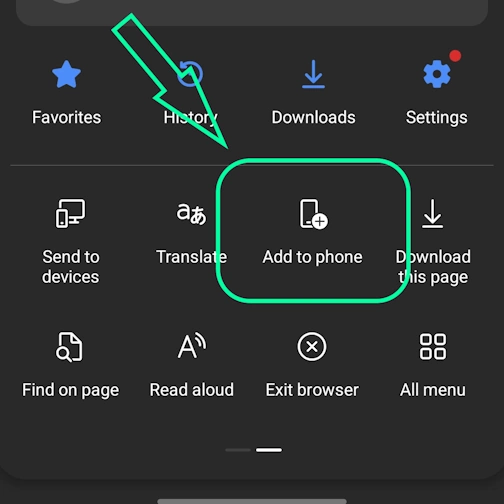
Select the option 'Add to phone'
And here confirm the installation - tap 'Install'
Opera - iOS
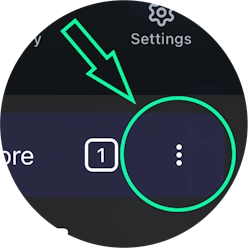
Open the browser menu (Opera icon in the bottom right corner) and find 'Add to Home Screen'
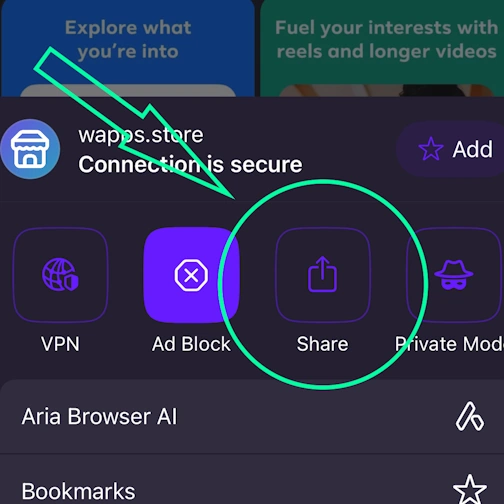
Here tap the Share button
Select the option: Add to Home Screen
And here tap the 'Add' button. And the App will appear on your iPhone's home screen
Opera - Android
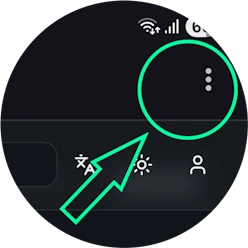
Open the browser menu - 'Three dots' in the top right corner
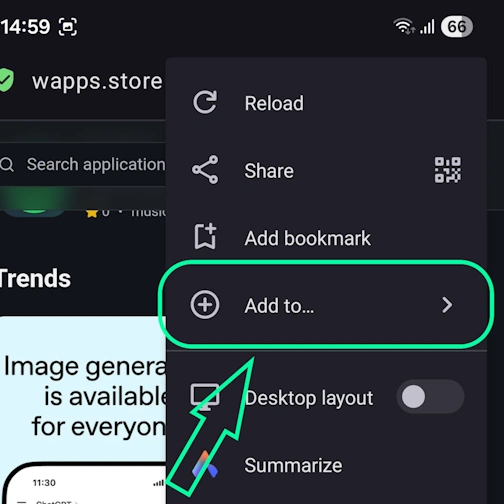
Select the option 'Add to...'
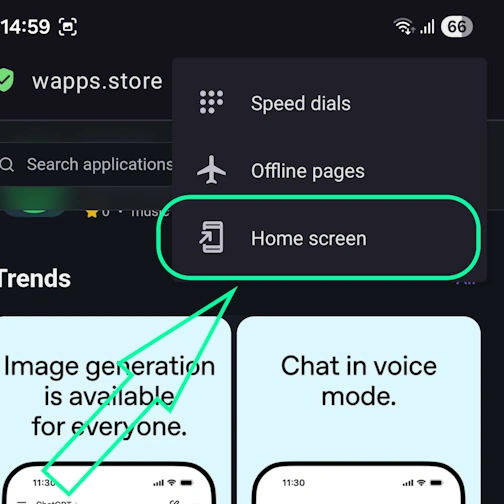
Here select the option 'Home Screen'
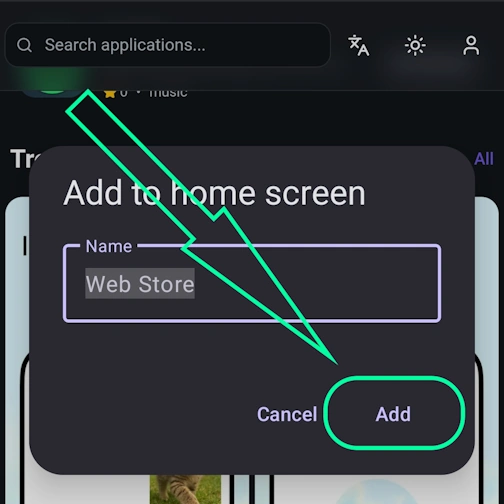
Tap the 'Add' button
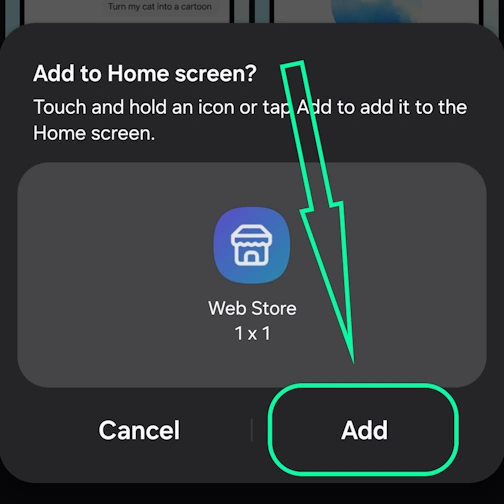
And here confirm - and tap 'Add' again - and the app will appear on your home screen
Samsung internet - Android
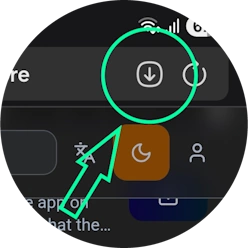
Tap the 'Install app' button - icon: square with arrow pointing down
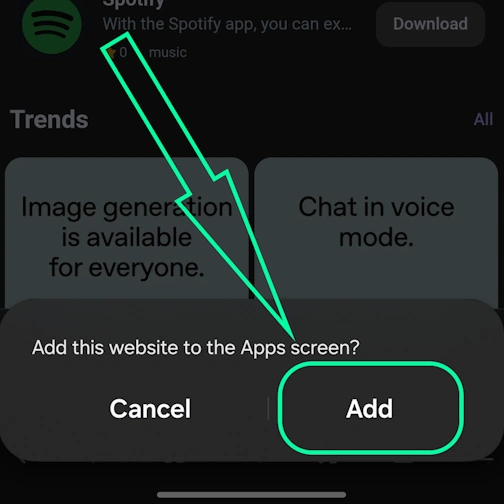
And tap the 'Add' button - and the app will appear on your home screen
Keywords: PWA app, Progressive Web App, install PWA, install PWA app, PWA web app, PWA mobile app, PWA browser app, installable web app, PWA installable web app, PWA without App Store, PWA without Google Play, PWA cross-platform app, PWA offline app, PWA push notifications, PWA for iOS and Android, Progressive Web App install, Progressive Web App offline, Progressive Web App browser, Progressive Web App installable, Progressive Web App web application, Progressive Web App mobile app, Progressive Web App without store, app works without internet, browser app as app, install app from browser, web-app app, install web app, install web-app on phone, web application install, fast PWA installation, instant PWA installation, install PWA quickly, easy PWA installation, simple PWA installation, step by step PWA installation, step-by-step PWA installation, PWA installation instructions, how to install PWA quickly, PWA installation guide, PWA installation manual, Ling, Master Thai, Serbian, Khmer, and Tagalog, education